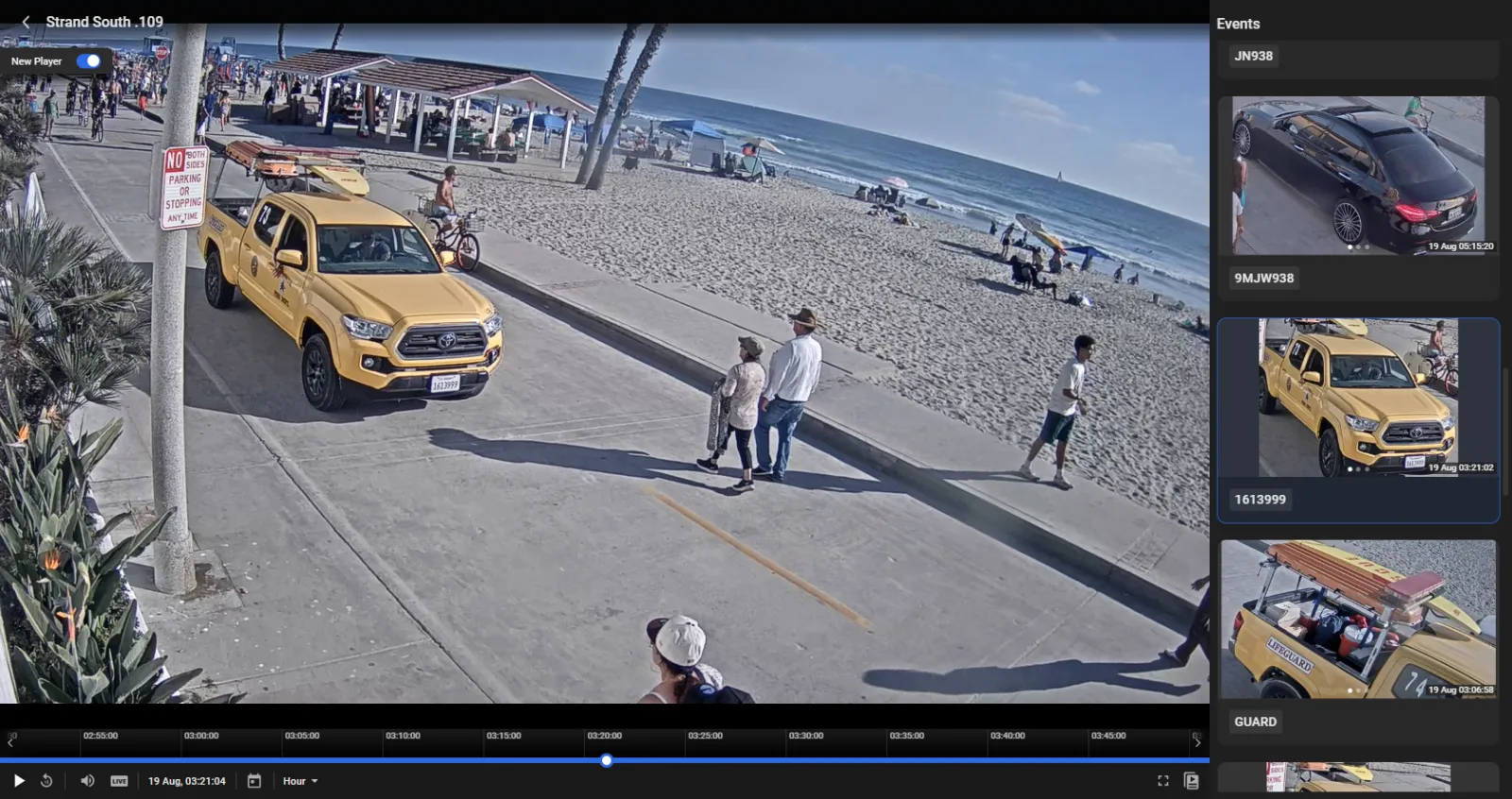
How to Find a Yellow Toyota
During a post-incident investigation (Case #XYZ), information suggests that the suspect may have driven a yellow Toyota along The Strand North yesterday between 10:00 AM and 11:00 AM. The next step is to determine:
- Whether this is true—in other words, can IREX data corroborate the claim?
- If so, where exactly and at what time was the vehicle detected?
- And, if available, what was the Toyota’s license plate number?
Relevant information may or may not exist in the IREX video archive. If it does, the workflow below retrieves it. If it does not, that does not necessarily disprove the hypothesis—it may simply mean that IREX cameras did not capture the vehicle at that place and time.
Use the following workflow:
- Check whether there are IREX cameras at Strand North that have CarTrack video analytics modules enabled and configured to recognize license plates, vehicle color, and make.
- If the answer to 1 is "Yes", IREX can help validate the hypothesis. Next, submit a query to IREX for any yellow Toyota detections on those cameras yesterday between 10:00 AM and 11:00 AM. If matches exist, IREX returns a list of events.
- Review the Events returned in response to the query.
- Based on the results, decide how to proceed with the investigation.
Learn more about how to set up CarTrack Pro for plate, color, and car make recognition.
Locate the Cameras
On the Cameras screen, locate The Strand North on the map and select CarTrack Pro under Video Analytics. This view shows that there are two cameras at Strand North that could potentially have captured the Toyota of interest.
.webp)
Filter Events on the Cameras
- Click Go to Events as shown. This opens the Events screen, ready to display events from those two cameras after additional filters narrow the results.
- Select "Vehicles" from the dropdown menu on the left.
- Under Date and Time, set the time range to "Yesterday 10:00 AM – 11:00 AM", then click Apply.
- Under Features, select "Yellow", then click Apply.
- Under Brand, select "Toyota", then click Apply.
- Click Search.
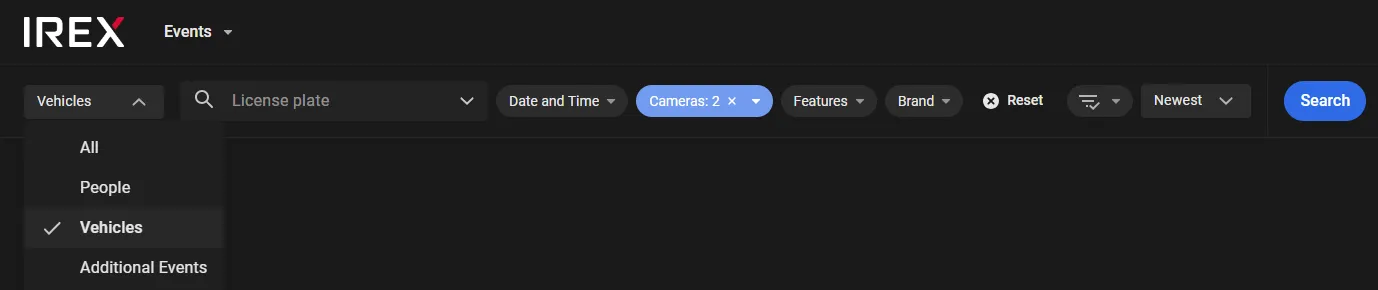
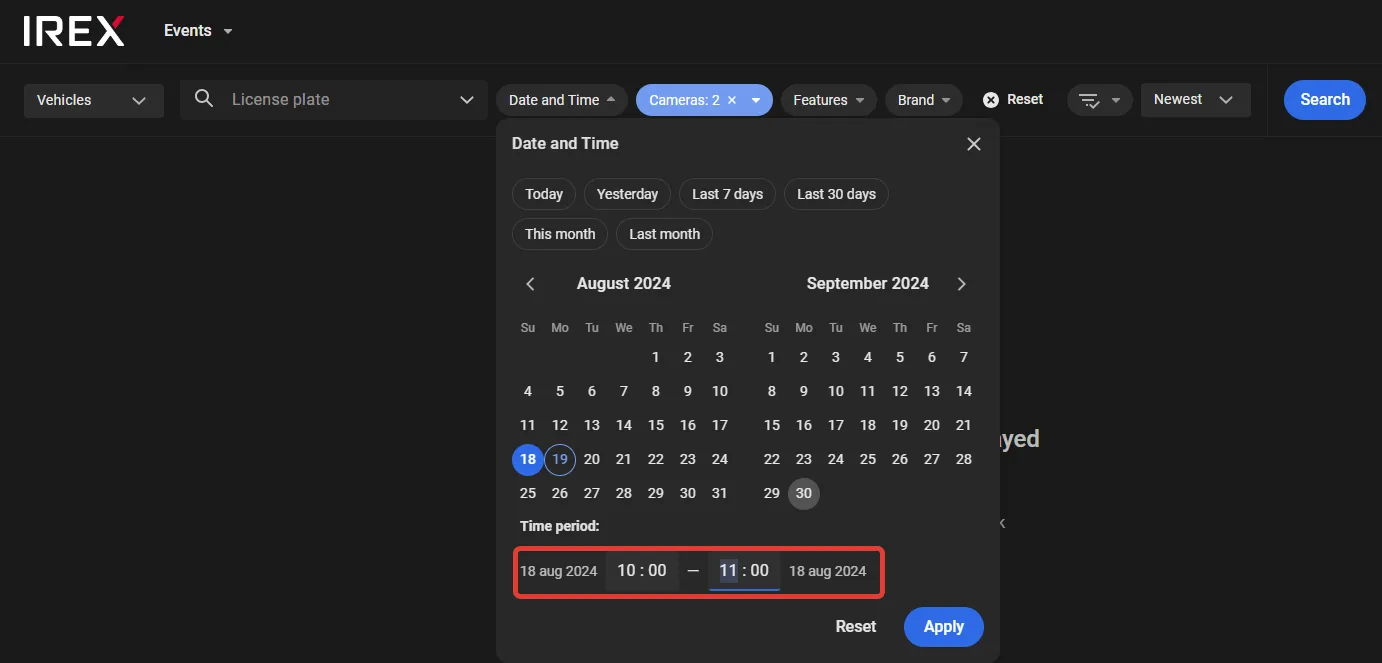
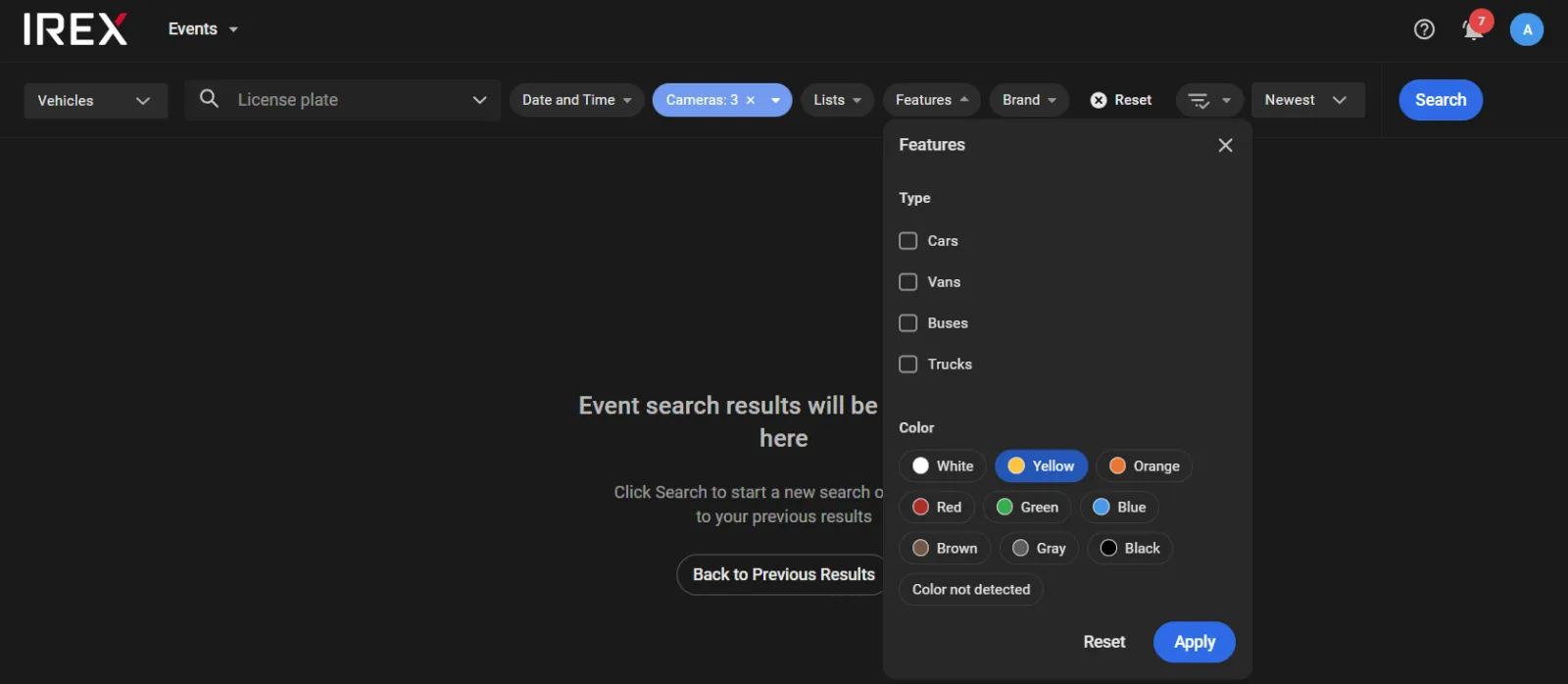
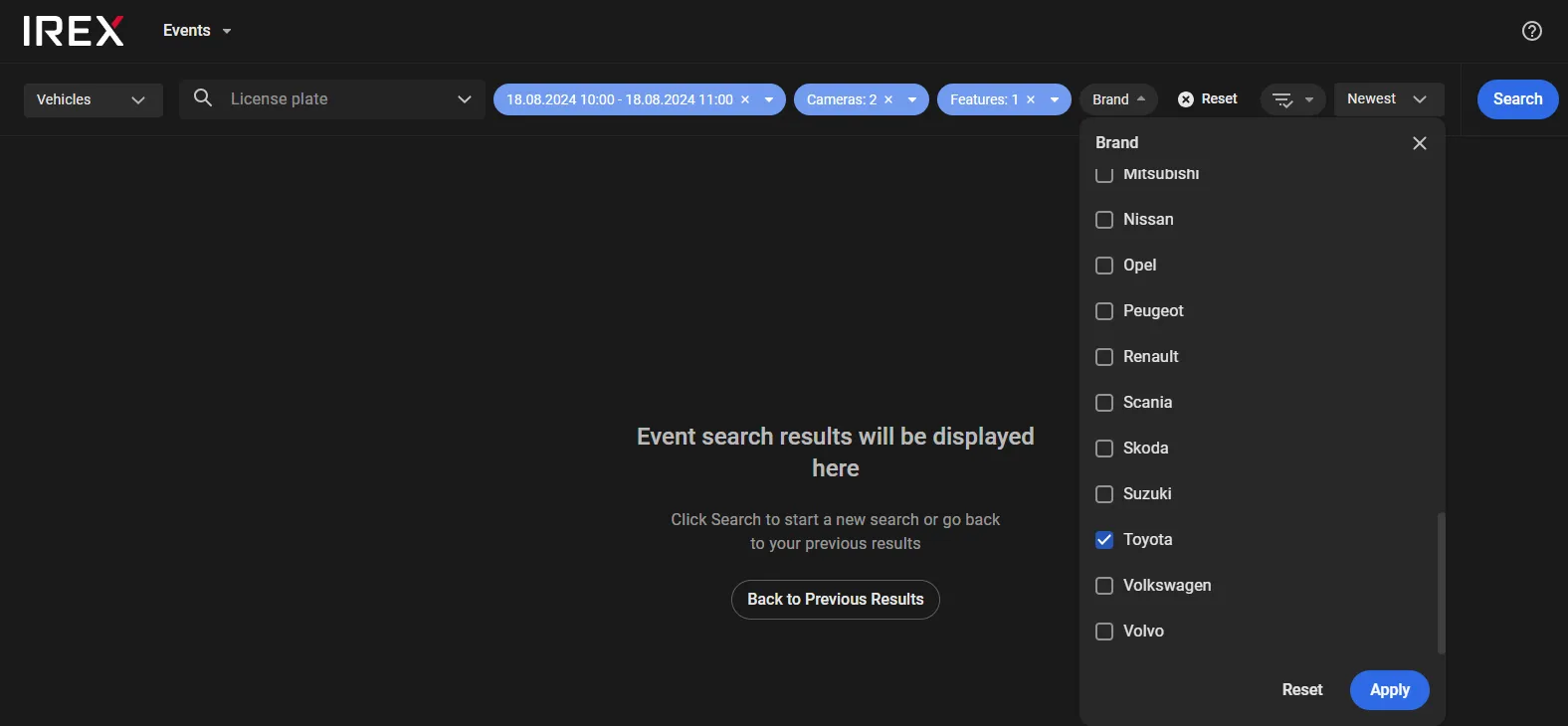
IREX returns a list of events that match the search criteria (if any).
Review the Events
Search results may be empty. This does not disprove the hypothesis; it only indicates that the two IREX cameras did not detect a yellow Toyota at that location during the specified time window. If events are returned, the answer to the first question is "Yes".
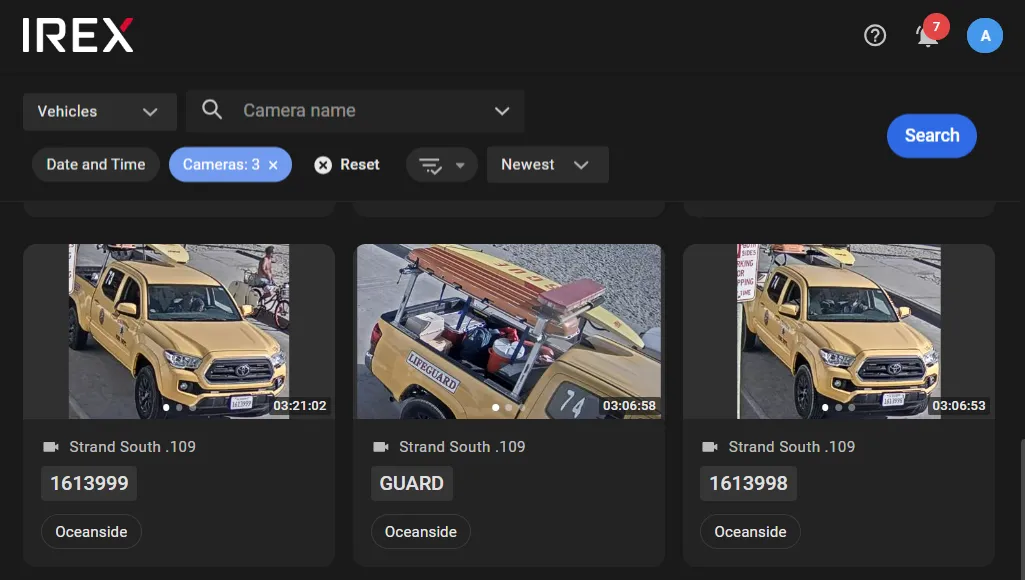
Each event card provides additional details to support the analysis.
.webp)
Review the following:
- The event timestamp
- The precise location
- 3 The plate number of interest.
Together, items 1 and 2 answer the second question.
Use the left/right arrow buttons to cycle through the available snapshots for the event.
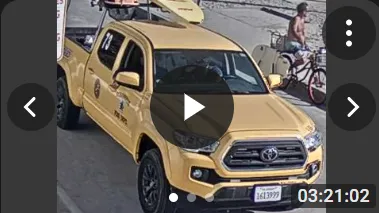
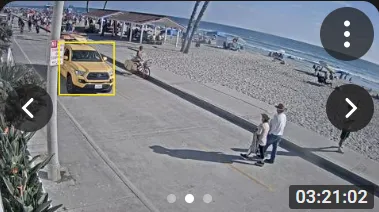
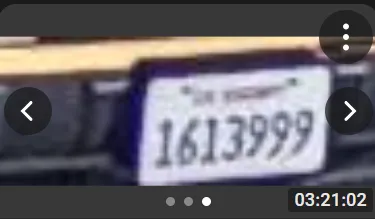
Click any snapshot to open the event details panel on the right. From there, review:
- The event name ("No match" in this example), which indicates that the Toyota does not exist in the system vehicle database yet. Click Add to database to create a new vehicle entry.
- The Toyota may have been detected at other locations that could be relevant to the investigation. Click Build route to visualize the vehicle’s detections on the map. Note that this is not the vehicle’s actual route; it is a segmented line connecting detected locations in chronological order.
- Under Additional parameters, review the vehicle features detected by CarTrack Pro (vehicle type, color, and make in this example).
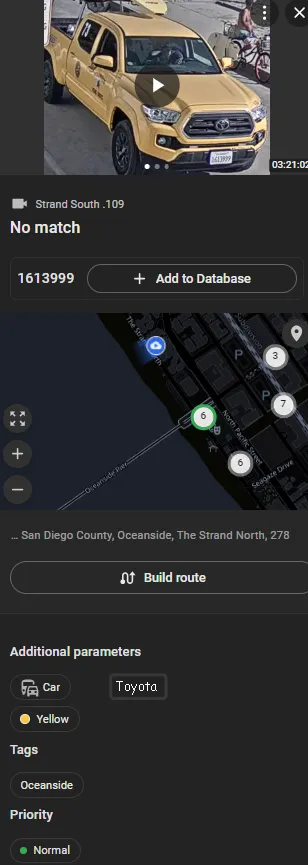
Click the center of a snapshot to open event playback in the video player (for example, to take a closer look at the driver). The IREX player functions similarly to other common web-based video players.