Upload a Video to Investigate
This example explains how to analyze an external video file (for example, recorded on a mobile device) using IREX video analytics.
- On the Gallery screen, open the Uploads tab and click the “+” icon in the bottom-right corner. The Uploading a video form opens.
- Click Add file to select the local video file. Enter a video name, update the default recording date and time if needed, then click Upload.
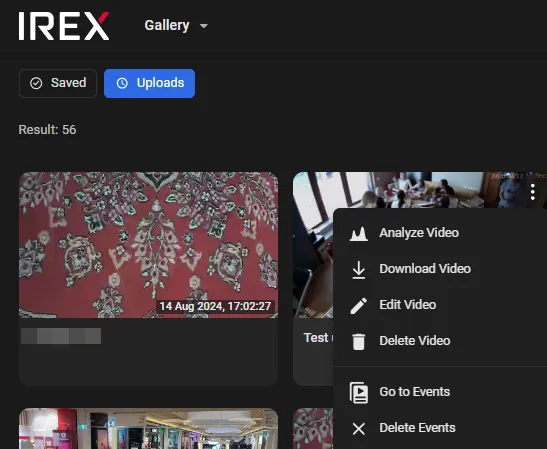
- When the upload is complete, open the three-dot menu and run Analyze video to configure video analytics for the uploaded video and start processing.
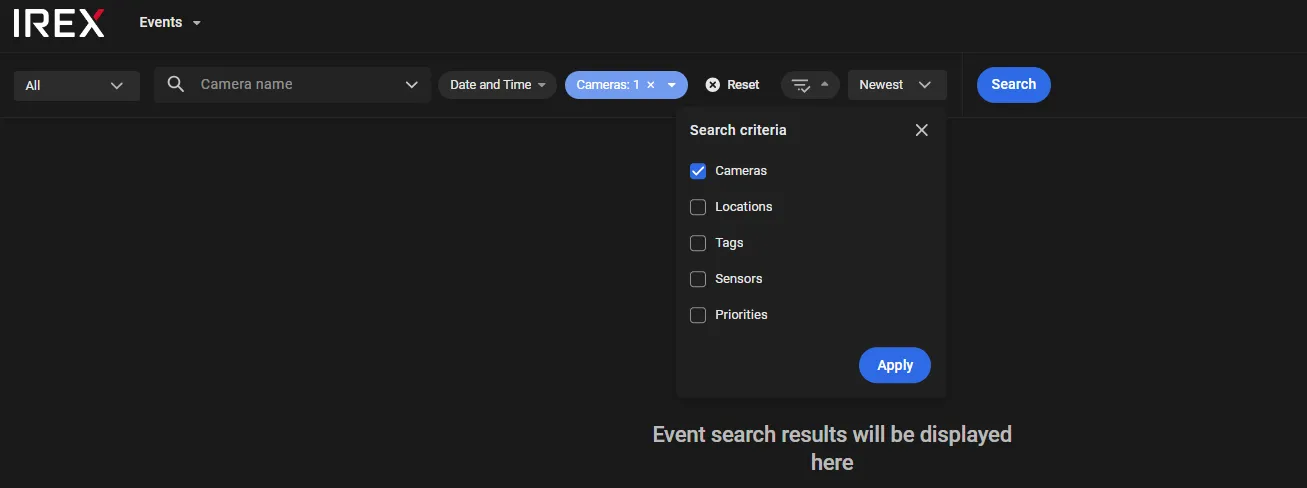
- After analysis completes, click Go to events to open the Events screen. Configure event filters (similar to the previous examples), then review the results.
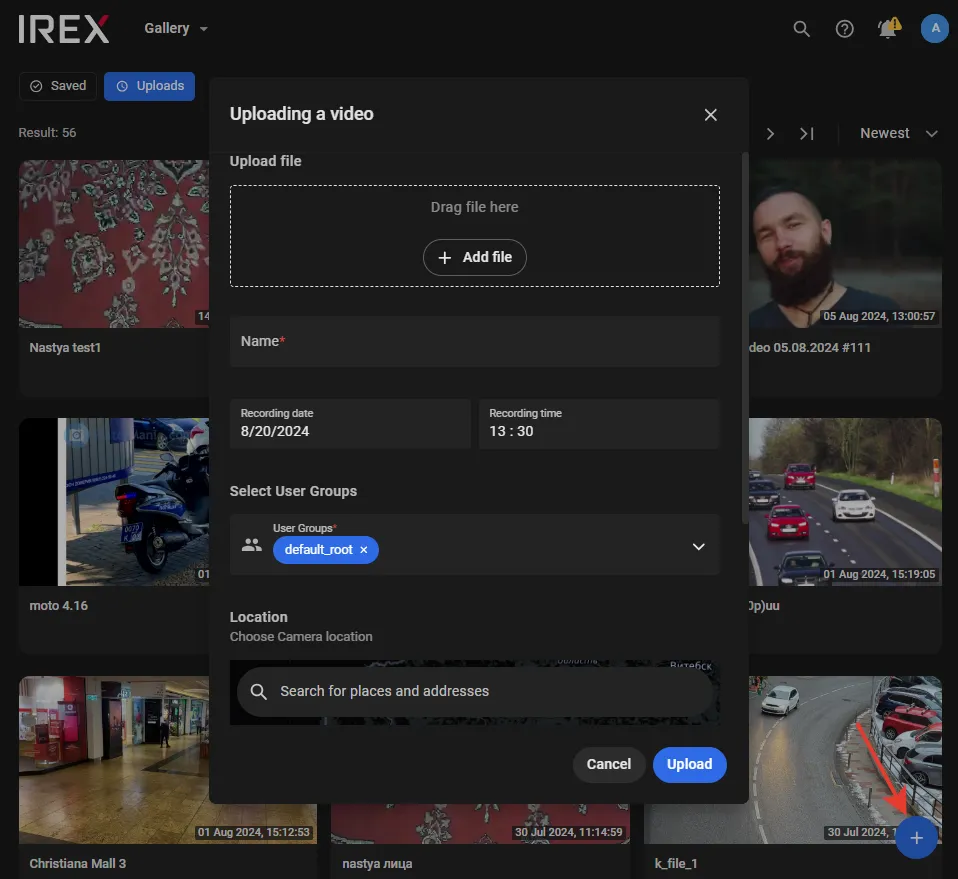
A video card appears with a progress indicator. Upload time can vary depending on file size and network speed.