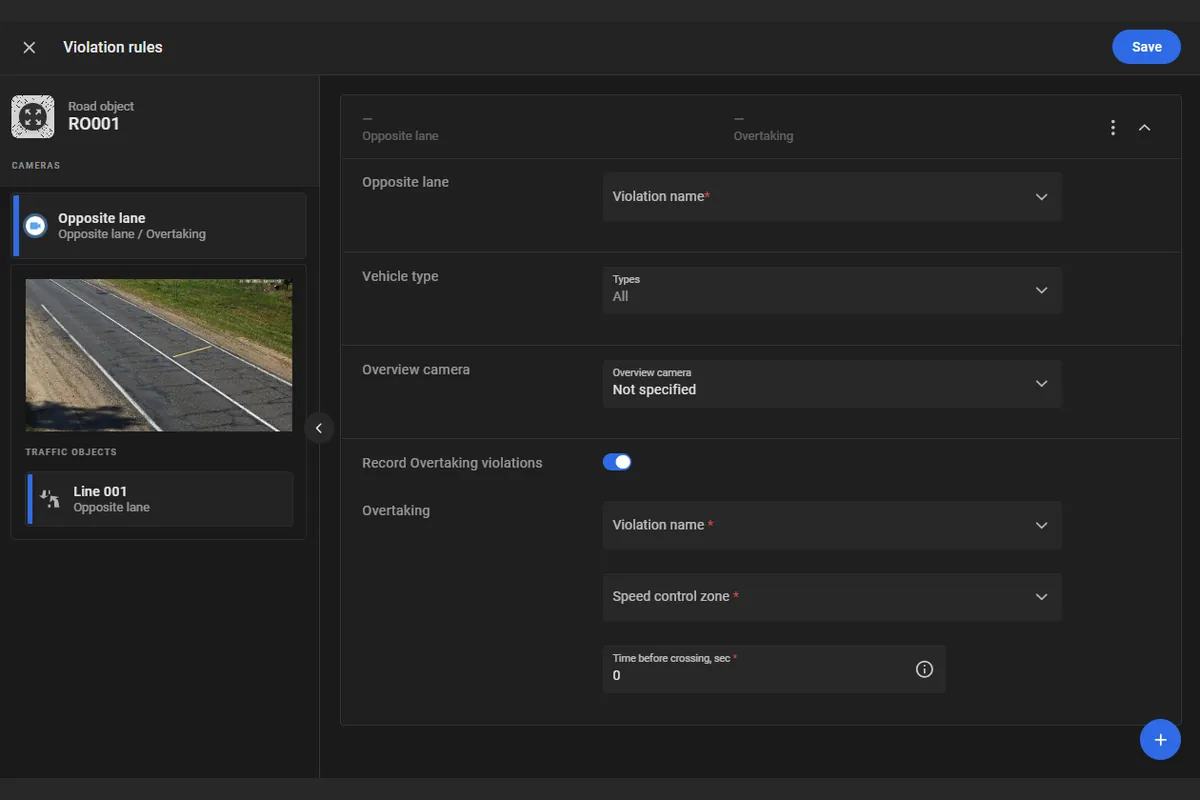
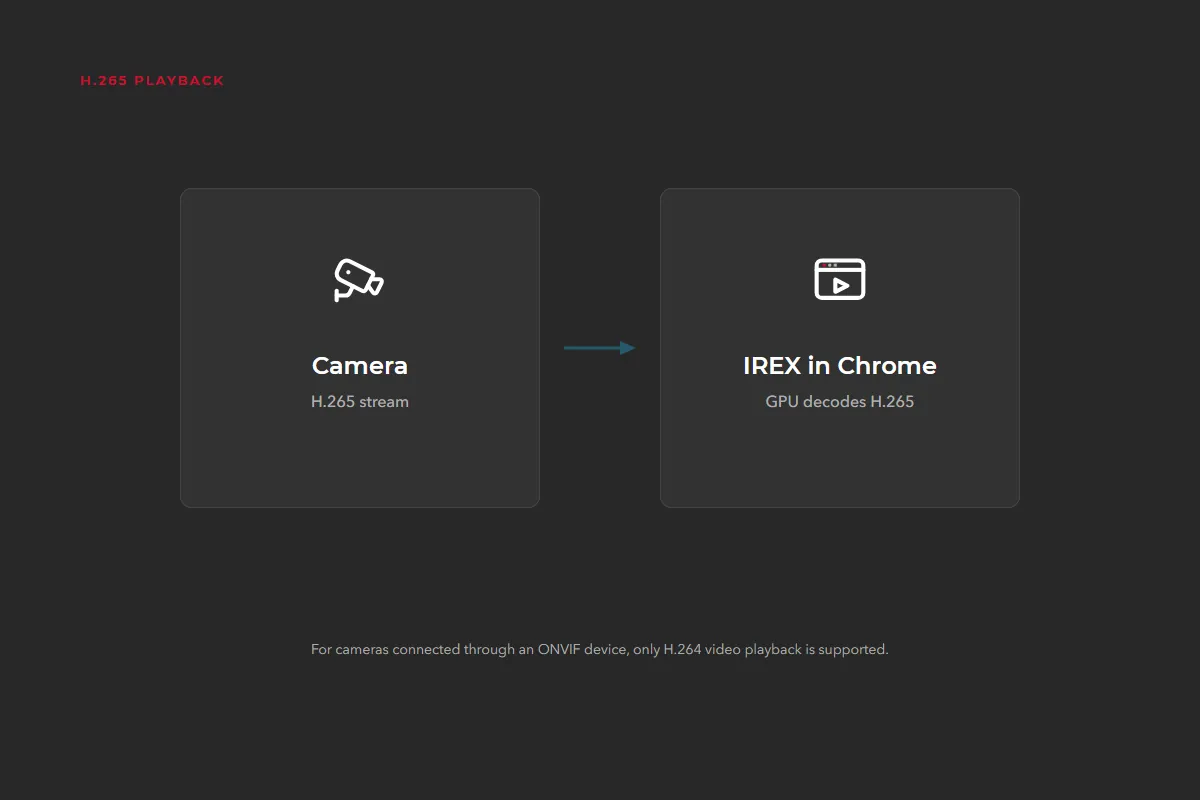
This release adds resource groups for user-group access, capture of Overtaking traffic violations, expanded Alarm Monitor filters, playback of archive stored on ONVIF cameras, and H.265 playback.
New feature
Resource Groups for User-Group Access
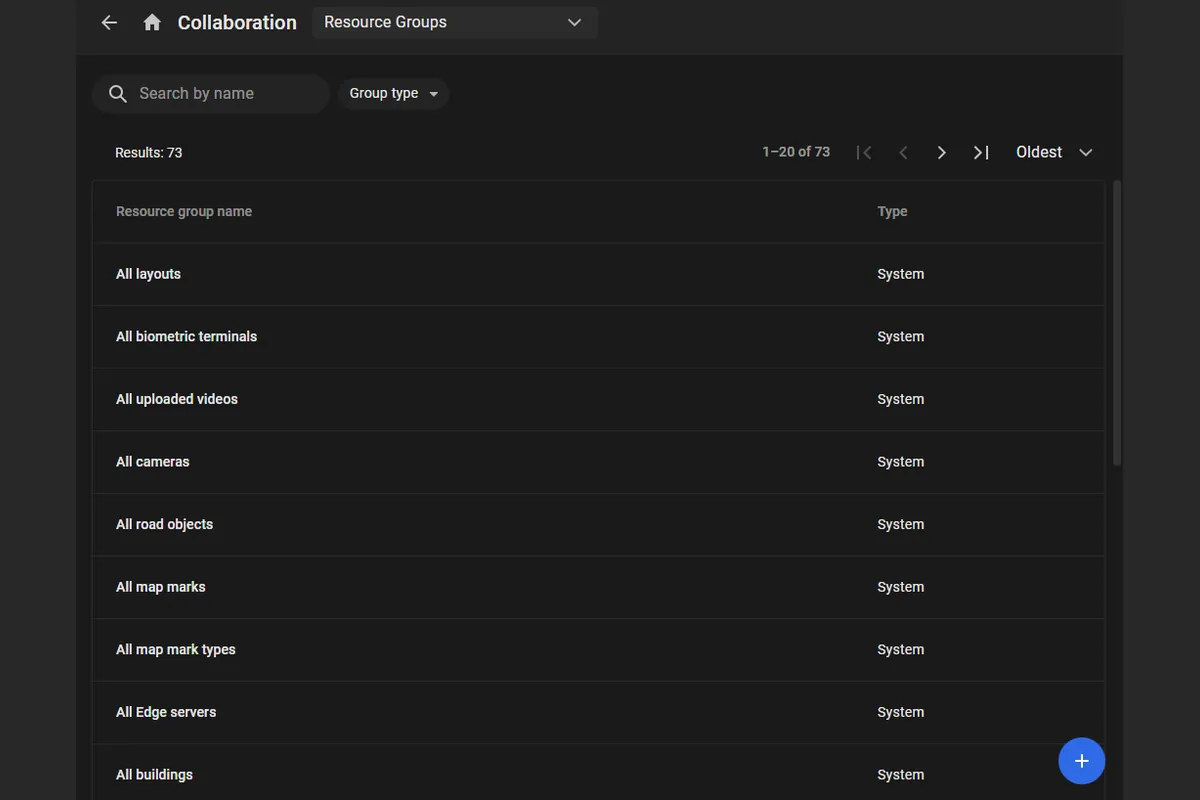
A resource group collects resources of different types so one or more user groups can be granted access in one place, instead of assigning those resources in each user group separately.
The user menu includes a Collaboration section that contains the Resource Groups page. Video sources can be filtered by resource group on the Cameras, Events, and Plans pages, and in Alarm Monitor filter settings.
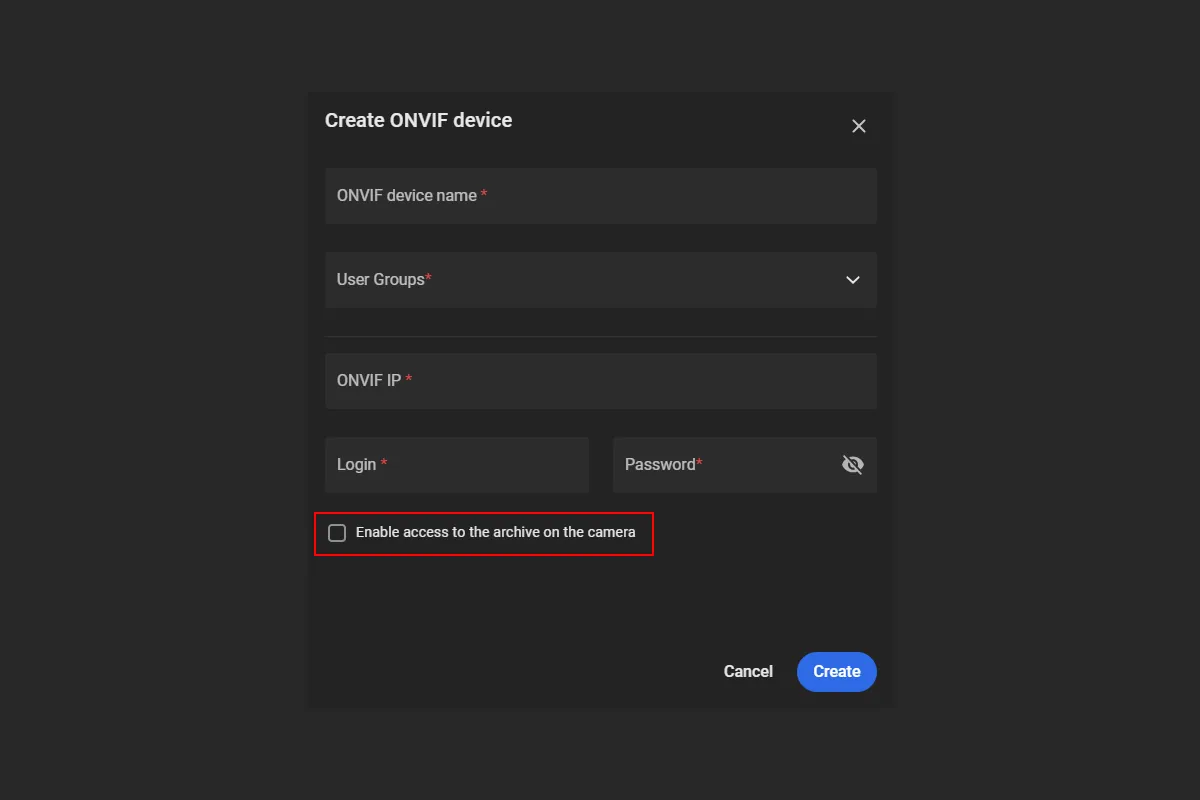
For cameras connected through ONVIF devices, the platform can play back the archive stored on the camera.
This is enabled with Enable access to the archive on the camera in the forms for creating and editing an ONVIF device. In the player, Video source switches between Server and Camera archive. Cameras added with Use only for viewing archive on the camera are created disabled, but they keep access to the archive on the camera.
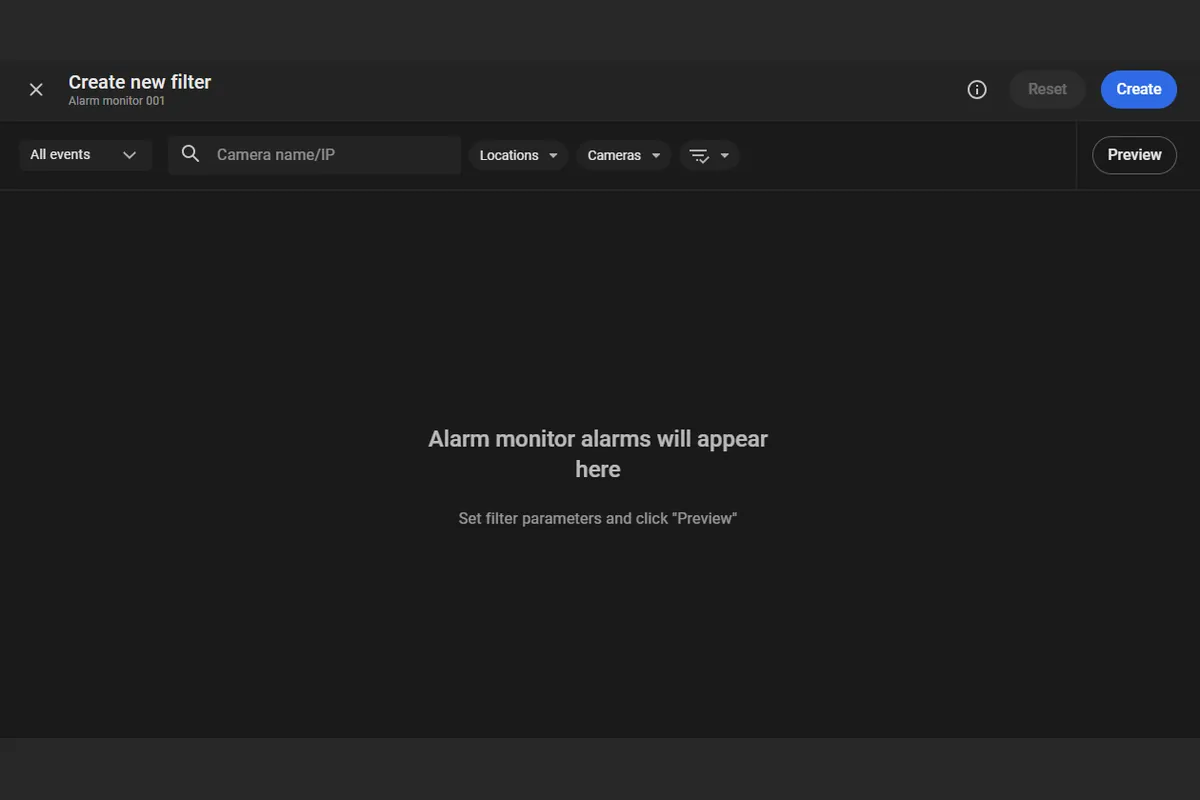
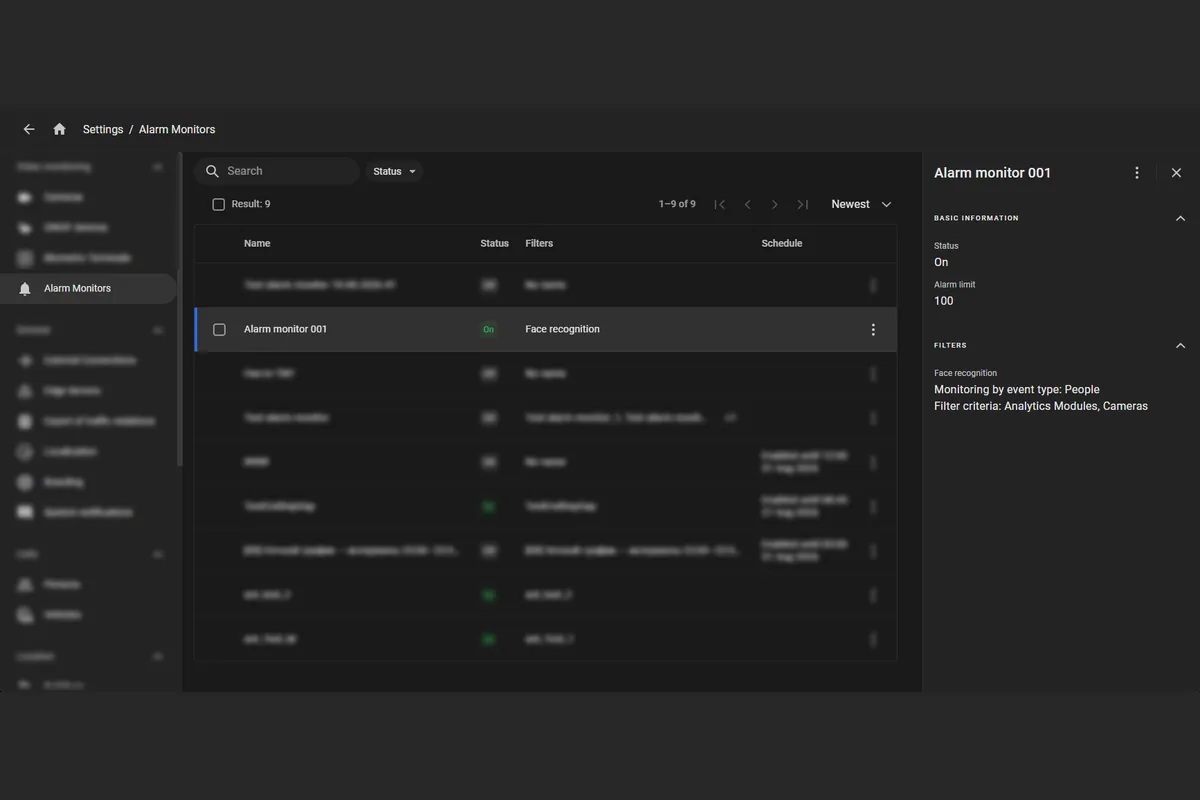
Multiple filters can be added to one Alarm Monitor. Each filter has its own name and set of criteria.
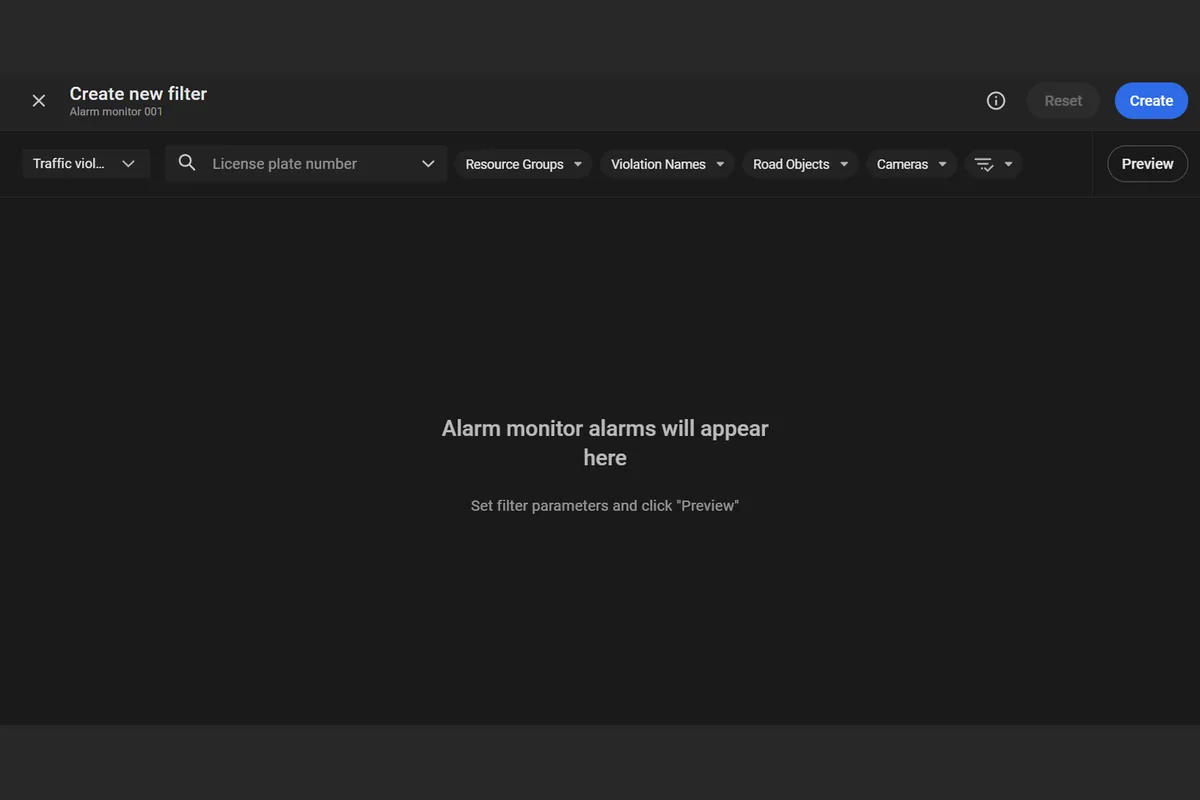
Filter criteria can be checked with Preview before the filter is applied, to see which alarms will appear on the monitor and at what rate. A monitor can have up to 8 filters. An alarm appears on the monitor if it matches at least one of those filters.
Traffic Violations Category in Alarm Monitor Filters
A Traffic violations category was added to Alarm Monitor filter settings.
Filters in this category send traffic-violation alarms to the monitor, separate from other video analytics events. These filters can't be combined with filters for other event types on the same monitor.
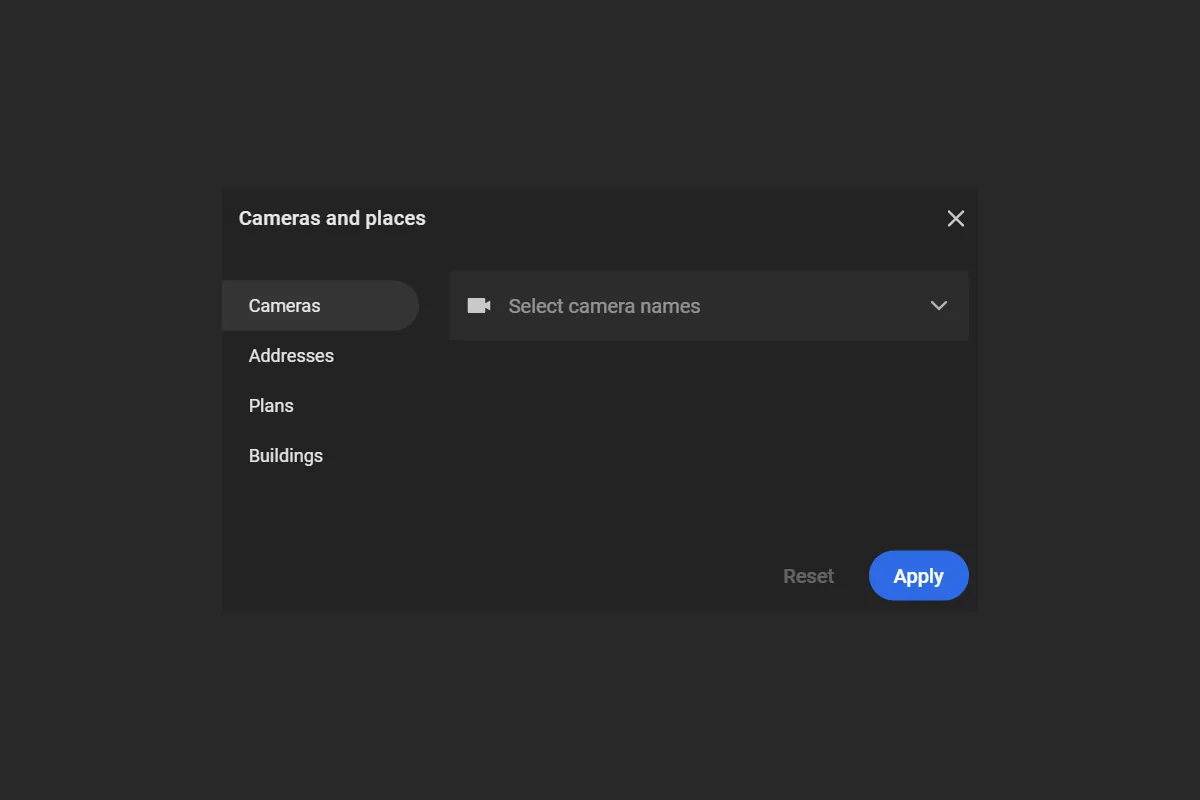
The Cameras and places filter has an Addresses tab for searching cameras by address.
The separate Locations filter was removed, and the Locations tab was removed from the Settings page. On the Logbook page, additional filters still include a Locations tab, so earlier logbook entries for actions on locations can still be searched.
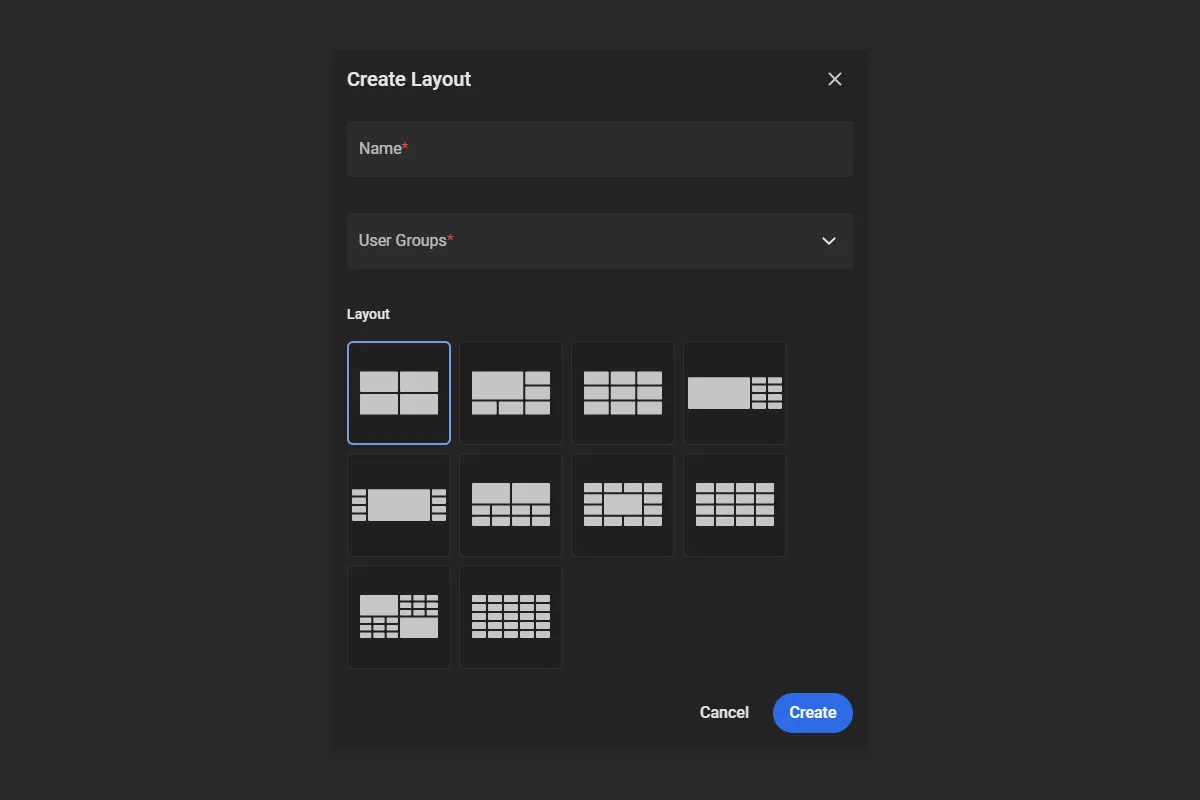
Access is set in the required User Groups field when a layout is created, and on the Layouts tab of the User Groups and Resource Groups pages. Access to existing layouts was granted to the user groups that the layout creator belongs to.
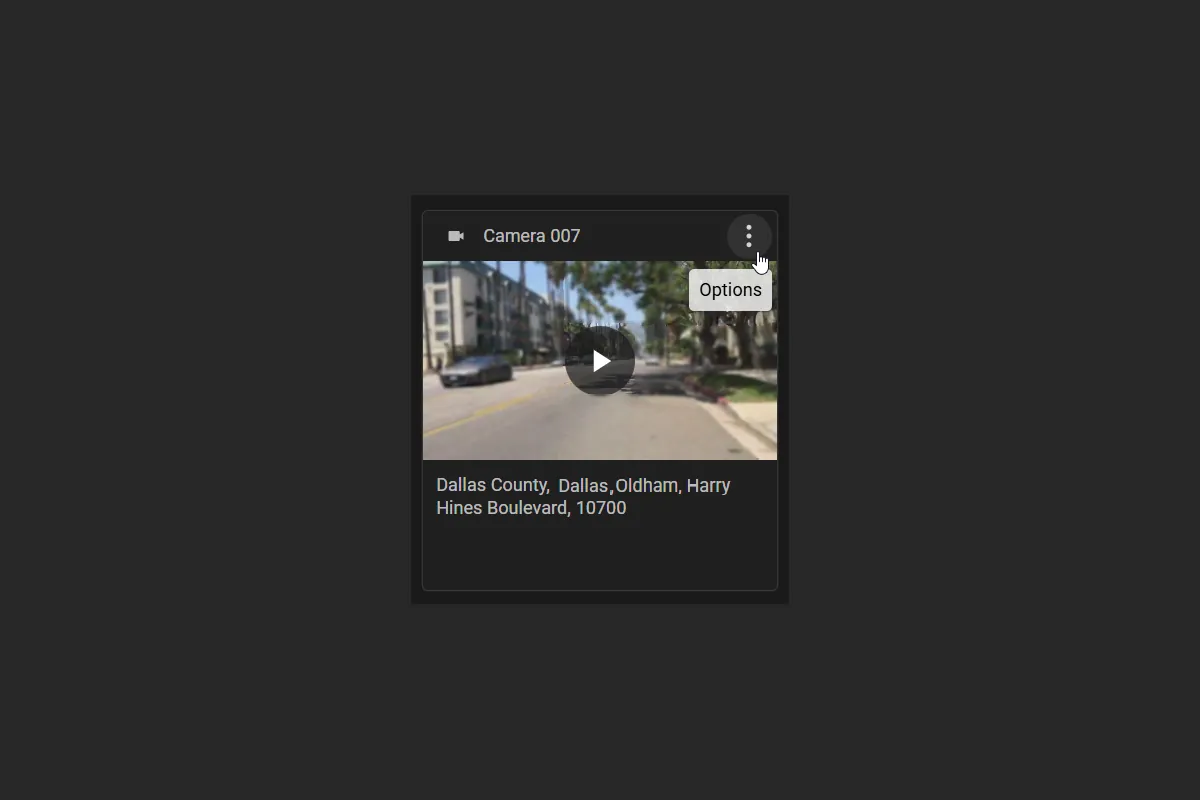
On the Cameras page, in Show Cards mode, the camera-card layout was improved.
The camera name and status icon were moved into the card header. For cameras with the Disabled and Signal lost statuses, separate default system images appear in place of the video frame. Hovering over the status icon shows the camera status, including the issue type when the status is Video issues.
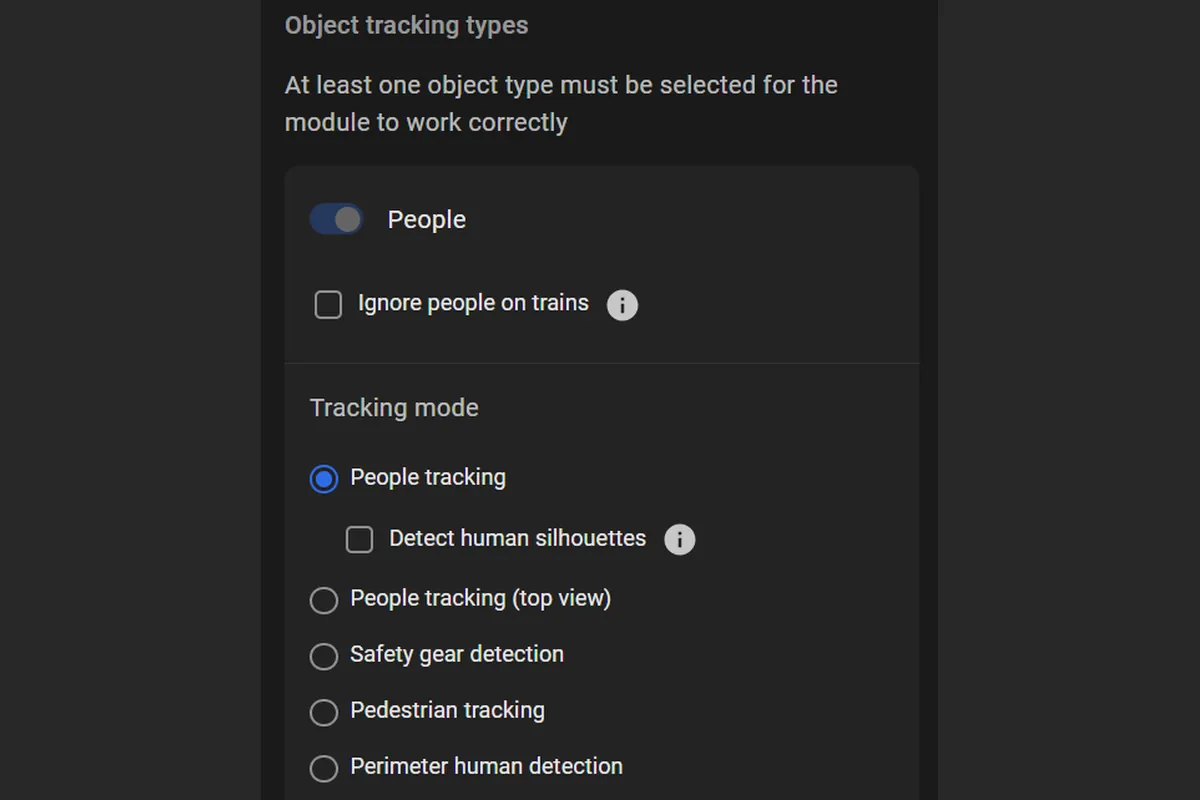
In ObjectTrack Pro, settings for different tracked objects were redesigned.
The View and Object type parameters were replaced with the Object tracking types block. The People, Vehicles, and Abandoned items object types are turned on separately, each with its own settings. For People, tracking modes include People tracking, People tracking (top view), Safety gear detection, Pedestrian tracking, and Perimeter human detection. The Perimeter human detection mode captures people at a secured site. This includes people during unusual movement such as crawling or rolling.
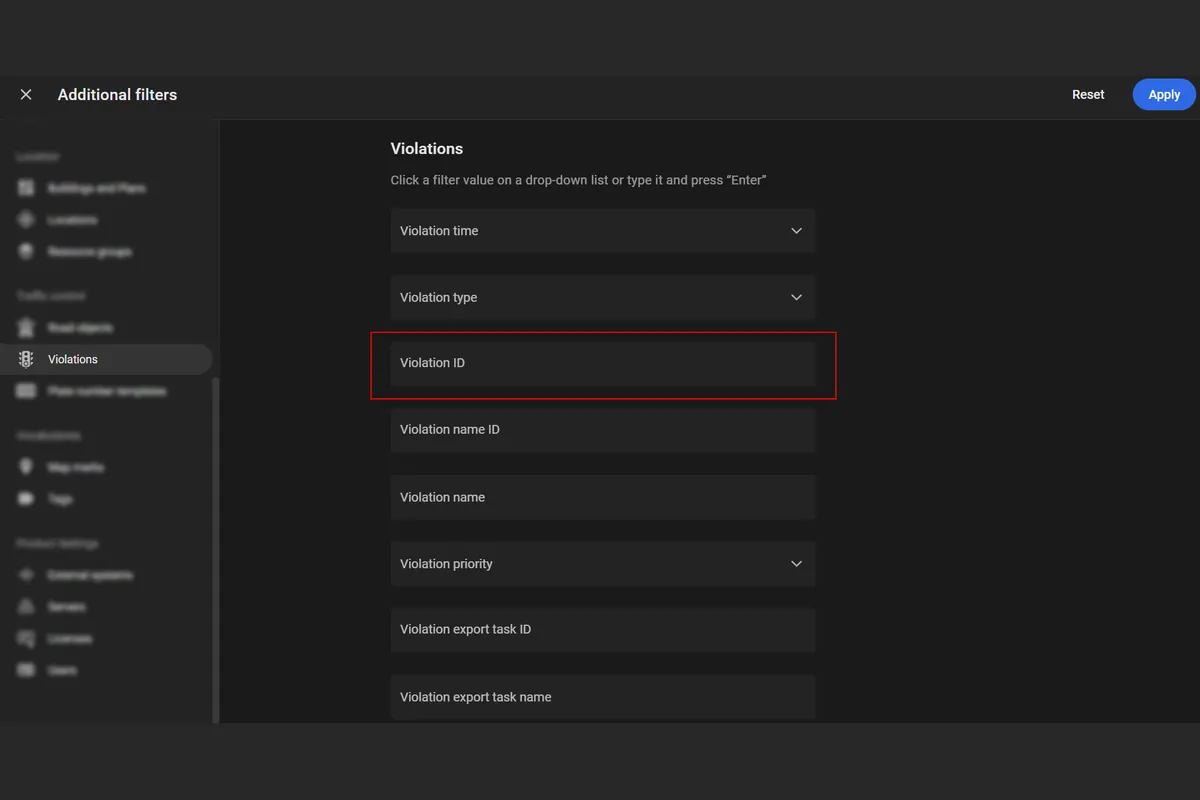
The Violations tab of Additional filters now includes the Violation ID parameter.
It finds Logbook entries by a specified violation identifier. Results include Search for traffic violation entries when that ID was used on the Traffic violations page, and Search in logbook entries when that ID was used in Additional filters.
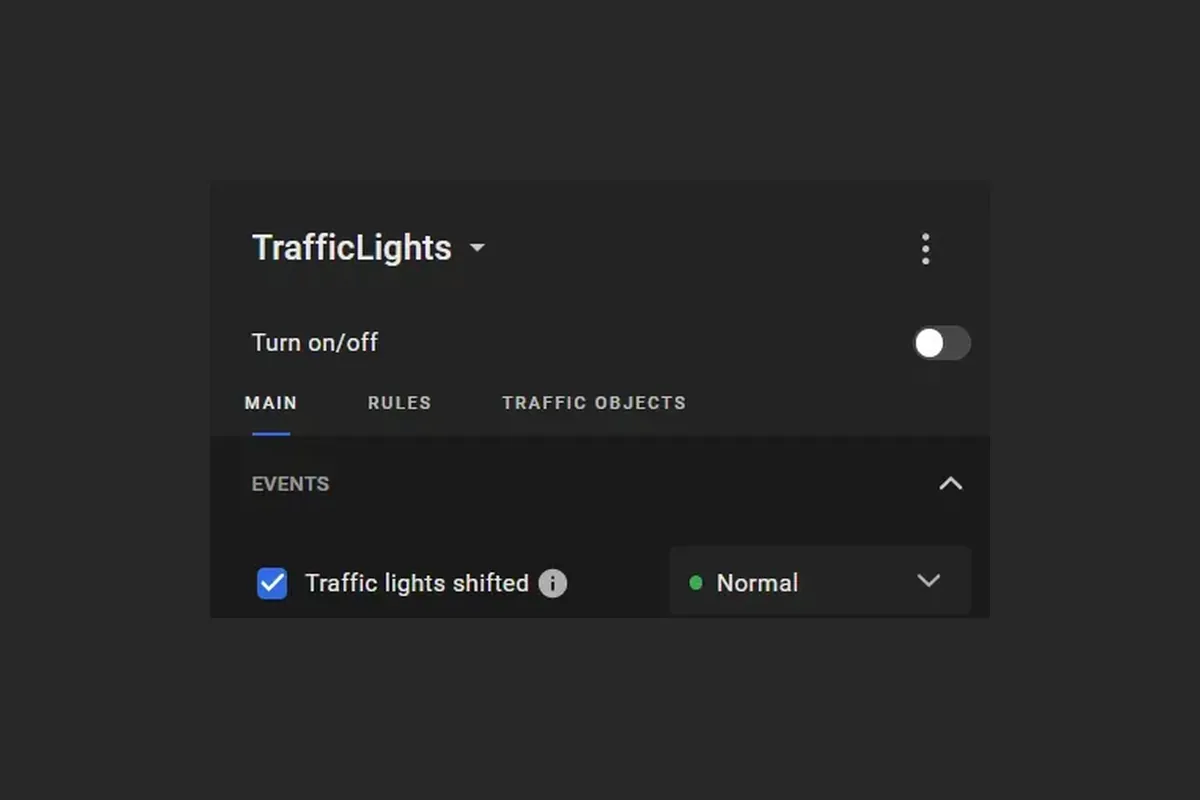
In the TrafficLights module, the logic for detecting a shifted traffic light was improved.
With Traffic lights shifted turned on, the platform tracks the actual position of the traffic light sections and keeps recognizing signals. A Traffic lights shifted event is generated if the sections shift by more than 70% of their size. Capturing that event does not stop the module. The Shift above … field was removed from the module settings.