IREXDocs
EN

Set Up Opposite Lane and Overtaking

Opposite Lane

An Opposite lane violation is captured when a vehicle enters the oncoming lane (the side of the roadway intended for the opposite flow) and moves toward that flow.

The platform determines this by analyzing video from a camera with an Opposite lane traffic object. The violation is captured when the vehicle crosses the Signal line of that object in the direction opposite to the arrows.

Opposite lane capture OPPOSITE LANE Oncoming lane The vehicle crosses the Signal line against the allowed direction Same direction

When Record Overtaking violations is also on, an Opposite lane violation is captured if the vehicle crosses that Signal line in the direction opposite to the arrows and, during the configured interval, the linked Speed control zone has no other vehicle traveling above the Speed limit.

Opposite lane capture when Record Overtaking violations is on OPPOSITE LANE Oncoming lane The vehicle crosses the Signal line against the allowed direction Same direction The vehicle's speed is below the Speed limit A B C D

To set up capture of this violation:

  1. Add a violation name of type Opposite lane.
  2. On the camera, in the CarTrack Pro module settings, add an Opposite lane traffic object.
  3. Create a road object.
  4. Bind the camera to the road object. Set Camera Type to Opposite lane / Overtaking. To receive extra frames of the violation, also bind an overview camera and set its type to Overview.
  5. Set the violation control rules.
  6. Turn on Opposite lane / Overtaking when turning on control on the road object.

Overtaking

An Overtaking violation is captured when a vehicle enters the oncoming lane and, during the configured interval, another vehicle in the linked speed control zone is traveling above the Speed limit.

The platform determines this by analyzing video from cameras with Opposite lane and Speed control zone traffic objects. An Overtaking violation is captured when Record Overtaking violations is on in the Opposite lane control rule, the vehicle crosses the Signal line of the Opposite lane traffic object in the direction opposite to the arrows, and, during the configured interval, another vehicle in the linked Speed control zone is traveling above the Speed limit.

Overtaking capture OVERTAKING Oncoming lane The vehicle crosses the Signal line against the allowed direction Same direction The vehicle's speed is above the Speed limit A B C D

To set up capture of this violation:

  1. Add violation names of types Opposite lane and Overtaking.
  2. On the camera, in the CarTrack Pro module settings, add Opposite lane and Speed control zone traffic objects. Both objects can be on one camera or on different cameras.
  3. Create a road object.
  4. Bind the cameras to the road object. Set Camera Type to Opposite lane / Overtaking for cameras that have the Opposite lane and Speed control zone traffic objects. To receive extra frames of the violation, also bind an overview camera and set its type to Overview.
  5. Set the violation control rules. In the rule, turn on Record Overtaking violations.
  6. Turn on Opposite lane / Overtaking when turning on control on the road object.

Name the Violation

Violation names are used in the violation control rules and are shown on traffic violation events.

To add a violation name:

  1. In the User Menu, go to Settings > Violation names. The list of existing traffic violation names opens.
  2. Click + to open the Create new Violation name window.

    Create new Violation name window with Violation name, Description, Priority set to Normal, and Violation type set to Opposite lane

  3. Fill in the following:
    • Violation name: enter the name, for example Opposite lane on Route 9 or Overtaking on the bridge.
    • Description: optionally add a description.
    • Violation type: select Opposite lane or Overtaking. Several names can be created for each type. For overtaking capture, create one name of each type.
    • Priority: set Low, Normal, High, or Critical.
  4. Click Save.

The name then appears in the list and can be used in the violation control rules.

The Violation names list also includes edit and delete.

In the Edit Violation name window, Violation name and Priority can be changed. If the name is changed, new events for that violation use the updated name. Events already captured keep the previous name.

If an Opposite lane name that is used in an Opposite lane / Overtaking control rule is deleted, that rule is deleted. Capture of Opposite lane and Overtaking violations for that rule stops.

If an Overtaking name that is used in a control rule is deleted, the rule is kept and Record Overtaking violations is turned off. Capture of Opposite lane violations for that rule continues.

Bind Cameras to the Road Object

Cameras that watch the oncoming lane, find the overtaken vehicle, or provide an overview can be separate cameras or combined on one camera. Each camera must have CarTrack Pro turned on and the matching traffic objects configured before it is bound.

  1. Create a road object, or open an existing one under Settings > Road Objects.
  2. In the road object window, select the camera in the Camera list and, in its options, select Bind to road object.

    When an existing road object is opened:

    • If no cameras are bound yet, the list shows the fixed, PTZ, and thermal cameras available to the user.
    • If cameras are already bound, the list shows only those cameras. To show cameras available to the user, open the filter and select All.
  3. In the Bind camera to road object window, set the following:

    Bind camera to road object window with Camera Label, Cameras color, Camera Type including Opposite lane / Overtaking, and Bind

    • Camera Label: shown in the violation control rules. A label that matches the role of the camera is easier to recognize later.
    • Cameras color: used to tell cameras apart in the violation control rules.
    • Camera Type:
      • Opposite lane / Overtaking: camera that watches entry into the oncoming lane and, for overtaking, the overtaken vehicle. This camera must have an Opposite lane traffic object in CarTrack Pro and, for overtaking, a Speed control zone.
      • Overview: camera with an overview of the road object, used for extra frames of the violation.
  4. Click Bind.

Bound cameras appear in the camera list and on the diagram, where they can be moved to the installation location and given a field of view.

Options on a bound camera include the following:

  • Edit: change the camera label, color on the diagram, and type.
  • Set up video analytics: open the CarTrack Pro module settings for the camera.
  • Unbind from road object: remove the camera from the road object. If the camera was used in violation control rules, those settings are deleted.

If a camera is deleted from the platform, it is also removed from the road object, and the related settings are deleted.

Set Violation Control Rules

Before setting the rules, bind cameras that have CarTrack Pro configured to the road object.

On the road object page, or in the road object options under Settings > Road Objects, select Violation rules.

To set up capture of Opposite lane and Overtaking violations:

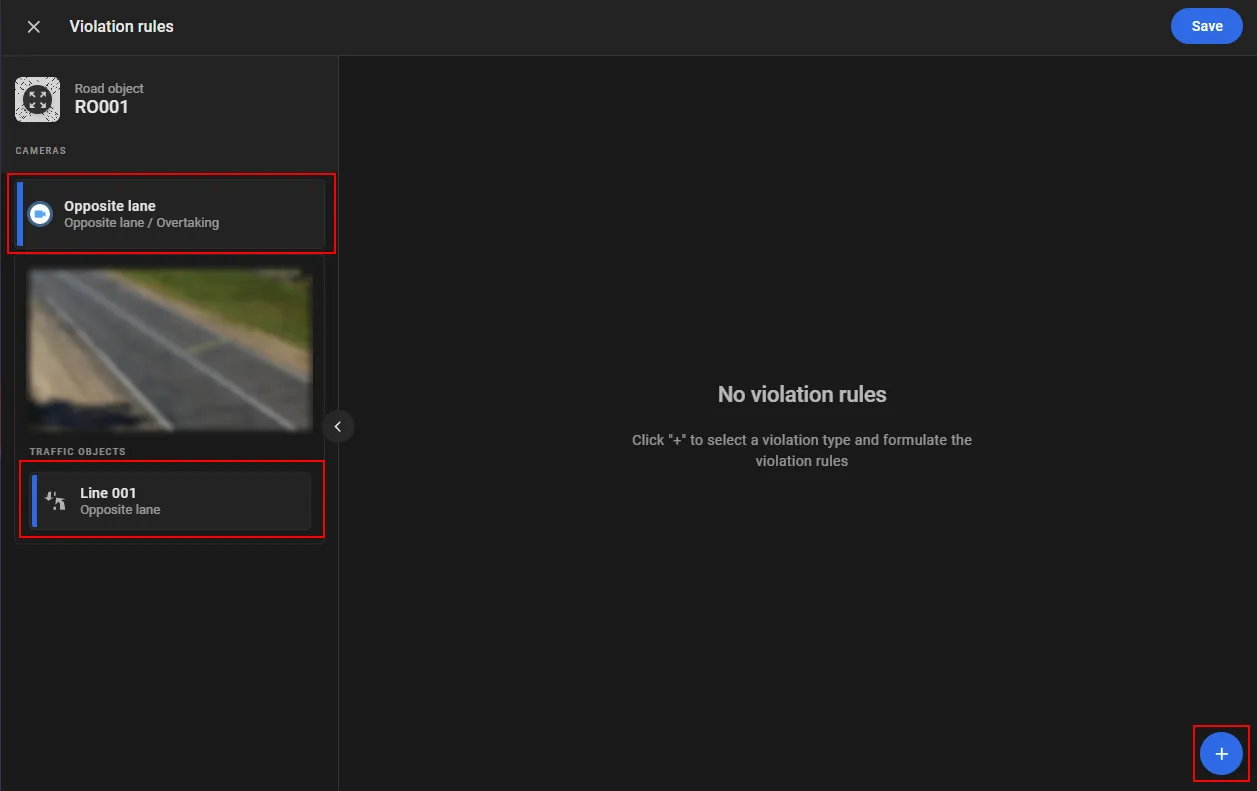
  1. In the camera list, select a camera that has an Opposite lane traffic object configured in the CarTrack Pro module. The traffic object must already exist for that camera.
  2. Violation rules for a road object, with a camera of type Opposite lane / Overtaking and an Opposite lane traffic object

  3. Click + to add a rule. This creates a rule of the Opposite lane type.
  4. In Violation name, select a previously created violation name of the Opposite lane type.
  5. For the added rule, set the following:
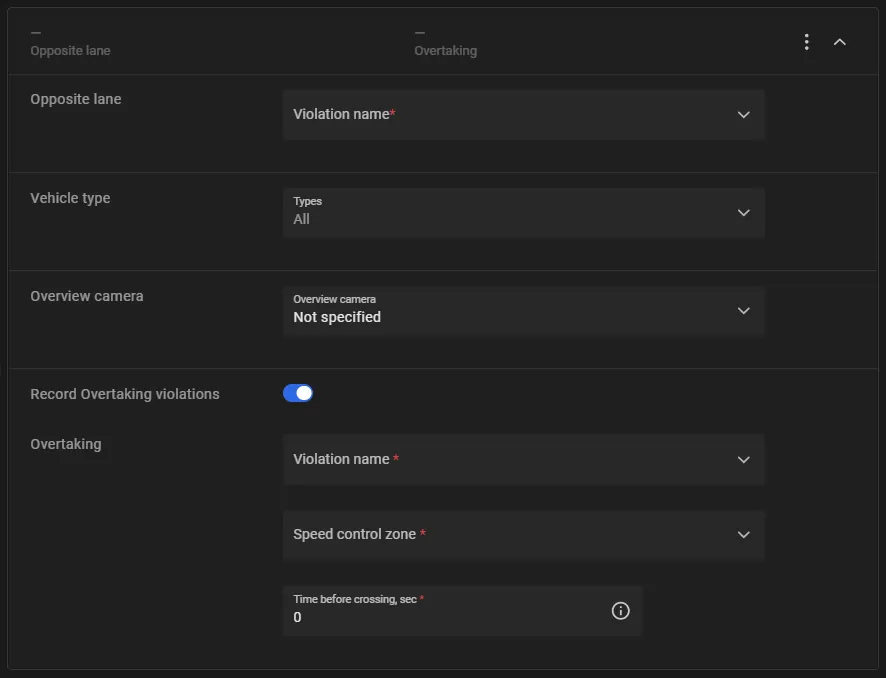
    Opposite lane rule with Record Overtaking violations, Speed control zone, and Time before crossing, sec

    • Vehicle type: optionally select the vehicle types for which this violation should be captured. If no type is selected, the violation is captured for all vehicle types.
    • Overview camera: optionally select an overview camera bound to the road object, to receive extra video frames of the violation.
    • Record Overtaking violations: turn on if overtaking should be captured on this segment. The option is off by default. When it is on, set the following:
      • Violation name: select a previously created violation name of the Overtaking type.
      • Speed control zone: select the Speed control zone traffic object added on a camera of type Opposite lane / Overtaking. The zone is checked for an overtaken vehicle. An overtaken vehicle is a vehicle traveling above the Speed limit set in the Speed control zone traffic object settings.
      • Time before crossing, sec: time interval in which the platform checks for an overtaken vehicle. The interval is measured from the moment the vehicle crosses the Signal line of the Opposite lane traffic object. The allowed range is from -10 to 10, with 0.1 precision. A positive value is before the crossing, a negative value is after the crossing, and 0 is at the moment of crossing. The default is 0. Example: 2 checks for an overtaken vehicle during the 2 seconds before the line is crossed; -1 checks during the 1 second after.
  6. Click Save.

Turn on control

Control on a road object is off by default. In the three-dot menu on the road object page, select Turn on control. In the Turn on Road Object control window, select Opposite lane / Overtaking, then click Turn on.

When control is on and a violation occurs, the platform captures it. Captured events can be reviewed on Find traffic rule violations.

Frames in the Violation Card

On the Traffic violations page, the violation card includes the following frames.

Opposite Lane

Camera Moment Frames
Camera with the Opposite lane traffic object When the Signal line is crossed Full frame; vehicle crop from the full frame; plate crop from the full frame
Before the Signal line is crossed Full frame; vehicle crop from the full frame
Overview When the Signal line is crossed on the camera with the Opposite lane traffic object Full frame
Before the Signal line is crossed on the camera with the Opposite lane traffic object Full frame

Overtaking

Camera Moment Frames
Camera with the Opposite lane traffic object When the Signal line is crossed Full frame; vehicle crop from the full frame; plate crop from the full frame
Before the Signal line is crossed Full frame; vehicle crop from the full frame
Camera with the Speed control zone traffic object Motion at the end of the Speed control zone Full frame
Motion at the start of the Speed control zone Full frame
Overview When the Signal line is crossed on the camera with the Opposite lane traffic object Full frame
Before the Signal line is crossed on the camera with the Opposite lane traffic object Full frame
Motion at the end of the Speed control zone on the camera with the Speed control zone traffic object Full frame
Motion at the start of the Speed control zone on the camera with the Speed control zone traffic object Full frame