
View the Logbook
IREX Admin has a Logbook command available in the main menu. Click it to access the consolidated system event log.
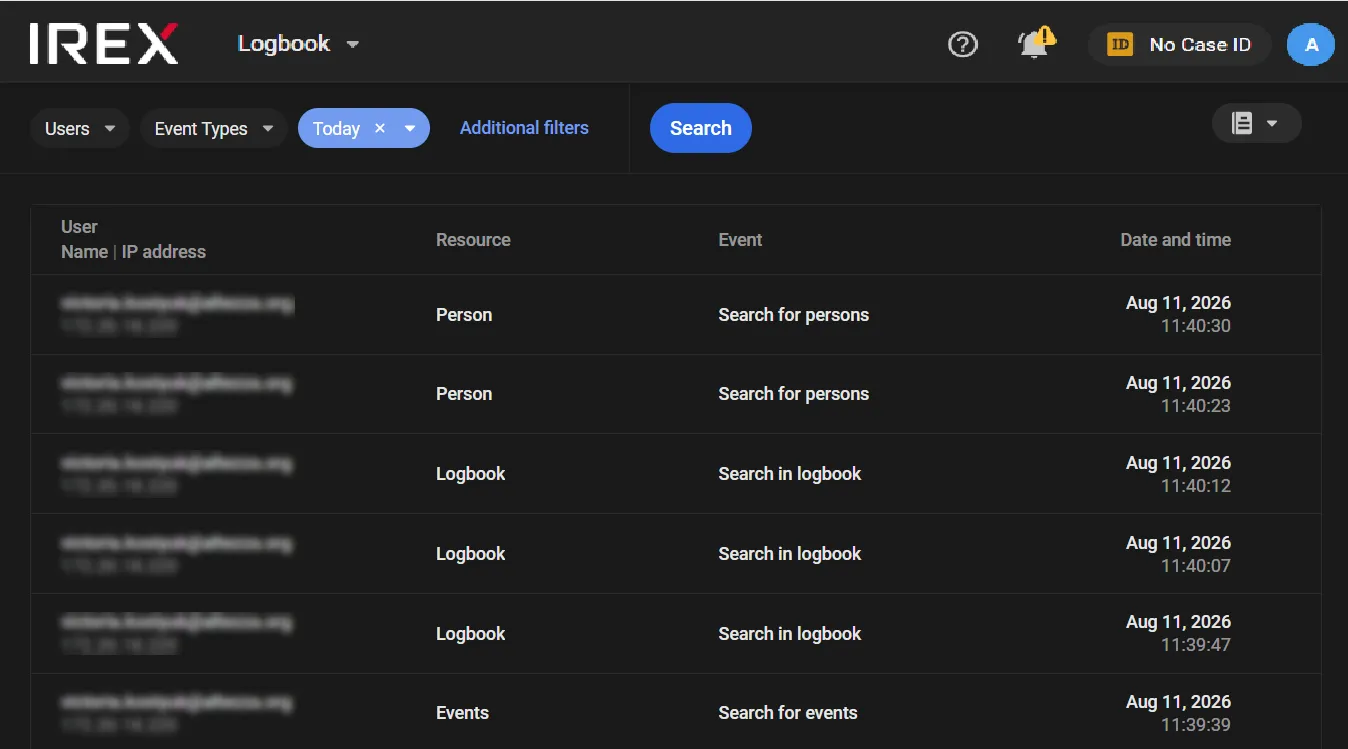
Being Responsible and Accountable
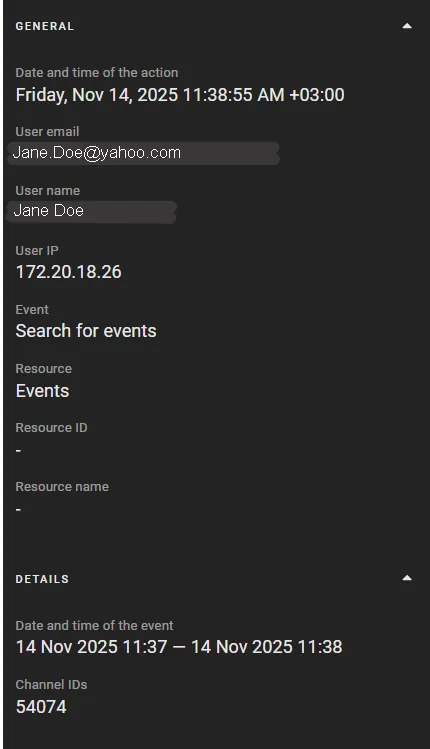
View System Event Details
To view a system event in full detail, click as shown ...

... - the event detail sidebar opens to show who did what, when and how.
Find a Case ID-Based Event
To find entries in the logbook about user actions made based on a Case ID, type this Case ID as shown and click Search.

Search for Logbook Entries
The following filters are available when searching the Logbook:
- Users: which users registered in the platform to include.
- Event Types: which user actions to include.
- Date and time: the time range to search. This filter is required. The default is Today.
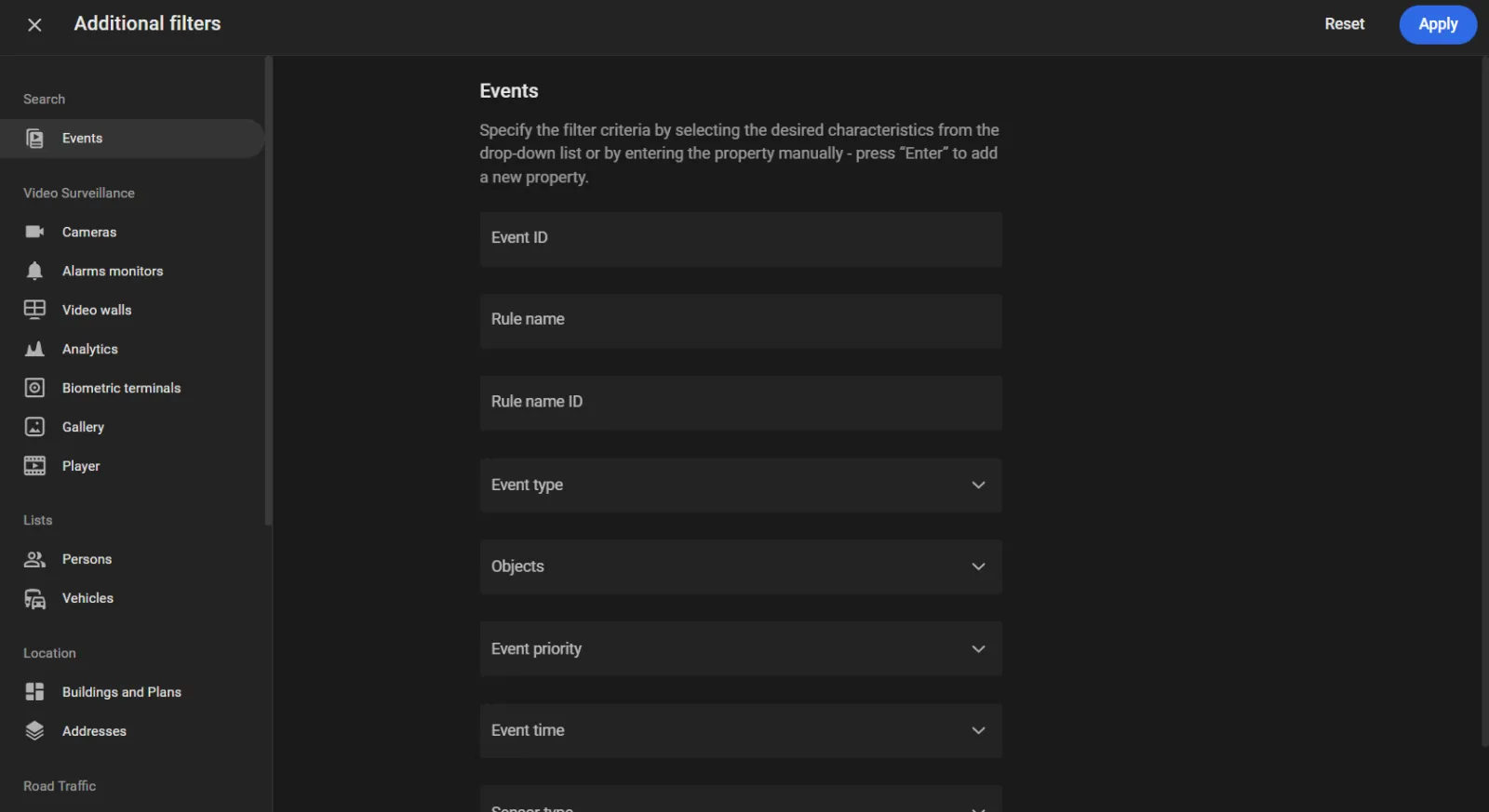
- Additional filters: more options for setting the filters.
The results list Logbook entries that match the selected filters.
On each tab, set the filter values as follows:
-
In drop-down lists, select the values needed, then click Apply.
In text fields, enter values and press Enter.
Values entered on one tab are kept when switching to another.
- To apply all saved additional filter values, click Apply in Additional filters.
Search results for the following filters do not include Search for events, Search for traffic violation, Search for persons, or Search for vehicles entries:
- Cameras > Camera
- Biometric terminals > Biometric terminal name
- Gallery > Video name
- Persons > Date of birth
- Buildings and Plans > Building name
- Buildings and Plans > Plan name
- Locations > Location name
- Road objects > Road object name
- Violations > Violation name
- Tags > Tag name
- External systems > External connection name
The Vehicles > Vehicle color filter returns only Search for events entries.
The Users > User IP filter finds entries by the IP address of the user who performed the action in the platform.
To run the search with the selected filters, click Search on the Logbook page.
Actions performed inside the Logbook are themselves recorded, so searches of the log leave their own audit trail. When a user runs a search in the Logbook, the platform writes a "Search in logbook" entry that captures the standard details — who ran the search and when.
To review these entries, select "Search in logbook" in the Event Types filter, then Search.
Search by Violations
On the Violations tab of Additional filters, set the filters for Logbook entries related to traffic violations.
Results include entries where the specified value appears:
- in a user action, for example when a violation name is created or an export task is updated;
- in a Search for traffic violation entry from a search on the Traffic violations page;
- in a Search in logbook entry from a previous search on the Logbook page.
The following fields are available:
- Violation time: finds entries whose search period on the Traffic violations page falls within the selected range. A single date or a date range can be selected. Only Search for traffic violation entries are included.
- Violation type: finds entries with the selected violation type. One or more values can be selected. Results include Search for traffic violation entries if that type was specified in a search on the Traffic violations page, and Export task created and Export task updated entries if the type is set on the task.
- Violation ID: finds entries with the specified violation identifier. Enter the full value of one or more identifiers. Press Enter after each value. Results include Search for traffic violation entries if the identifier was specified in a search on the Traffic violations page, and Search in logbook entries if the identifier was specified in Additional filters.
- Violation name ID: finds entries with the specified violation name identifier. Enter the full value of one or more identifiers. Press Enter after each value. Results include Violation name created, Violation name updated, and Violation name deleted entries, and Search for traffic violation entries if the identifier was specified in a search on the Traffic violations page.
- Violation name: finds entries by violation name. Part of the name is enough; the full name is not required. Results include Violation name created, Violation name updated, and Violation name deleted entries. Search for traffic violation entries are not included: those entries store the name ID, not the name text. To find those entries, use Violation name ID.
- Violation priority: finds Search for traffic violation entries where that priority was selected in a search on the Traffic violations page. One or more values can be selected.
- Violation export task ID: finds entries for export tasks with the specified task identifier. Enter the full value of one or more identifiers. Press Enter after each value. Results include Export task created, Export task updated, Export task deleted, Export task turned on, and Export task turned off entries.
- Violation export task name: finds entries for export tasks by task name. Part of the name is enough; the full name is not required.
The fields on the Violations tab are combined with AND. An entry appears in the results only if it matches every filled field. For example, if Violation type is Forbidden maneuvers and Violation priority is High, only entries that have both that type and that priority appear in the results.
Values selected in the same field are combined with OR. An entry appears in the results if it matches at least one of the selected values. For example, if Violation type includes Forbidden maneuvers and Space mean speed above limit, the results include entries with either type.
To apply all saved additional filter values, click Apply in Additional filters. To run the search with the selected filters, click Search on the Logbook page.
Search by Played-Back Video Date and Time
For Live video loaded and Archived video loaded entries, the Logbook records the start and end of the played-back interval. An entry is written when playback ends, or every three hours during a long session.
To find entries for a playback interval:
- On the Logbook page, open Additional filters.
- Open the Player tab.
-
Set Played back video date/time to the start and end of the interval, then click Apply.
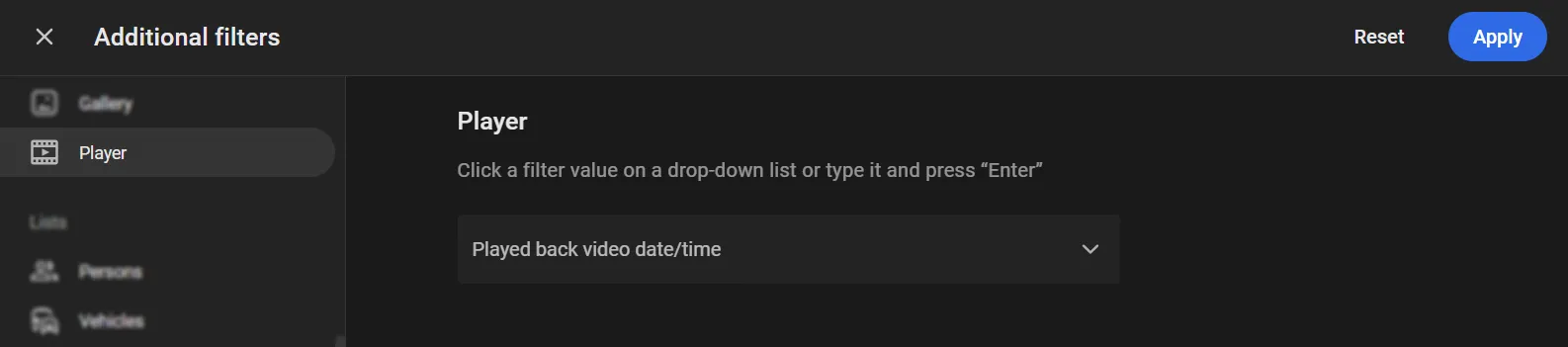
- Click Search on the Logbook page.
The results include entries whose playback interval intersects the filter range (including matching interval boundaries).
For example, if the filter range is 10:00–10:30, the results include playbacks that intersect it:
- 09:50–10:40 — playback started before and ended after the filter range;
- 10:05–10:20 — playback entirely inside the filter range;
- 09:50–10:10 — playback started before the filter range and ended inside it;
- 10:20–10:40 — playback started inside the filter range and ended after it;
- 10:30–10:45 — playback started at the end of the filter range.
Playbacks that do not intersect the filter range (for example, 09:00–09:59) are not included.
Search by Person Photo or Descriptor
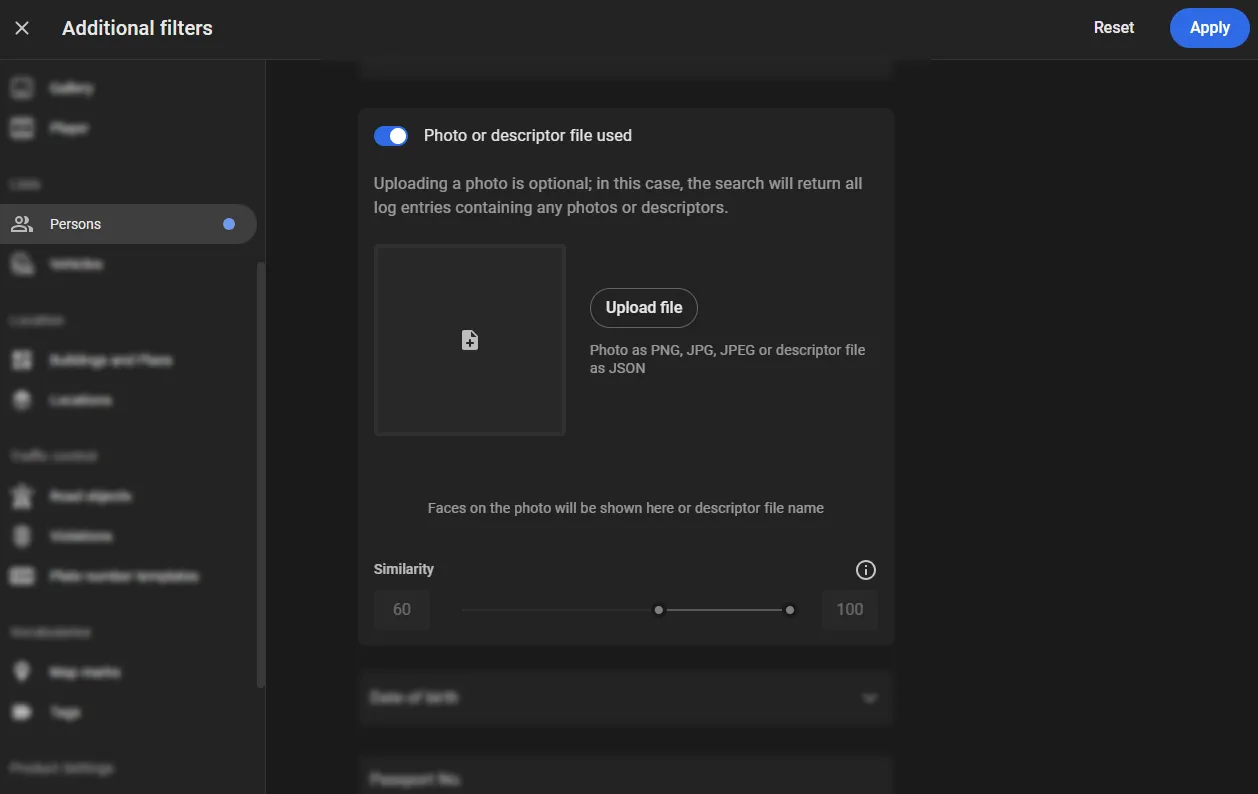
In Additional filters, on the Persons tab, upload a photo or descriptor file to find Logbook entries for actions in the system that used a similar photo or descriptor.
- On the Logbook page, open Additional filters.
- Open the Persons tab.
-
In the Photo or descriptor file used form, upload a photo file (JPEG, PNG) or a descriptor file (JSON).
-
After the file is uploaded, set Similarity and click Apply.
Similarity defines the similarity range between a face on the photo (descriptor) and a face in the Logbook entry.
The Similarity scale is unavailable until a photo or descriptor file is uploaded.
- Click Search on the Logbook page.
The Logbook page then shows entries for actions that used a similar photo or descriptor, based on the set similarity.
Generate and Download a Logbook Report
On the Logbook page, generate a CSV report with the Logbook search results for the selected main and additional filters.
- Set the search criteria on the Logbook page and click Search.
-
Click the icon
 and select Compile report.
The platform starts preparing the report. The Reports window opens with the list of initiated reports; a notification about the start of preparation is shown.
-
Wait until the created report status is Ready, then click the download icon.
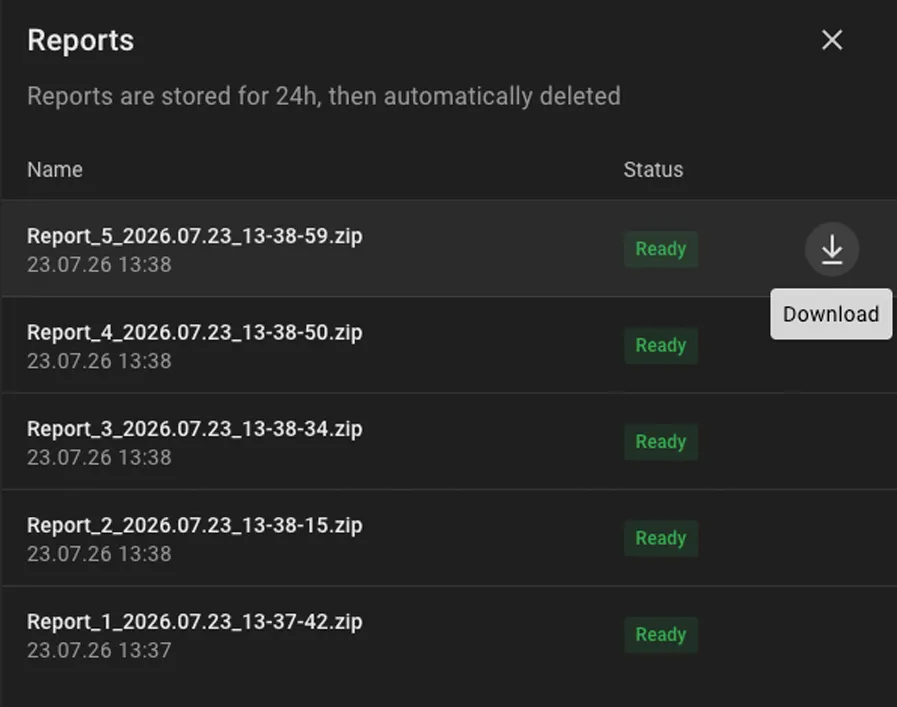
The report downloads as an archive with one or more CSV files. If the number of entries exceeds 100,000, several files are created in one archive.
To return to previously prepared reports, click the icon and select Report list. The Reports window opens with the list of reports initiated by the current user. For each report, its name and status are shown:
- Ready: the report is prepared and ready to download; click the download icon next to the status.
- In progress: the report is being generated.
- Error: an error occurred while generating the report; to retry, select Retry.
Downloading a report adds a Logbook entry with the event type Logbook report downloaded.
Automatic Logbook Export
Automatic Logbook export regularly provides information about user actions in the system for access control and transfer to external monitoring systems.
Automatic export is not configured in the product UI. When export is required, its parameters are set in the cluster configuration. The configuration includes the following:
- User: the user who can access the export files.
- User group: the file includes entries for actions by users in the selected group and its subgroups.
- Frequency: the export run interval (minimum: 10 minutes). Only Logbook entries from that interval are included; already exported entries are not included again. Example: with a frequency of 10 minutes, every 10 minutes a file is created with only the entries from those 10 minutes. If there are no entries in the interval, no file is created.
- Event types: which Logbook entries to include in the file — all entries or only selected types.
- Retention period: how long the file is kept in storage after export. The file is kept from 1 to 30 days.
Export data is saved as JSON files. The files are placed in cluster storage; external systems retrieve them on their own. Each export run creates one file, not an archive. The file contains an array of objects. Each object corresponds to one Logbook entry.
Sample Export File
[
  {
    "event_time": "2026-05-26 08:26:17.899000000",
    "type": "AUDIT_SEARCH_PERFORMED",
    "actor_email": "[email protected]",
    "actor_id": 1,
    "actor_first_name": "UNKNOWN_NAME",
    "actor_last_name": "UNKNOWN_NAME",
    "actor_ip": "10.0.0.1",
    "actor_security_groups": ["101"],
    "resource_id": "-",
    "resource_type": "LOGBOOK",
    "resource_name": "-",
    "params": {
      "search_domain": "PERSONS",
      "date_from": "2026-05-26T00:00:00",
      "date_to": "2026-05-26T23:59:59",
      "channel_ids": [42, 57]
    },
    "images": [
      {
        "data": "base64-or-descriptor-data",
        "image_link": null,
        "alg_type": 2,
        "major_version": 20200706,
        "minor_version": 1,
        "quality": null
      }
    ]
  }
]
Parameter Values in the Export File
| Parameter | Field Type | Required | Comments |
|---|---|---|---|
event_time |
string | yes | Date and time of the action in the cluster time zone |
type |
string | yes | Logbook event type |
actor_email |
string | yes | Email of the user who performed the action |
actor_id |
number | yes | User ID |
actor_first_name |
string | yes | User first name. If the first name is missing — value "UNKNOWN_NAME" |
actor_last_name |
string | yes | User last name. If the last name is missing — value "UNKNOWN_NAME" |
actor_ip |
string | yes | User IP address |
actor_security_groups |
array | yes | User groups |
resource_id |
string | yes | Resource ID. If there is no resource — value "-" |
resource_type |
string | yes | Type of the resource the action was performed on |
resource_name |
string | yes | Resource name. If the name is missing — value "-" |
params |
object | yes | Additional event parameters. The set depends on the event type |
images |
array | yes | Attachments to the Logbook entry. Face photos and descriptors used in the action, for example during a photo search or when adding a face photo |
images[].data |
string | yes | Attachment content: image data in Base64 format or descriptor data |
images[].image_link |
string | no | Link to the image, if present in the entry data |
images[].alg_type |
number | yes | Face descriptor algorithm type code |
images[].major_version |
number | yes | Major version of the face descriptor |
images[].minor_version |
number | yes | Minor version of the face descriptor |
images[].quality |
number | no | Face descriptor quality |