Access Your Workspace
System Requirements
The platform's computing resources are hosted on servers connected to cameras over communication links with a throughput of up to 10 MB/s. On the computer, an up-to-date version of the operating system, a web browser (the latest version of Google Chrome is recommended), and an internet connection of 1 MB/s are sufficient to work with the platform. Only operating-system and browser versions that still receive updates from their vendors are supported.
H.265 video playback is available in the latest version of Google Chrome. The graphics card must support H.265 decoding.
For cameras connected through an ONVIF device, only H.264 video playback is supported.
No more than three pages of the platform can be open in the web browser at the same time.
Platform apps are implemented using PWA technology and can be downloaded directly from the website.
Sign-In to IREX via Browser
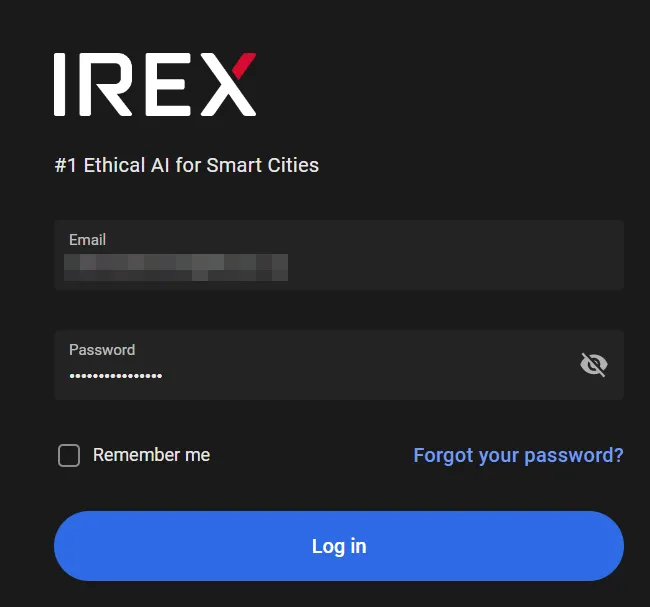
To sign in to IREX using a browser, navigate to the sign-in screen. The URL of the sign-in screen is available from the System Admin or an email invitation. Bookmarking the URL provided by the System Admin or through an email invitation makes signing in easier in the future.
Once the URL is known, enter it into the address bar in the browser window to open the sign-in screen.
When enabled by the System Admin, signing in with the username or email address used to create the account is also supported.
Switch between the light/dark page themes in the settings.
When setting up our account, we recommend keeping to the secure sign-in rules.
Sign-In via an App
To save time on a desktop or stay connected to IREX while mobile, install an IREX app. The IREX mobile app has basically the same functionality as the desktop version of the web site. Since it belongs to a PWA type, installing it does not require visiting Google Play or iStore; install it directly on the IREX web site.
Desktop
To skip typing the IREX instance URL (or bookmarking it in the browser) on every visit to the website, install the desktop app. To do so, click as shown in the browser address bar, then click Install on the Install app screen that opens. The technique equally applies to Windows and iOS.
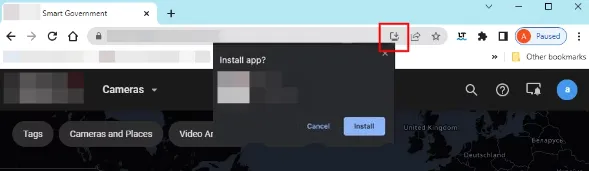
As a result, the IREX app is installed with its icon on the desktop. Run it in the same manner as any other application to open the log-in screen and log in as with the browser with the same credentials.
Android
- Since the IREX app belongs to a PWA type, installing it does not require visiting Google Play; install it directly on the IREX website.
- Run Google Chrome on the mobile device.
- Visit the IREX website to run the Install app in the three-dot menu.
- The download and installation routines will then begin automatically. After they are complete, the app icon will then appear on the home screen of the device.
- Tap the app icon to open the authentication page, the same as on the desktop.
- Enter the credentials, the same as on the desktop, to open the home page of the app.
iOS
Since the IREX app belongs to a PWA type, installing it does not require visiting iStore; install it directly on the IREX website.
- Run Safari on the mobile device.
- Visit the IREX website to tap Share.
- Tap Add to Home Screen to see the app icon appear on the home screen of the device after the installation is complete.
- Tap the app icon to open the authentication page, the same as on the desktop
- Enter the credentials, the same as on the desktop, to open the home page of the app.
Two-Factor Authentication Using Google Authenticator
Two-factor authentication (TFA) is a sing-in technique that safeguards even better against unauthorized access to personal data circulating across the system, as CJIS, GDPR, and other regulations require. It also aligns with our understanding of ethical AI and CCTV surveillance principles.
The feature requires Google Authenticator to be installed on a smartphone.
To activate the two-factor authentication option:
- Open the Security section on the User menu > Profile screen.
- Switch on the Two-factor authentication option; the window opens:
- Run Google Authenticator on a smartphone to scan the QR code in this window, thus registering the IREX Platform sign-in web page with Google Authenticator.
- Enter the one-time code that Google Authenticator shows into the text box in this window.
- Click the Save in the top-right corner of the User menu > Profile screen.
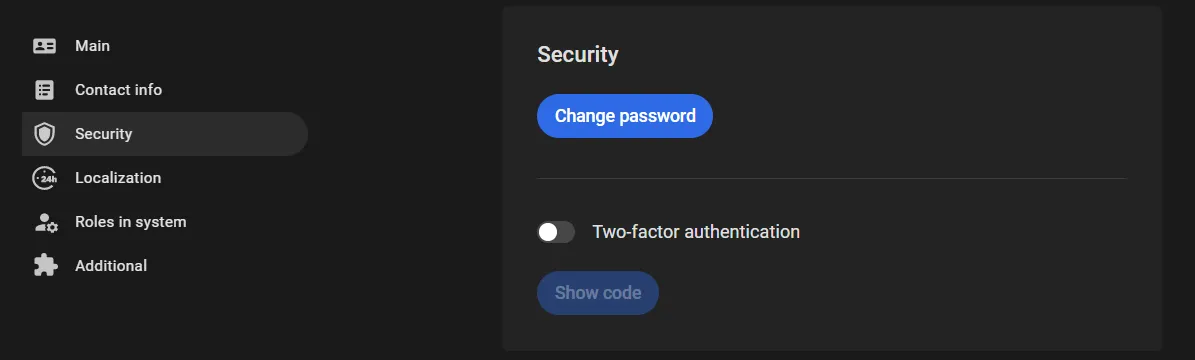
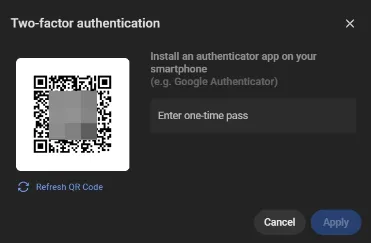
From now on, the sign-in page will ask for the verification code shown on the Google Authenticator screen.
Log In via Messenger
Once logged in to IREX, e.g., this way, link the IREX and messenger accounts to enable sign-in via the messenger next time.
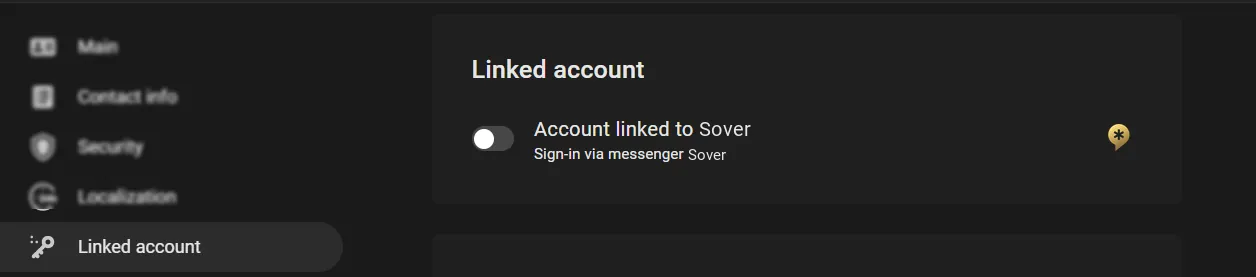
- On the User menu > Profile screen, open the Linked account section, then switch on Account linked to Sover.
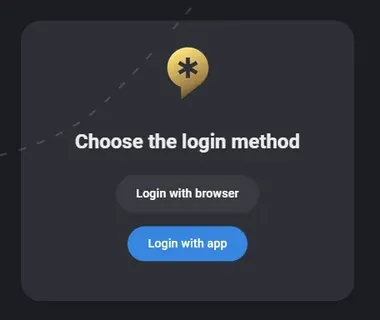
- The next window then opens, offering a choice of where to log in to the messenger.
- If already logged in to the messenger, confirm linking the accounts in the next window; if not, log in, then confirm.
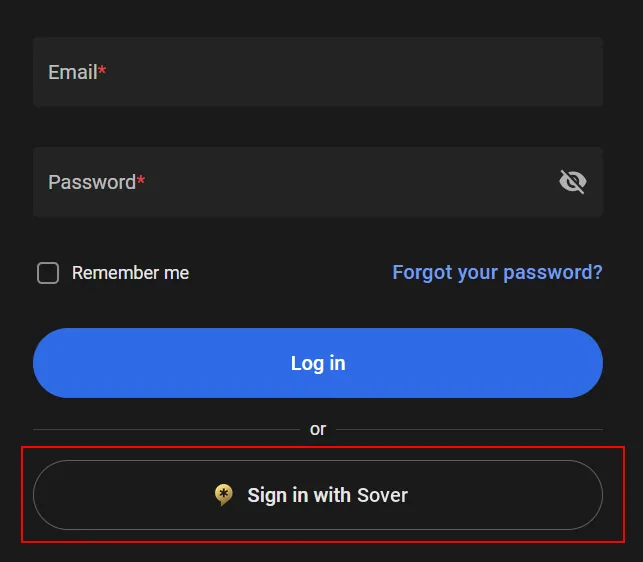
- Linking the accounts activates the Sign in with Sover option on the log-in screen, which enables sign-in to IREX with the messenger credentials.