
Bike Lanes
What It Is For
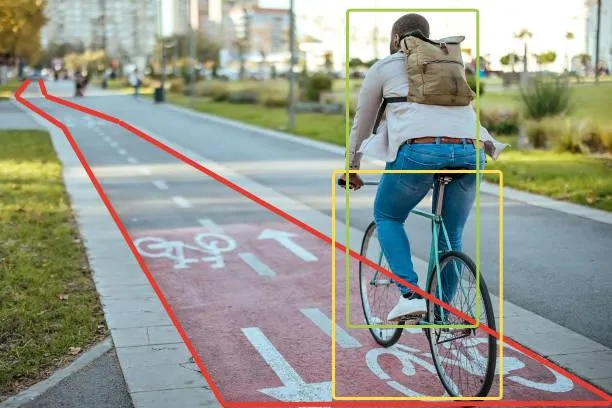
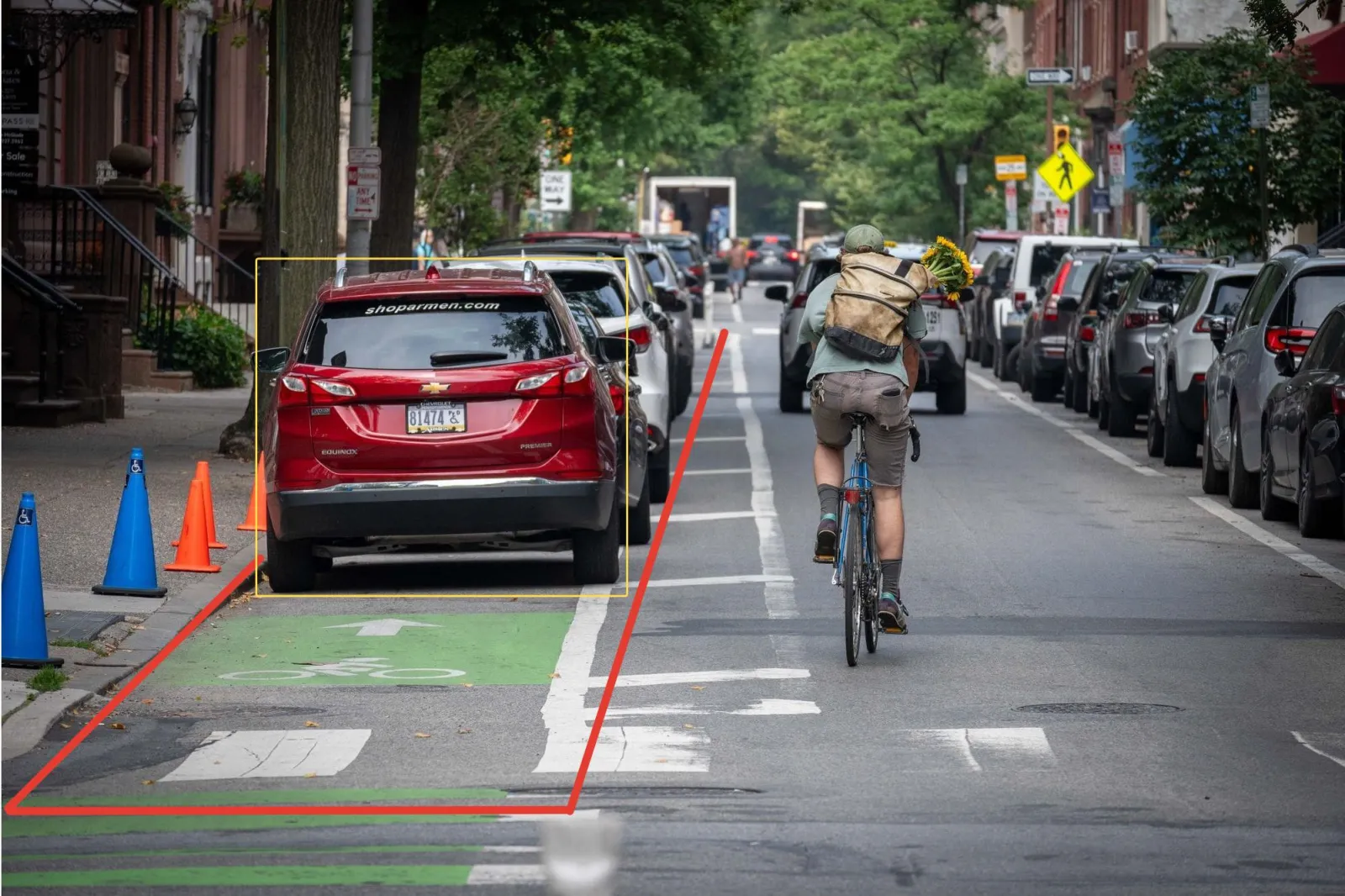
Cameras having "Bike Lanes" installed and set up, monitor bike lanes in public spaces (road segments, parks, etc.) to detect obstacles to bike traffic on them, such as pedestrians, strollers, skateboard riders, etc. This helps prevent incidents involving bike riders and other actors.
How It Works
This module's detector recognizes these object classes: person, bicycle, car, truck, motorcycle, cat, and dog.
For a person and a bicycle, a separate check measures how close the two boxes are. When a person's box is close enough to a bicycle's box, the module pairs the two objects and creates a Bike event.
If they are not paired, for example a person walking or a bicycle left on its own, the module creates a Not a bike event. The other classes also create a Not a bike event.
Detection stays accurate when the object box covers at least 4,000 to 5,000 pixels.
Computational Complexity
The module needs substantial computing resources and runs on a GPU.
Camera Requirements
To select cameras, use specialized software (for example, IP Video System Design Tool) or a free lens calculator from the camera manufacturer.
| Characteristic | Requirement |
|---|---|
| CMOS sensor size | 1/3″ or larger |
| CMOS sensor light sensitivity | 0.01 lux or less for a color image with automatic gain control (AGC) on at 30 IRE; 0.05 lux or less for a black-and-white image with AGC on at 30 IRE |
| Electronic shutter speed | adjustable from 1/25 to 1/10,000 second, or a wider range |
| Electronic shutter speed adjustment modes | automatic / adjustment range / manual |
| Number of video streams | 2 or more |
| Primary stream resolution | 1280×720 to 2560×1920 pixels |
| Secondary stream resolution (optional, for layouts) | 320×240 to 704×576 pixels |
| Video frame rate | 10 to 25 frames per second |
| Lens focal length | 2.8 mm or longer |
| Primary stream bitrate | up to 8 Mbps |
| Secondary stream bitrate | up to 1 Mbps |
| Video encoding type | constant (CBR) / variable (VBR) |
| Video encoding protocol | H.264 HP/MP/BP, H.265 |
| Network protocol support | TCP/IP, ICMP, HTTP, HTTPS, RTP, RTSP, NTP, SNMP, IGMP, IPv4/IPv6 |
| Video transmission protocol | RTP over TCP |
| ONVIF compatibility (optional, for remote camera control) | ONVIF (PROFILE S, PROFILE G) |
| Built-in illumination | 20 meters or more |
Camera Mount Requirements
| Characteristic | Requirement |
|---|---|
| Camera tilt relative to the horizon | 15° to +50° |
| Camera pan from the direction of approach | −45° to +45° |
| Camera roll about its axis | −5° to +5° |
| Image quality at the border of the controlled zone | 100 pixels per meter or more |
| Recommended mounting height | 5 meters or higher above floor or ground level |
| Illumination of the controlled zone | 50 lux or more across the camera scene |
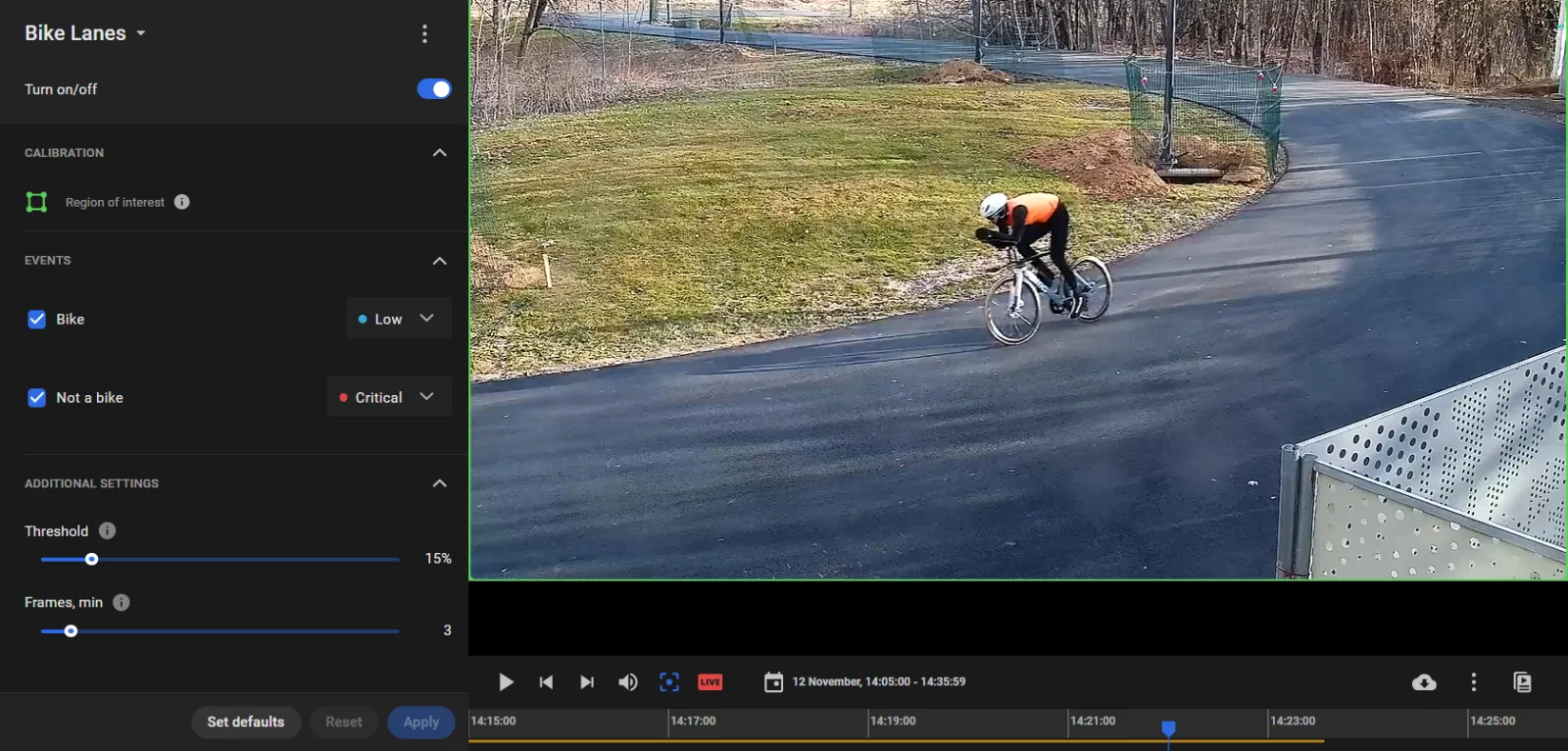
Set Up the "Bike" and "Not a bike" Events
- Tick the event types ("Bike", "Not a bike") to generate and assign a priority to each.
- Threshold is the minimum similarity between an object and bike to trigger a "Bike" event.
- Frames, min is the minimum number of frames, in which a bike or other object should be found to trigger a "Bike" or "Not a bike" event.
- Click Apply.
Review the Events
Do so on the Events screen with Analytics modules = Bike lanes and more conditions according to need.
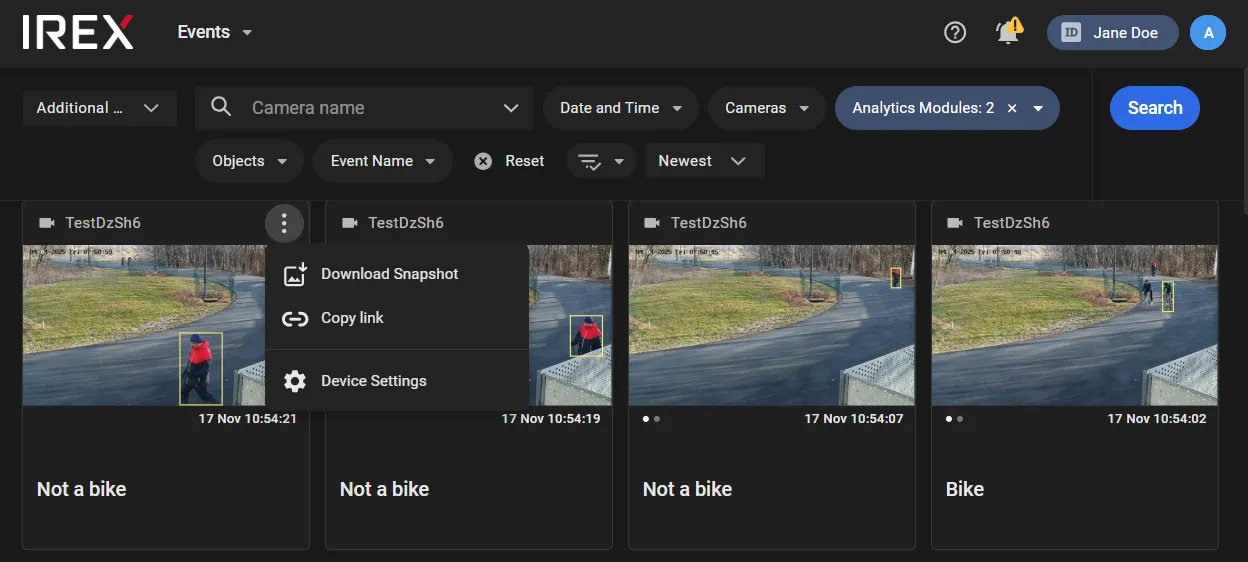
Use the commands in the three-dot menu on the event card to download event snapshots, share links to the video, or go to the video analytics settings page.