
Locations
In terms of IREX, a location entity may mean:
- A country, e.g., the USA.
- A state of a country (e.g. California in the USA) or a province (e.g. Bretagne in France) or a big region under a different name.
- A city in a state or province of a country (Los Angeles in California, USA)
- Etc.
Locations can be assigned to user groups for monitoring events in a pre-defined geographical region (city district, a street in a town, etc.). In fact, a location in terms of IREX is a virtual collection of other geo-referenced resources, such as cameras, buildings, plans and road objects, so making a location available to a user group makes all geo-referenced resources (cameras, venues, etc.) in that location available too at a time.
How IREX Locations Are Created
IREX locations are created automatically exactly when a geo-referenced resource (such as a camera or a venue) gets registered with it as illustrated with the example below.
Consider a camera installed located at ...
United Kingdom, England, City of London, Walbrook 39
getting registered. As soon as the registration is complete, the camera installation address goes into the system database, thus automatically creating the following locations:
- United Kingdom
- United Kingdom, England
- United Kingdom, England, City of London
- United Kingdom, England, City of London, Walbrook
- United Kingdom, England, City of London, Walbrook 39
The camera belongs to each of them.
When the next camera is registered and installed at ...
United Kingdom, England, City of London, Penny Lane 1
... it joins the existing "United Kingdom". "United Kingdom, England" and "United Kingdom, England, City of London" locations, and the new locations are created ...
- United Kingdom, England, City of London, Penny Lane
- United Kingdom, England, City of London, Penny Lane 1
... which it also belongs to now.
Location Hierarchy
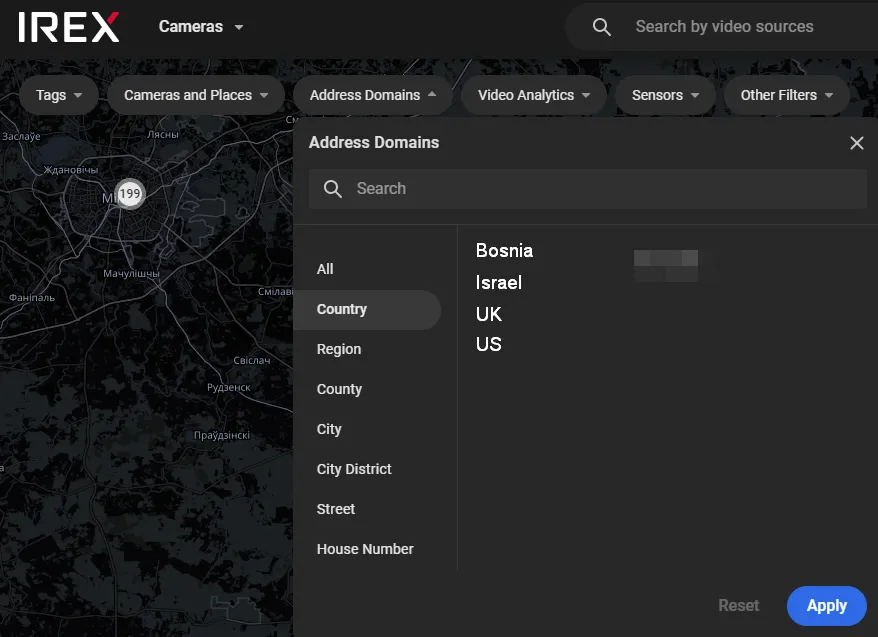
Locations form a nationally-specific multilevel hierarchy, which in the general case may include up to 7 levels from "Country" to "House number".
Manage Access to Locations
Access to a location can only be managed on a "by user groups" basis.
-
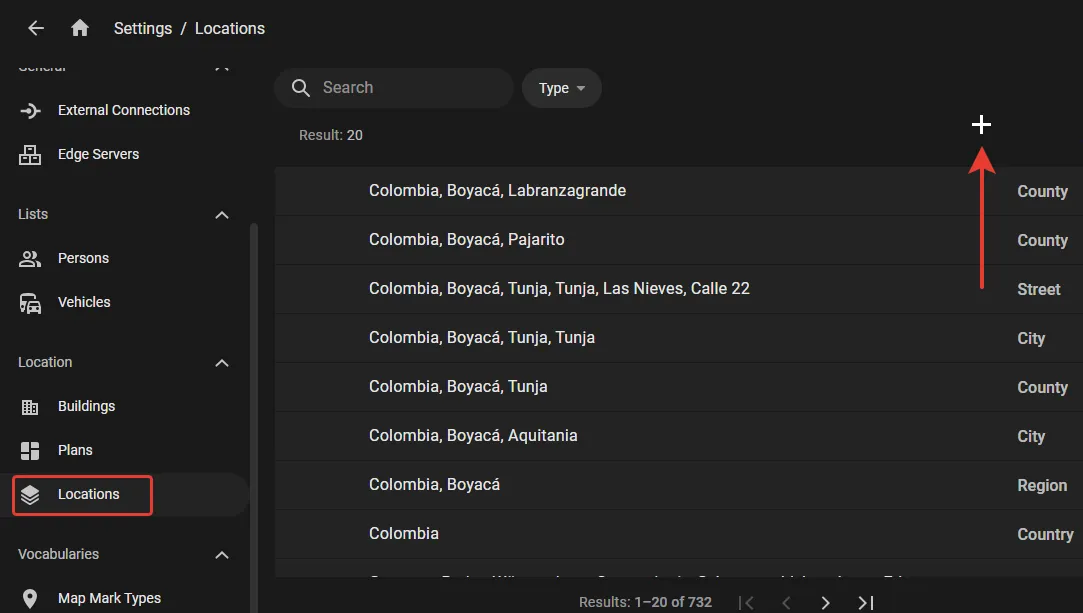
In the Locations section on the user group's screen, click the "+" as shown to open the consolidated list of all locations not assigned to that group yet.
- Checkmark the locations to assign and click Add.
Making a location accessible for a user group makes all cameras, buildings, and plans in it accessible too.
Making an upper-level location accessible for a user group makes all its child locations accessible too (e.g. access to Los Angeles opens access to all streets in it).
To unassign a location from a user group, checkmark it in the Locations section on the user group's screen and click the "Bin" button.