IREX
EN

Lane restriction violations

Definition

A lane restriction violation occurs when a vehicle of a specified type (for example, a heavy-duty truck) is detected traveling in a lane where that vehicle type is prohibited (for example, the far-left lane of a highway).
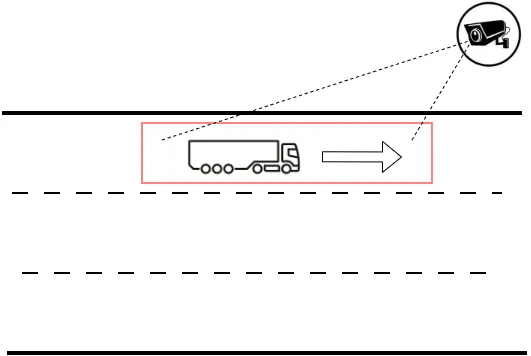
Diagram of a camera monitoring a highway lane, with a red motion control area around a truck traveling in a restricted far-left lane

Detecting this type of violation requires:

  • A camera monitoring the road segment.
  • CarTrack Pro enabled on the camera.
  • A Motion control area configured in CarTrack Pro settings (the red rectangle shown above).
  • Vehicle type recognition enabled in CarTrack Pro settings.
  • Optionally, an overview camera may also be used. No analytics configuration is required for the overview camera.

Lane restriction control workflow

  1. Create a road object representing the road segment where lane restrictions are enforced.
  2. Bind cameras to the road object.
  3. Define the violation name.
  4. Configure CarTrack Pro.
  5. Create the violation rule.
  6. Enable road object control.
  7. Review detected violations.

Bind a camera to the road object

  1. On the Road objects settings page, click as shown below.
  2. Settings — Road Objects list showing existing road objects and their enabled controls, with a road object name highlighted

    This opens the road object (intersection) configuration screen.

    Road object configuration screen with the intersection diagram and camera list, camera filter set to All, and the Bind to road object option

  3. Set the camera filter to All, then run Bind to road object for the camera monitoring the road segment. The Bind to road object window opens.
  4. Bind camera to road object window with the Camera Label set to Lane control, a camera color selected, and Camera Type set to Lane restrictions

  5. Select Lane restrictions.
  6. Enter the camera label to be used in lane restriction rules.
  7. Use a descriptive label, such as Lane control.

  8. Select a color for the camera icon displayed on the road object diagram.
  9. Click Bind.
  10. Drag and drop the camera icon to match its physical location on the diagram.
  11. Adjust the camera field of view on the diagram to reflect the actual coverage area.

Name the violation

On the Violation name settings page, click + to open the configuration window:

  1. Set Violation type to Lane restrictions.
  2. Assign an event priority.
  3. Enter a clear and descriptive violation name, such as Truck in left lane.
  4. This name will later appear in the rule name list during rule configuration.

    Create new Violation name window with the violation name set to Truck in left lane, priority Normal, and violation type Lane restriction violation

Set up CarTrack Pro

In CarTrack Pro settings:

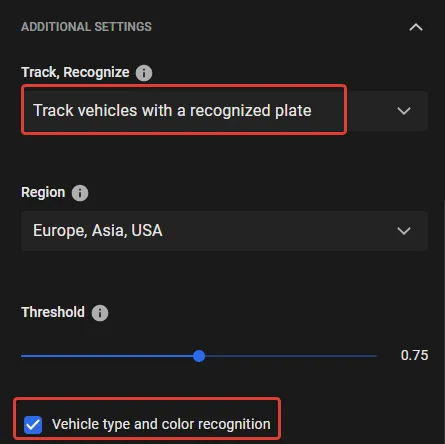
  1. Set Track, Recognize to Track vehicles with a recognized plate.
  2. Enable Vehicle type and color recognition.
  3. CarTrack Pro additional settings with Track, Recognize set to Track vehicles with a recognized plate and Vehicle type and color recognition enabled

  4. On the Traffic objects tab, click +Motion control area and create an area covering the restricted lane.
  5. Assign a descriptive name to the area, such as Trucks forbidden lane.
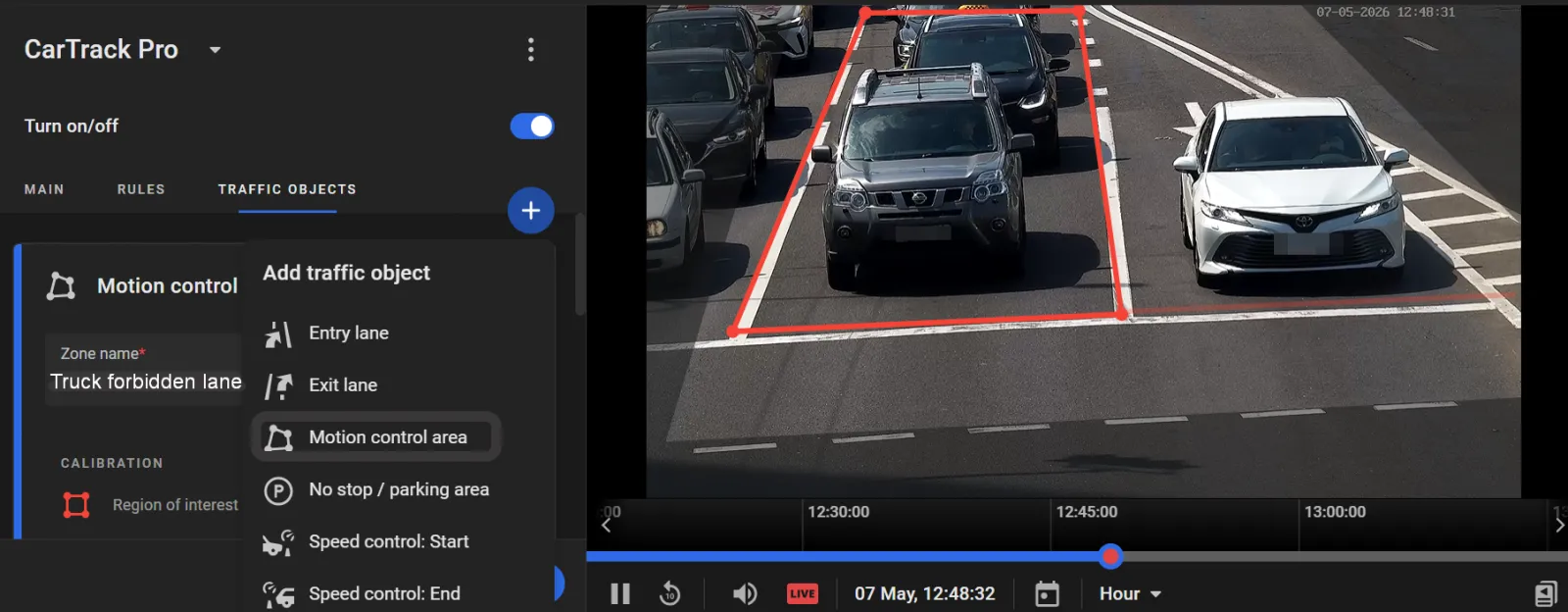
    CarTrack Pro Traffic Objects tab with a Motion control area named Trucks forbidden lane drawn over a traffic lane in the camera view

Formulate the rule

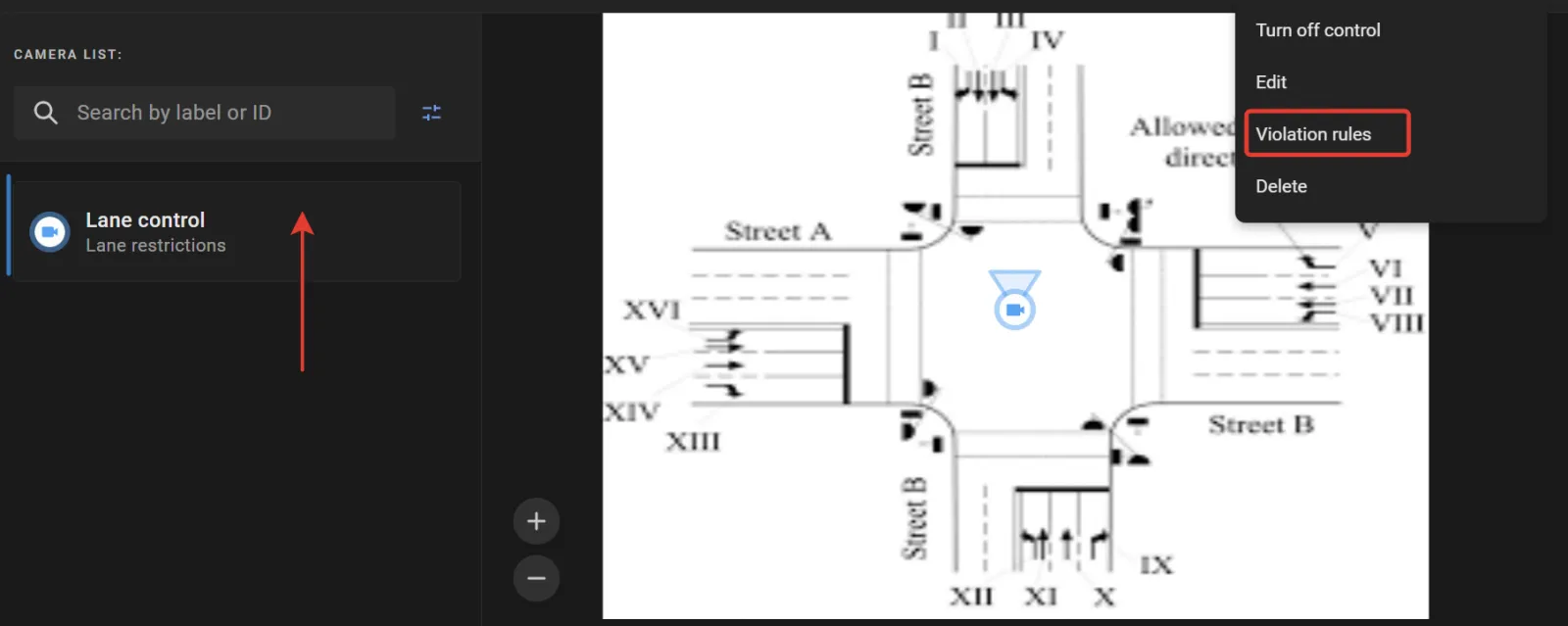
  1. On the road object screen, under Camera list, click the camera label assigned to the monitoring camera (for example, Lane control).
  2. Road object diagram with the Lane control camera label selected and its options menu open, showing the Violation rules command

  3. Open the three-dot menu and click Violation rules.
  4. On the next screen, locate the traffic object created earlier in CarTrack Pro settings (for example, Trucks forbidden lane) and click it.
  5. Violation rules screen with the Trucks forbidden lane traffic object selected and the Truck in left lane violation name highlighted under Lane restriction violation

  6. Click + in the lower-right corner and select the violation name created earlier (for example, Truck in left lane) under Lane restriction violation.
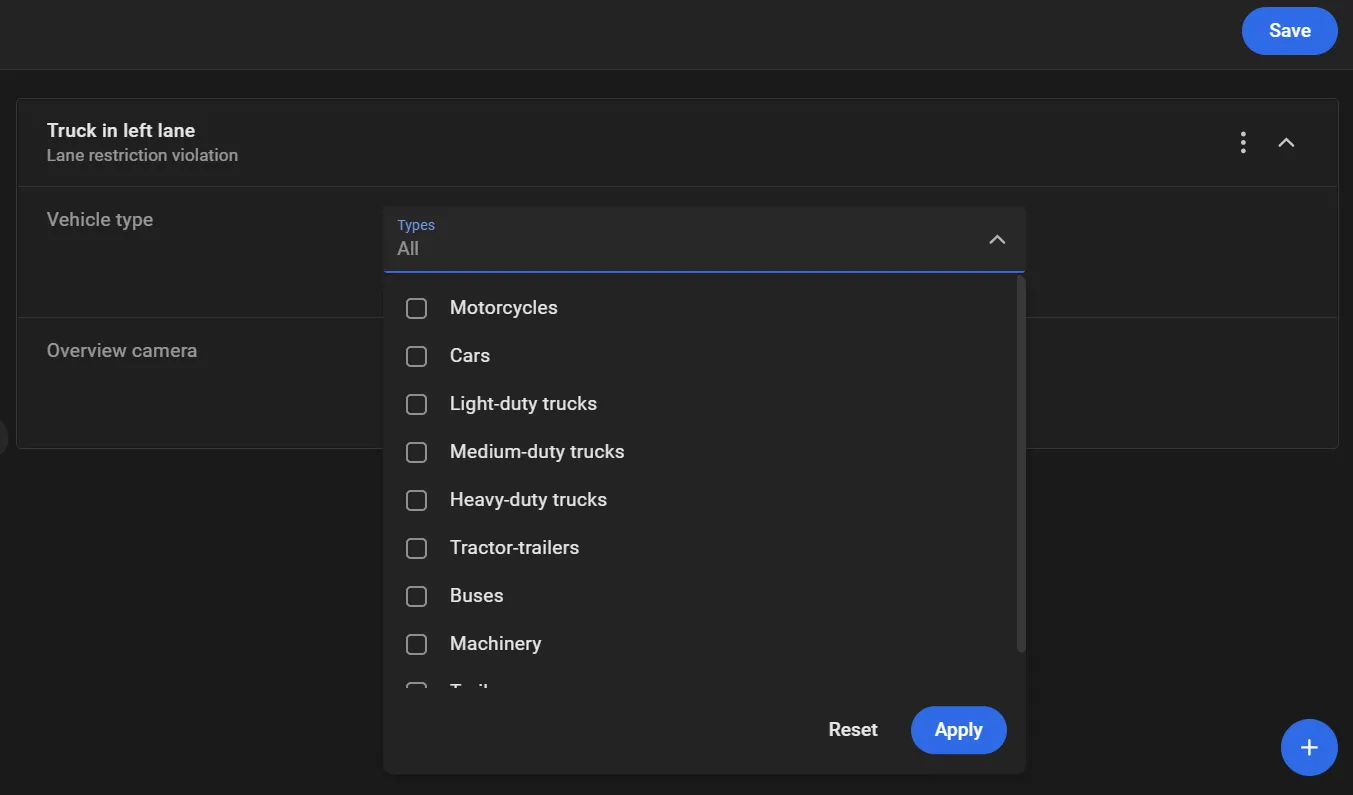
  7. In the Vehicle type list, select the vehicle types prohibited from using the lane, then click Apply.
  8. Truck in left lane violation rule with the Vehicle type Types drop-down open, listing vehicle categories such as motorcycles, cars, and heavy-duty trucks

  9. Click Save on the violation rule screen.
Turn on control

On the road object page, open the three-dot menu and select Turn on control. In the dialog box, enable Crossroads crossing, then click Turn on.

Turn on Road Object control dialog with a list of violation checkboxes; Lane restriction violation is checked

Review lane restriction violations

  1. On the Traffic Violations page, select Lane restriction violation in the Violation name filter.
  2. Apply additional filters as needed to narrow the search results.
  3. Click Search.