
Illegal Stops / Parkings
Definition
An “Illegal stop/ parking” violation occurs if a car stays immobile in a “No stop/ parking area” for longer than a permissible limit.
Steps to Set Up Illegal Stop/Parking Control
- Build a road object, which might not be a crossroads for this violation type but a linear road segment or a square or any other (e.g., its name is "Times Square”).
- Bind cameras to the road object.
- Name the violation.
- Build the “No stop/parking” area in CarTrack Pro settings on the camera meant to monitor that area.
- Link the violation name (step 3) to the “No stop/ parking” area (step 4).
- Turn on illegal stop/ parking control.
- Review the results.
Build the “No Stop/Parking” Area
In the CarTrack Pro settings on the camera meant to monitor the “No stop/ parking” area, build this area. Give it a clear, self-explanatory name, e.g., “No parking zone at Times Square”.
Link the Violation Name to the No Parking Area
Now let a violation of the “Illegal stop/ parking” type in the “No stop/ parking” area get its name. To do so:
- On the road object page, open the Options menu and select Violation rules. The screen shows:
-
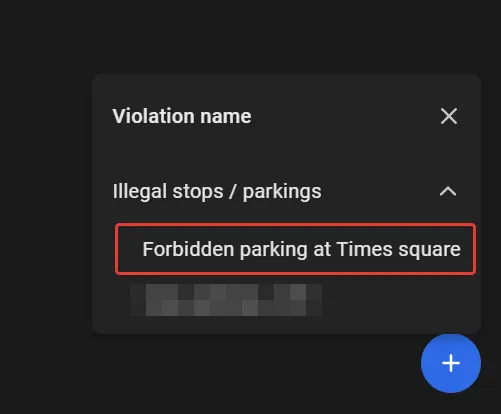
Click the “+” in the bottom-right corner to select the “Illegal stop/ parking” violation name (e.g., it is “Forbidden parking at Times Square”) under Illegal stop/ parking.
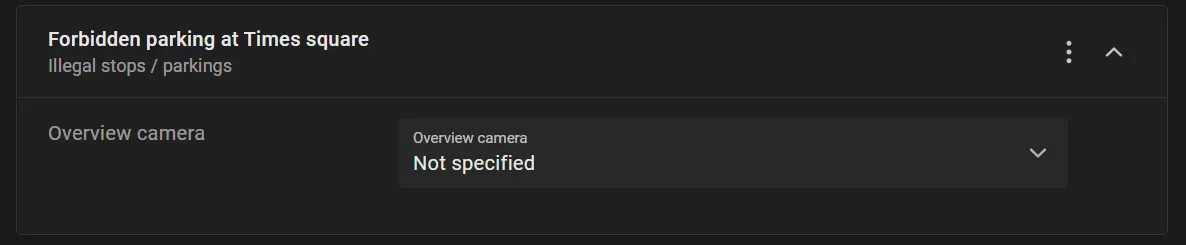
- Specify the overview camera under Forbidden parking at Times square.
- Click Save.
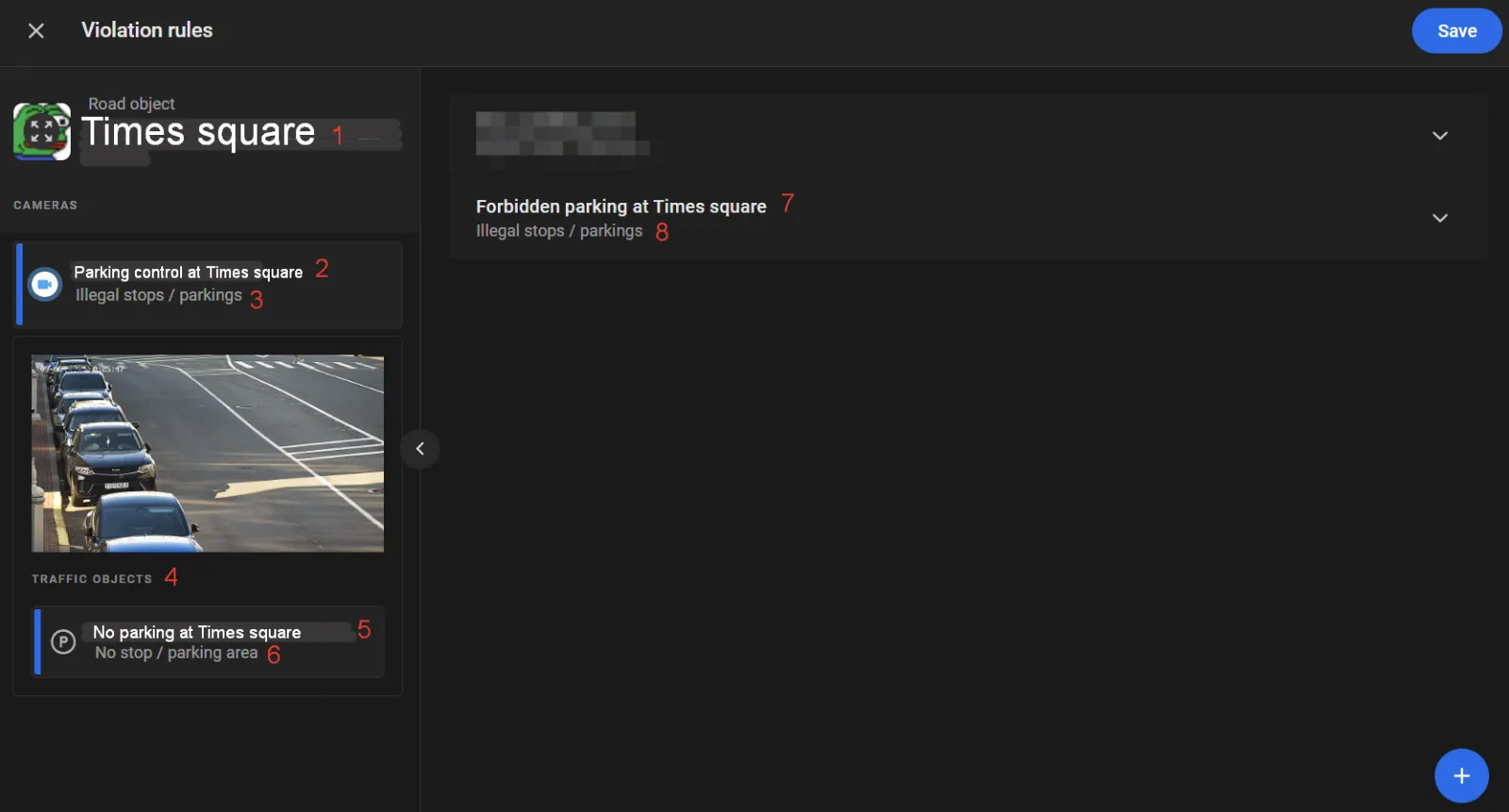
1 — the road object name given at step 2 in “Road objects”
2 — the camera label set in Bind cameras to the road object.
3 — the camera type set in Bind cameras to the road object.
4 — the list of traffic objects (their names and types) created on the camera needed to build a rule (the “No parking at Times square” in this case).
5 — traffic object name given at step 3 in “Illegal parking”.
6 — traffic object type defined at step 2 in “Illegal parking”.
7 — planned traffic violation name to be given at step 2 in this section below.
8 — traffic violation type.
Turn On Control
Control on a road object stays off until it is turned on. On the road object page, open the Options menu and select Turn on control. In the Turn on Road Object control window, select Illegal stops / parkings and click Turn on.
With control on, the platform captures each violation and lists it on Find Traffic Rule Violations.