
Driving without Technical Allowance
The IREX Platform includes a feature that automatically verifies whether each detected license plate corresponds to a vehicle with a valid California DMV registration (i.e., the annual vehicle registration fee has been paid).
 In other states,
legal driving requirements may differ—for example, vehicles may require annually renewable environmental certificates,
technical inspections, or similar approvals. The IREX Platform can support such checks as well,
provided that DMV registration or other authorized datasets are available for import.
In other states,
legal driving requirements may differ—for example, vehicles may require annually renewable environmental certificates,
technical inspections, or similar approvals. The IREX Platform can support such checks as well,
provided that DMV registration or other authorized datasets are available for import.
When this feature is enabled, geofenced zones—road segments, intersections, or parking lots—can be defined to run continuous, privacy‑respectful checks. When a vehicle’s registration is expired or missing, the system raises a "Registration expired" event that appears alongside other traffic violations. Optional alerts and workflow automations enable rapid response by parking‑enforcement or law‑enforcement teams.
Workflow to Check Vehicle Registration Status
- Build a road object.
- Bind cameras to the road object.
- Name the violation.
- Build the check area.
- Link the violation name to the check area.
- Turn on registration status control.
- Review the results.
Build the Check Area
On the camera intended to check DMV registration or other approvals set up CarTrack Pro as described here.
Link the Violation Name to the Check Area
Now let a violation detected in the check area get its name. To do so:
- On the road object page, open the Options menu and select Violation rules.
- On the left-hand side bar on the screen that opens ...
- Click "+" to select the violation name under Driving without technical allowance.
- Click Save.
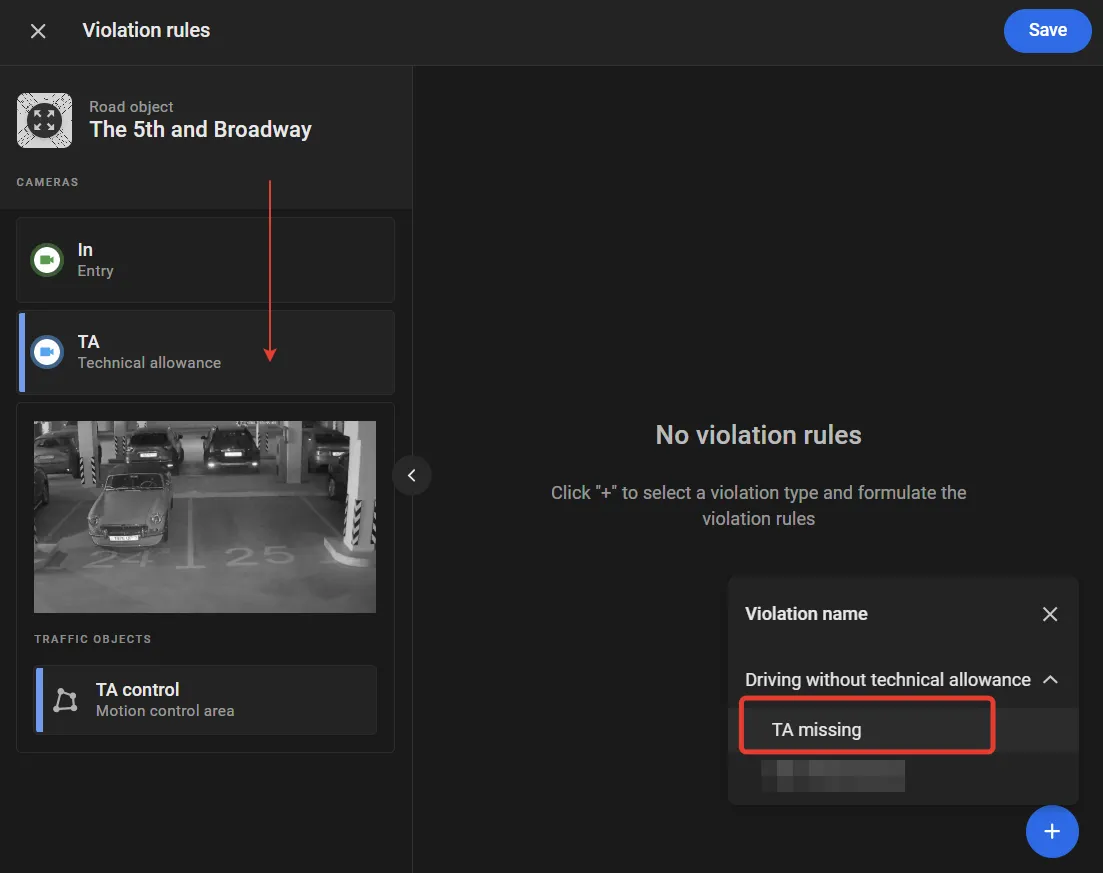
... click the label of the camera meant to monitor the check area as shown.
... or it
might be under "DMV registration expired" in California, or "No ecological certificate" somewhere else,
and so on.
Turn On Control
Control on a road object stays off until it is turned on. On the road object page, open the Options menu and select Turn on control. In the Turn on Road Object control window, select Driving without technical allowance and click Turn on.
With control on, the platform captures each violation and lists it on Find Traffic Rule Violations.
The violation name might be "DMV registration expired" in California, or "No ecological certificate" somewhere else.