
Internal Traffic Event Control
The CarTrack Pro module detects traffic events that violate internal IREX user regulations, such as dangerous driving or illegal parking within restricted private areas. These detected events are intended for the user's internal use only, unlike traffic control for law enforcement. Information regarding such events remains within the system and cannot be exported externally.
High Speeding
This use case covers finding vehicles speeding above the limit in a "Speed limit ..." zone.
- Set up CarTrack Pro-s to recognize plate numbers.
- Set up the "High speeding" rule in the "Speed limit ..." areas.
- Find high speeding events and review them before making a final decision.
Set Up "High Speeding" Rule
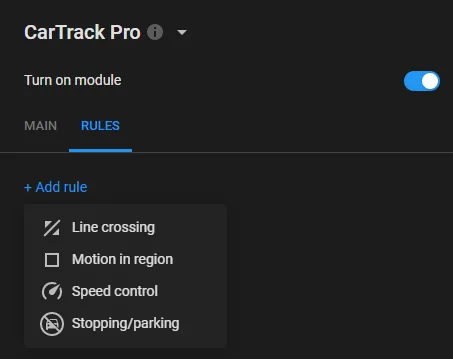
- Click the Add rule on the RULES tab to select Speed control on the menu that opens.
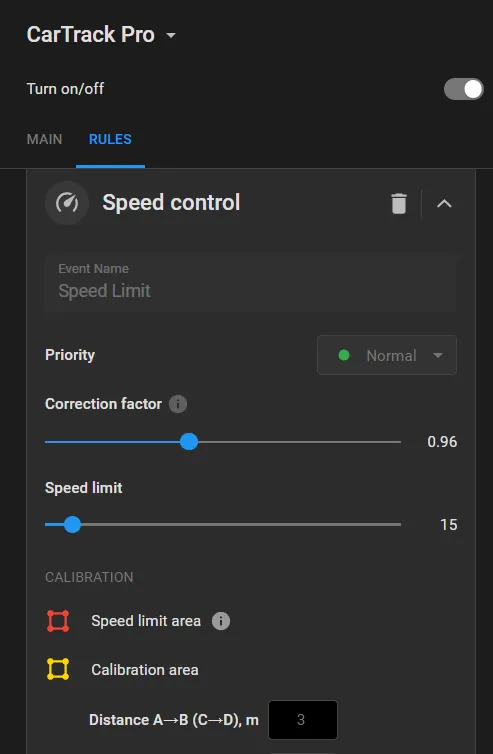
- On the Speed control card that opens, enter a custom name of the rule.
- Draw the Region of control (red) and Region of calibration (yellow) by drag-and-dropping it right on the frame.
- Set:
-
Switch on the On/Off toggler
 .
.
- Click the Apply.
It makes sense to give a rule a self-explanatory and meaningful name since it will be the event name that the Platform users are meant to operate with. Rule names can be edited on the User Menu > Settings > Event Names screen.
To move a vertex, point the cursor onto it and drag and drop it.
To delete a vertex, double-click it.
To add a vertex onto an edge, double-click where the vertex should be.
To move the region as a whole, place the cursor inside it and drag-and-drop.
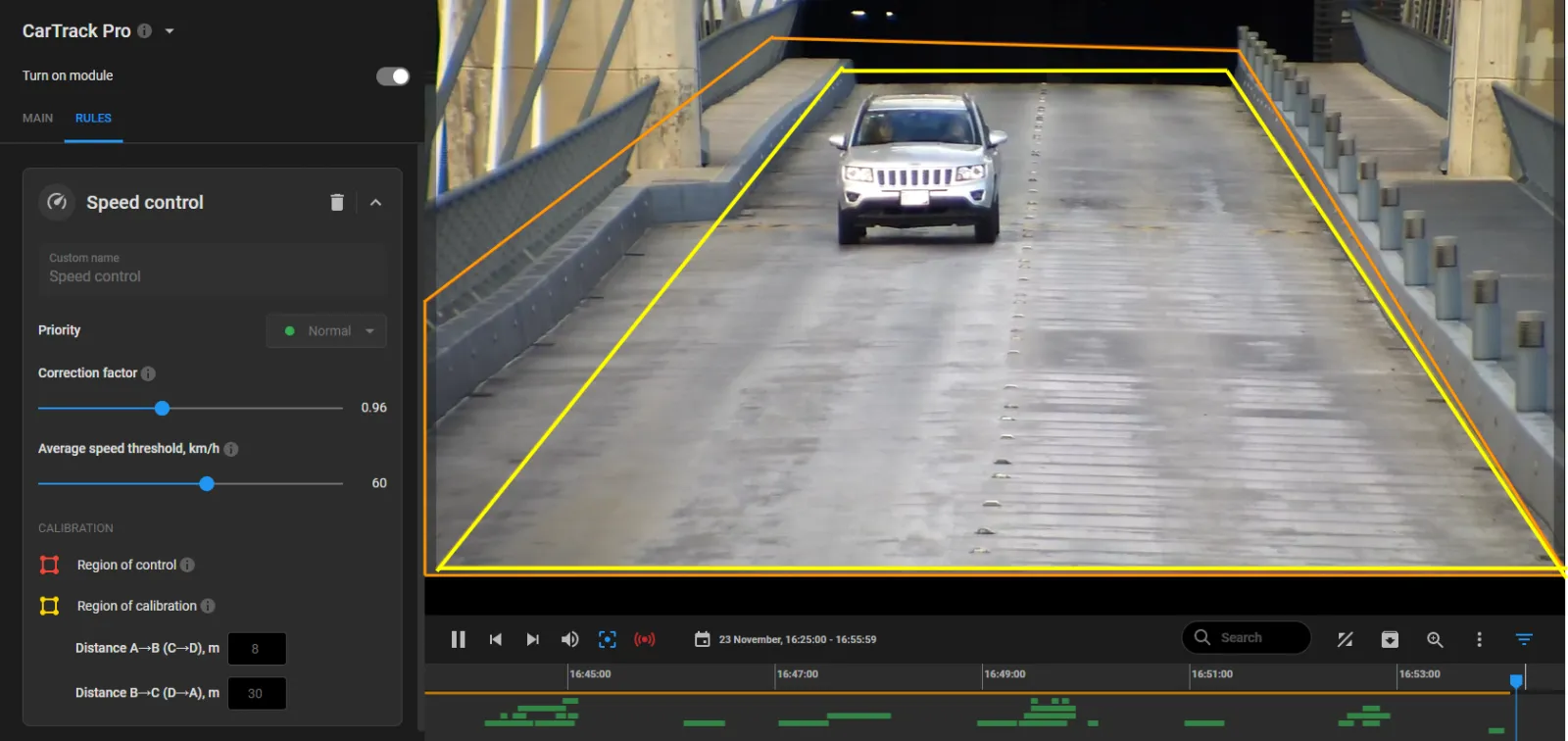
The Region of calibration should be a rectangular shape in the real world (might not seem such on the screen).
The Correction factor - the factor to multiply the measured speed by should a
systematic error be discovered in practice.
The Speed limit - the speed limit to report.
Illegal Parking
This case covers finding cars parked illegally.
- Set up CarTrack Pro to recognize plate numbers.
- Set up the "Illegal parking and waiting" rule in the "No parking/No waiting" areas.
- Find "Stopping/Parking" events and review them before making a final decision.
Set Up "Illegal Parking and Waiting" Rule
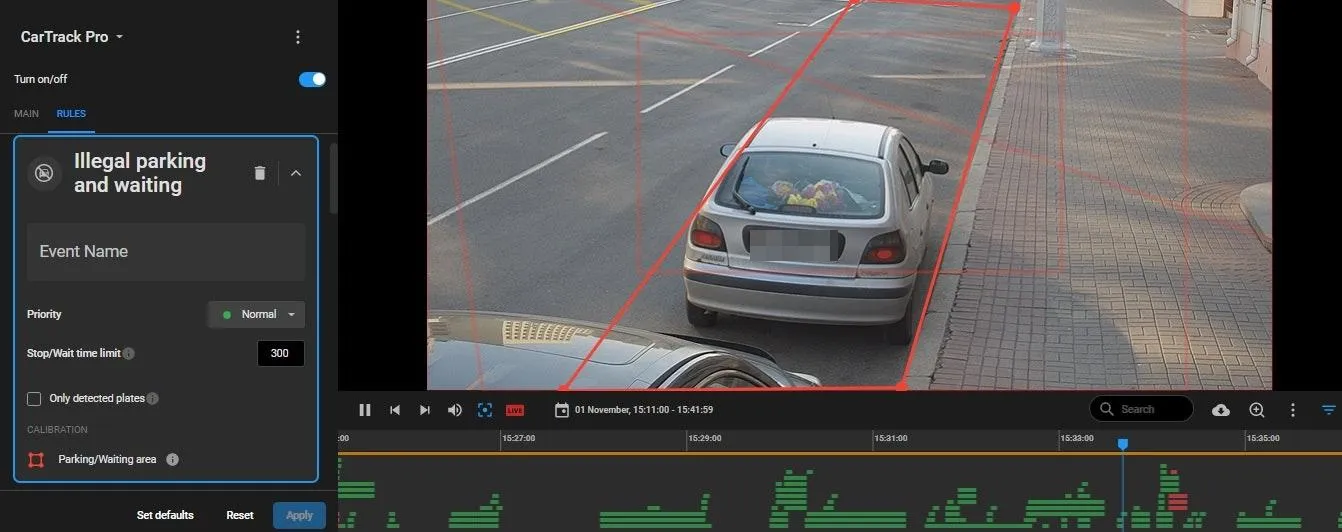
- Click the Add rule on the RULES tab to select Illegal parking and waiting on the open menu.
- On the rule card that opens, enter a custom name for the rule.
- Draw the Region of control (red) and Region of calibration (yellow) by drag-and-dropping it right on the frame.
- Enter the Stop/Wait time limit as an integer in seconds.
- Switch on the Only detected plates option to generate events only for vehicles with recognized plate numbers.
-
Switch on the On/Off toggler .
- Click Apply.
It makes sense to give a rule a self-explanatory and meaningful name since it will be the event tag that the Platform users are meant to operate with. Rule names can be edited on the User Menu > Settings > Event tags screen.
To move a vertex, point the cursor onto it and drag and drop it.
To delete a vertex, double-click it.
To add a vertex onto an edge, double-click where the vertex should be.
To move the region as a whole, place the cursor inside it and drag-and-drop.