
Forbidden Maneuvers
Definition
A “Forbidden maneuver” event occurs when a car:
- Enters a crossroads (traffic lights missing or shut down) by crossing the entry line, which is defined in CarTrack Pro settings on the camera intended to control entry onto the crossroads.
The allowed direction is an attribute of the line, defined when building it.
... AND ...
- Leaves the crossroads by crossing the exit line that is forbidden by the traffic rules at this crossroads. This forbidden exit line is defined in CarTrack Pro settings on the camera intended to control the exit from the crossroads.
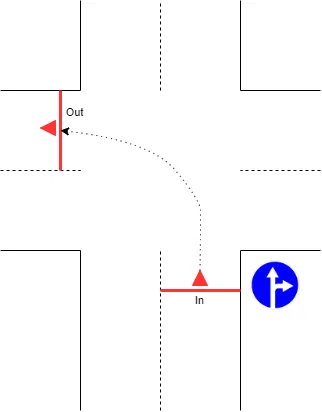
For instance, in the picture below, crossing the “In” and “Out” lines constitutes a “Forbidden maneuver” violation, taking into account a “No left turn” sign. The same violation type is also used to capture failure to yield to buses and other scheduled public transit vehicles, when exceptions list the permitted plates and templates.
 The timestamp of the event when the car crosses the line is detected, considering
the value of
the Focal point.
The timestamp of the event when the car crosses the line is detected, considering
the value of
the Focal point.
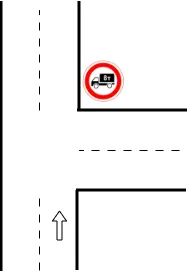
Forbidden maneuvers may be sensitive to the vehicle type. For instance, the picture below shows an example in which driving straight is forbidden for vehicles with a gross weight over 8 tons, as indicated by the gross weight limit sign.
The entry-to-exit time span should not exceed 180 seconds, otherwise it is not considered a violation.
A crossroads may be
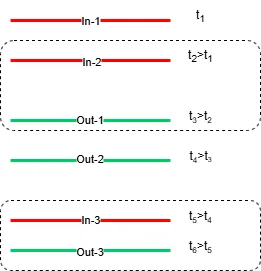
complicated enough to have multiple entry and exit lines. A car, in its turn, may make a tricky maneuver at the crossroads, crossing many of them. To avoid confusion in a situation like this, the program automatically builds forbidden entry-exit pairs in a way illustrated by the diagram below. i.e. a pair is built from the lines crossed strictly in turn, with account for the entry-to-exit direction.
Forbidden Maneuvers Control Workflow
- Build a road object.
- Bind cameras to the road object.
- Name the violation.
- Build the forbidden in-out lane pairs.
- Formulate the rule.
- Turn on Road Object control.
- Review the results.
Build Forbidden Entry-to-Exit Lane Pairs
In the CarTrack Pro settings on the camera meant to monitor entry/exit to or from the road object, build the entry and exit lanes. Give these lanes self-explanatory names, e.g., “In” or “Out,” to simplify combining them into a rule later.
Formulate the Rule
Now combine the lanes into the rule.
On the road object page or in the road objects list (Settings > Road objects), open the Options menu and select Violation rules.
To set up detection of Forbidden maneuvers violations:
-
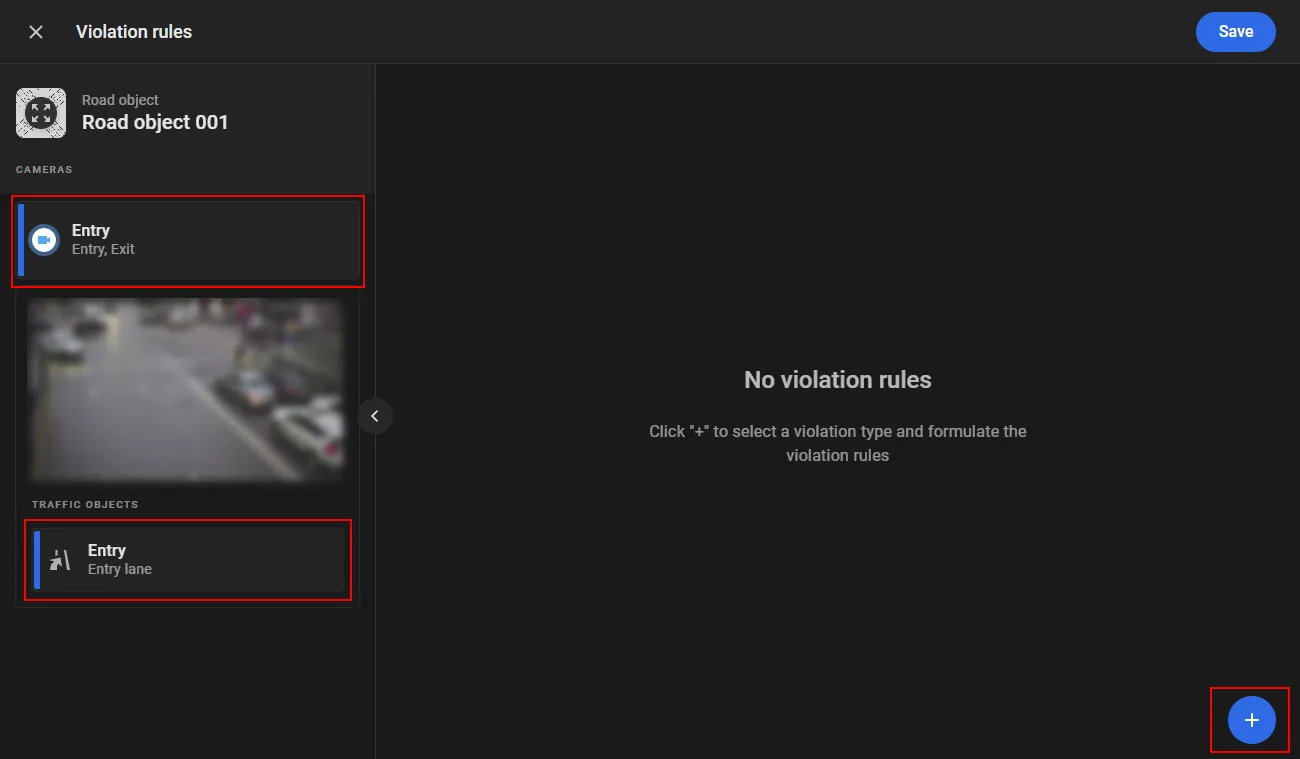
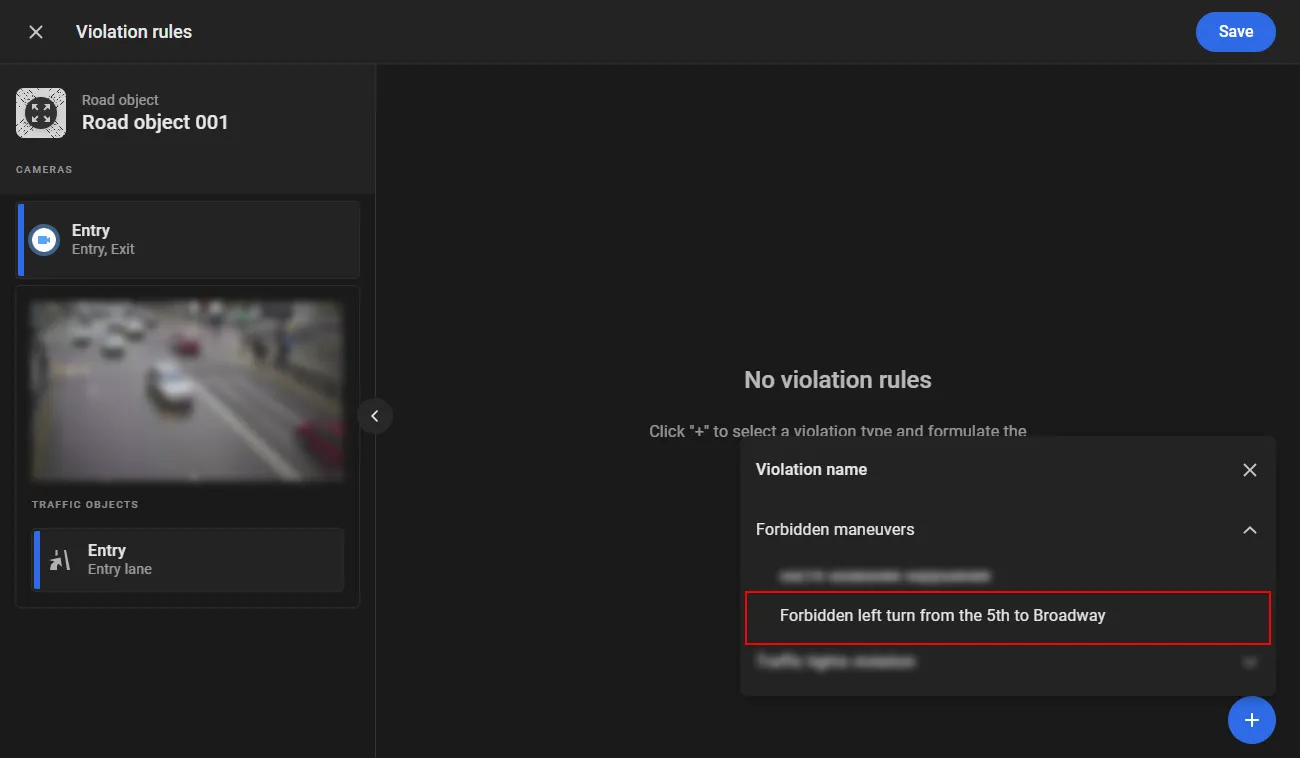
In the list of cameras, select the entry camera and the Entry lane traffic object configured on it. The entry lane must already be created for that camera in the CarTrack Pro module.
When violations are recorded, only the closest consecutive entry and exit events at the crossroads are taken into account.
-
Click + to add violations.
-
Select the violation type Forbidden maneuvers and a previously created violation name, for example Forbidden left turn from the 5th to Broadway.
-
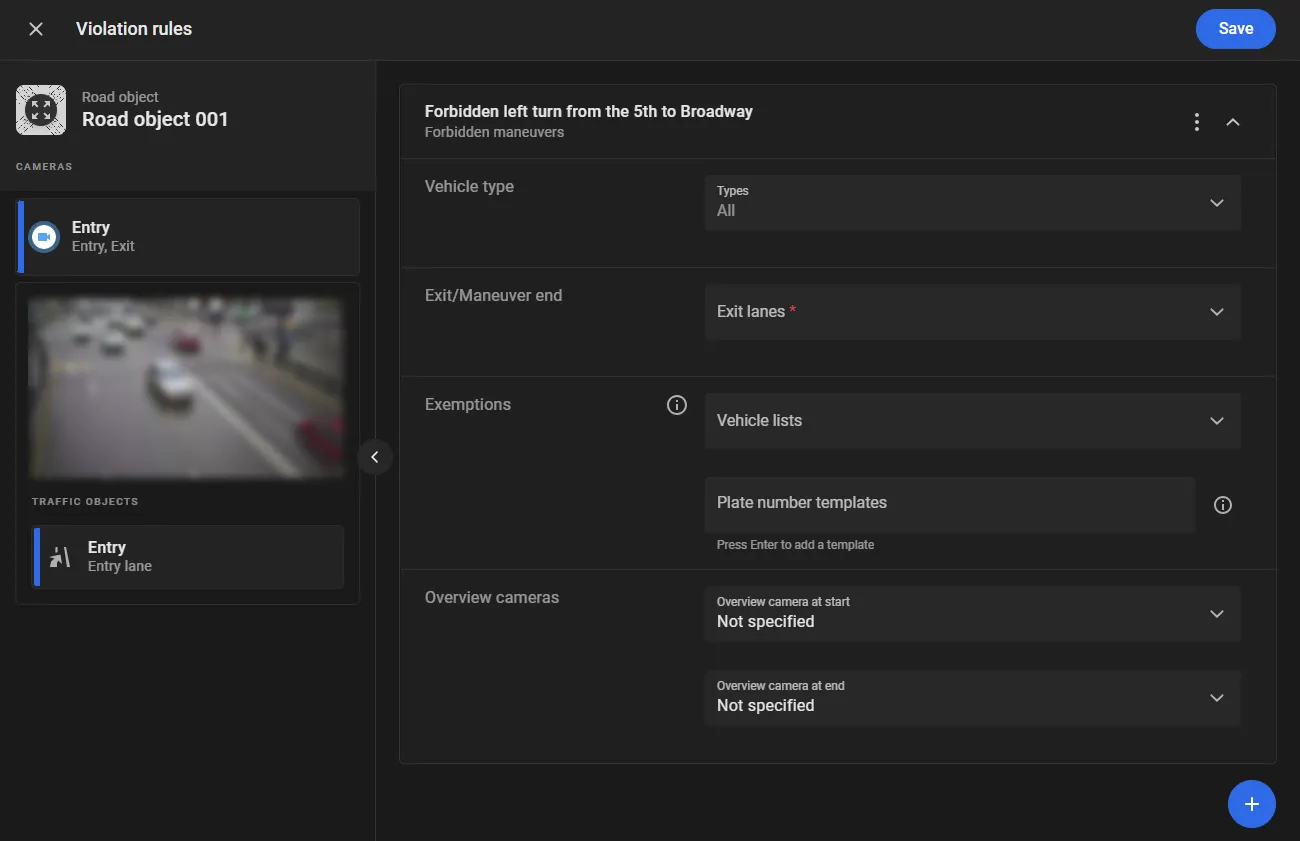
For the added violation, set the following:
- Vehicle type: optionally select the vehicle types for which this violation must be recorded. If no type is selected, the violation is recorded for all vehicle types.
- Exit/Maneuver end: select exit lanes from the crossroads in the list of lanes created for cameras bound to the road object. A vehicle leaving onto these lanes from the specified entry lane causes the violation to be recorded.
-
Exemptions: optionally specify vehicle plates for which the violation is not recorded. For example, this is how detection of failure to yield to public transit vehicles is configured. Plates can be specified in two ways:
- Vehicle lists: select one or more vehicle lists;
-
Plate number templates: select previously created plate number templates for which the violation is not recorded. To add a new template, enter it and press Enter. To find and add an existing template, start typing and select the required option in the dropdown list of templates that contain the entered characters. A rule can include no more than 20 templates; template length is up to 12 characters; templates must be unique without regard to case.
When a new template is entered, the system may also suggest existing templates that contain the entered characters in the dropdown list. In that case, pressing Enter saves the first suggested template from the list, not the entered template. To save the entered template, first press Esc to close the dropdown list, then Enter.
- Overview camera at start: optionally select an overview camera bound to the road object that monitors the start of the maneuver, to obtain additional frames of the violation video.
- Overview camera at end: optionally select an overview camera bound to the road object that monitors the end of the maneuver, to obtain additional frames of the violation video.
-
Click Save.
Turn On Control
Control on a road object stays off until it is turned on. On the road object page, open the Options menu and select Turn on control. In the Turn on Road Object control window, select Forbidden maneuvers and click Turn on.
With control on, the platform captures each violation and lists it on Find Traffic Rule Violations.
Tips to Control Forbidden Maneuvers
- Entry and exit can be monitored on a single camera or on different cameras.
- These camera roles can be split across cameras or combined on one or more cameras. Cameras must be configured in CarTrack Pro for their roles before they are bound to the road object.
- A road object can include several Forbidden maneuvers rules; repeat the same workflow for each entry–exit pair.
- Overview cameras at the start and end of the maneuver provide additional frames of the violation video.
Plate Number Templates
Plate number templates are used when configuring violation control rules to specify vehicle registration plate patterns for which violations are not recorded.
To create a plate number template:
-
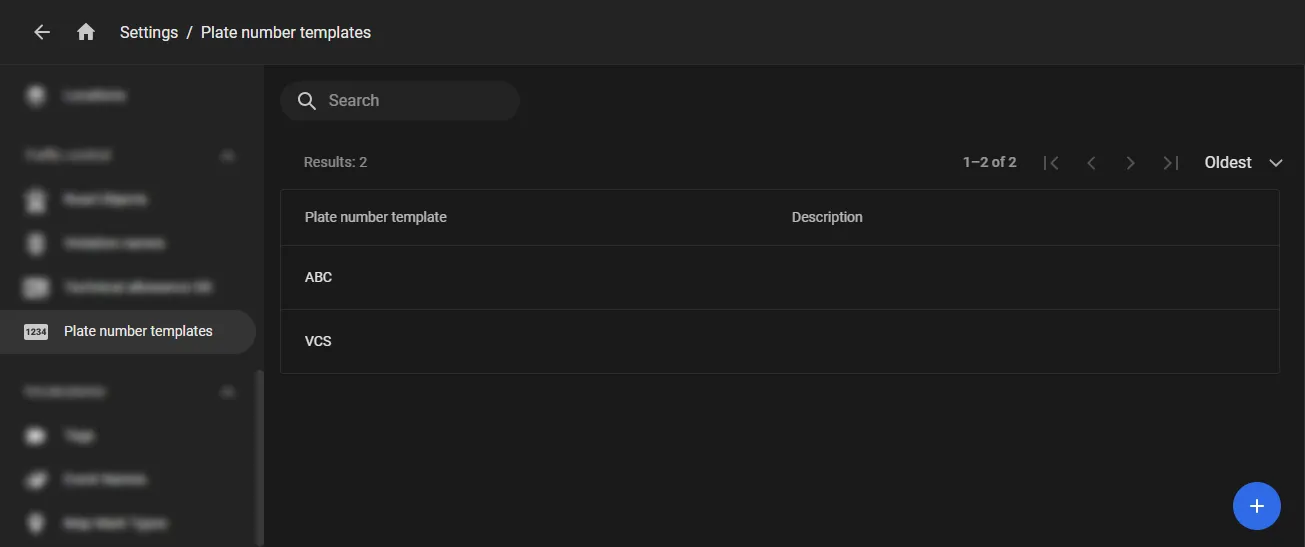
Open Settings > Plate number templates.
-
Click + to open template creation.
-
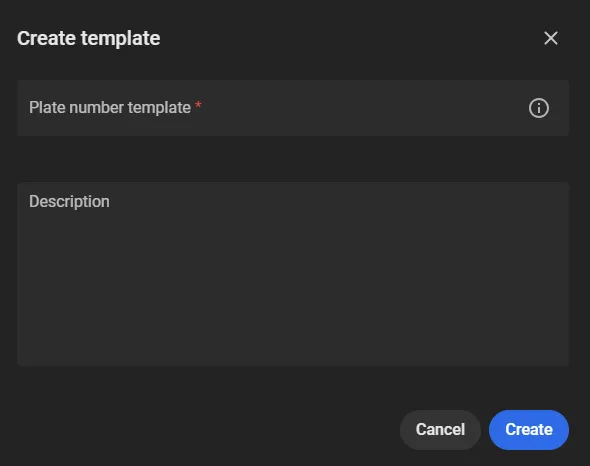
In the window that opens, fill in the following fields:
-
Plate number template: enter a vehicle registration plate pattern. The following characters can be used in a template:
- * (asterisk): any number of any characters, or no characters, for example 7*5AT4;
- ? (question mark): any one character, for example 7?85?T4;
- # (hashtag): plates that start with the characters after #, for example #7*4;
- . (period): plates that end with the characters before ., for example *AT4..
The maximum template length is 12 characters. Each plate number template must be unique in the system.
- Description: optionally add a note for the template (up to 256 characters).
-
Plate number template: enter a vehicle registration plate pattern. The following characters can be used in a template:
-
Click Create.
As a result, the created template appears in the list. It can then be selected when configuring violation control rules.
The options menu for a row on the Plate number templates page includes:
- Edit: edit the plate number template and its description. Changes apply to all rules that use the template: new violations are formed with the updated template; previously recorded violations are not changed.
- Delete: delete the plate number template. The template is removed from linked rules; the rules themselves are kept.