
Review Events
After a search for events is complete, the results are shown on the Events screen as an array of cards representing each its own event.
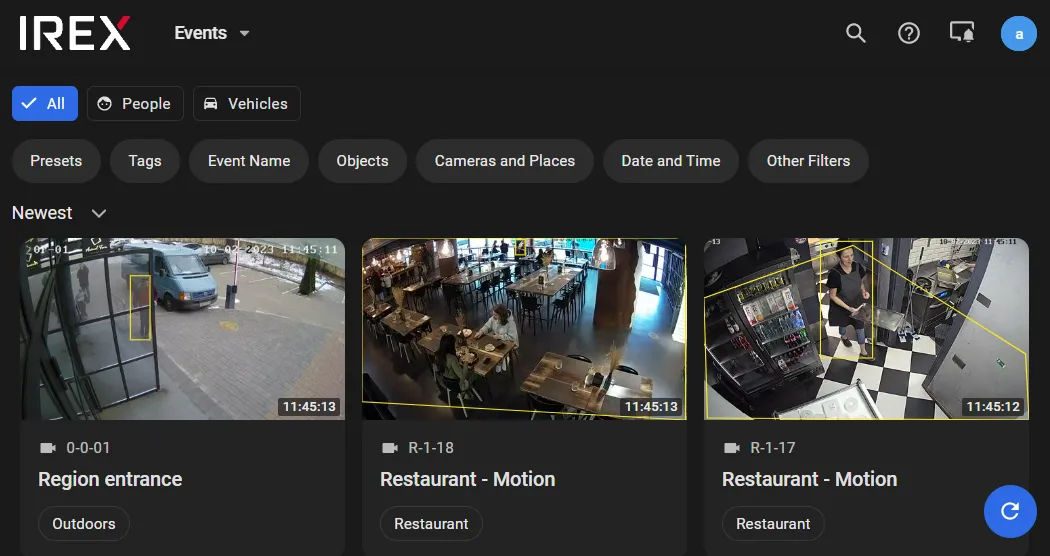
Event Card
On the Event screen, a card represents each event.
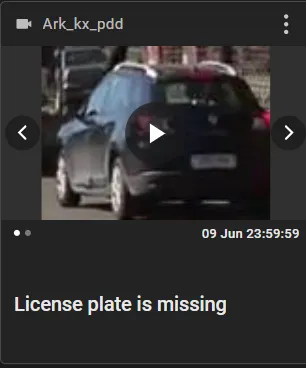
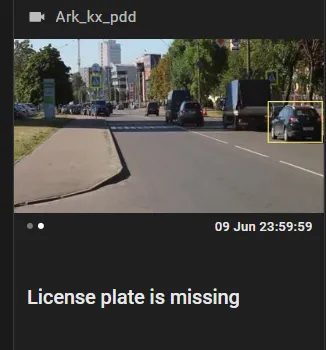
- Click anywhere inside a snapshot to open the event details sidebar.
- Click at the center to playback the event.
- Use the spin buttons to iterate between the thumbnail and full frame snapshots.
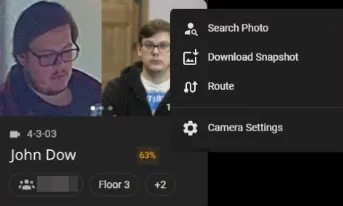
Click in the three-dot menu on the card:
- Download snapshot — to save the snapshot to an external file stored locally.
-
Camera settings — to open the video analytics settings on the spotting camera.
Blocked video analytics settings mean that the assigned role within the system does not allow editing these settings, only viewing. -
Copy link — to copy to the clipboard a “short” link to the event playback in the
media player, e.g. as:
https://platform.com/short/3Gfgd7y - Route — to build the route of the person or vehicle (if applicable).
- Other optional commands, if any, depending on what kind of an event it is.
Event Details
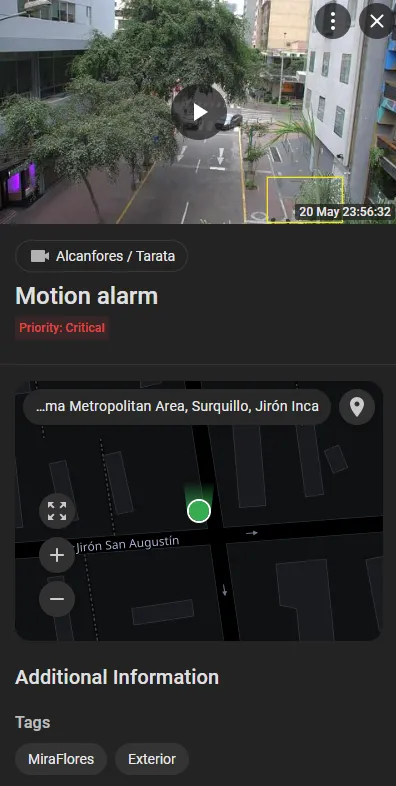
Click anywhere on the event snapshot (1) — the event details sidebar opens on the right. The content of information on this sidebar differs for events of different types; however, it always includes:
- Event name and snapshot.
- Location on the map.
- Event tags and more (vehicle type, estimated age of a person, etc.).
Track a Person or Vehicle on the Map
To track a person/vehicle on the map means to build the route of the target on the map as seen on IREX cameras in chronological order. To do so,
click the Route in the
three-dot menu  on
the Events screen, as shown.
on
the Events screen, as shown.
The program will then show the target route on the map:
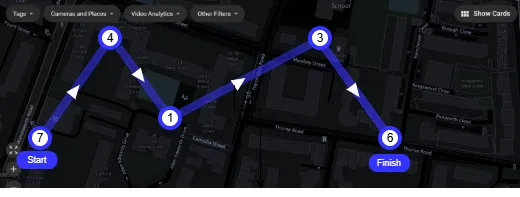
The route doesn't show the true trajectory of the target; it is just a directed broken line connecting the target waypoints in chronological order. Encirled numbers (e.g., “11”, “3”, etc.) show the number of events captured at a waypoint.
If the target entered a building, in which it was also captured on IREX cameras, click as shown to select an available floor plan ...
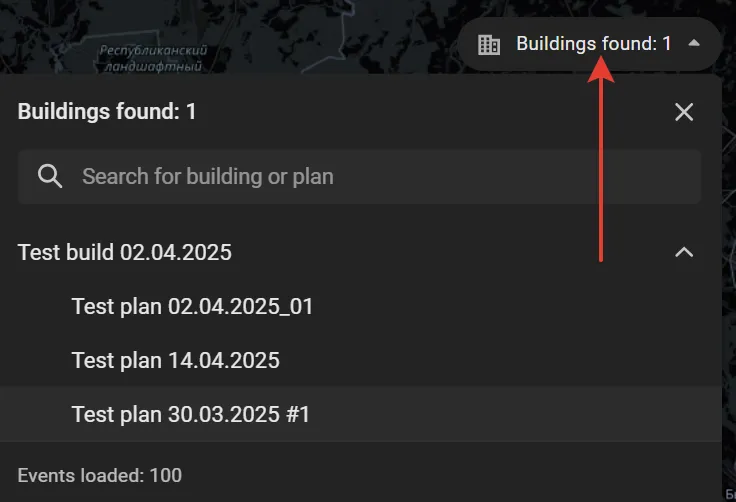
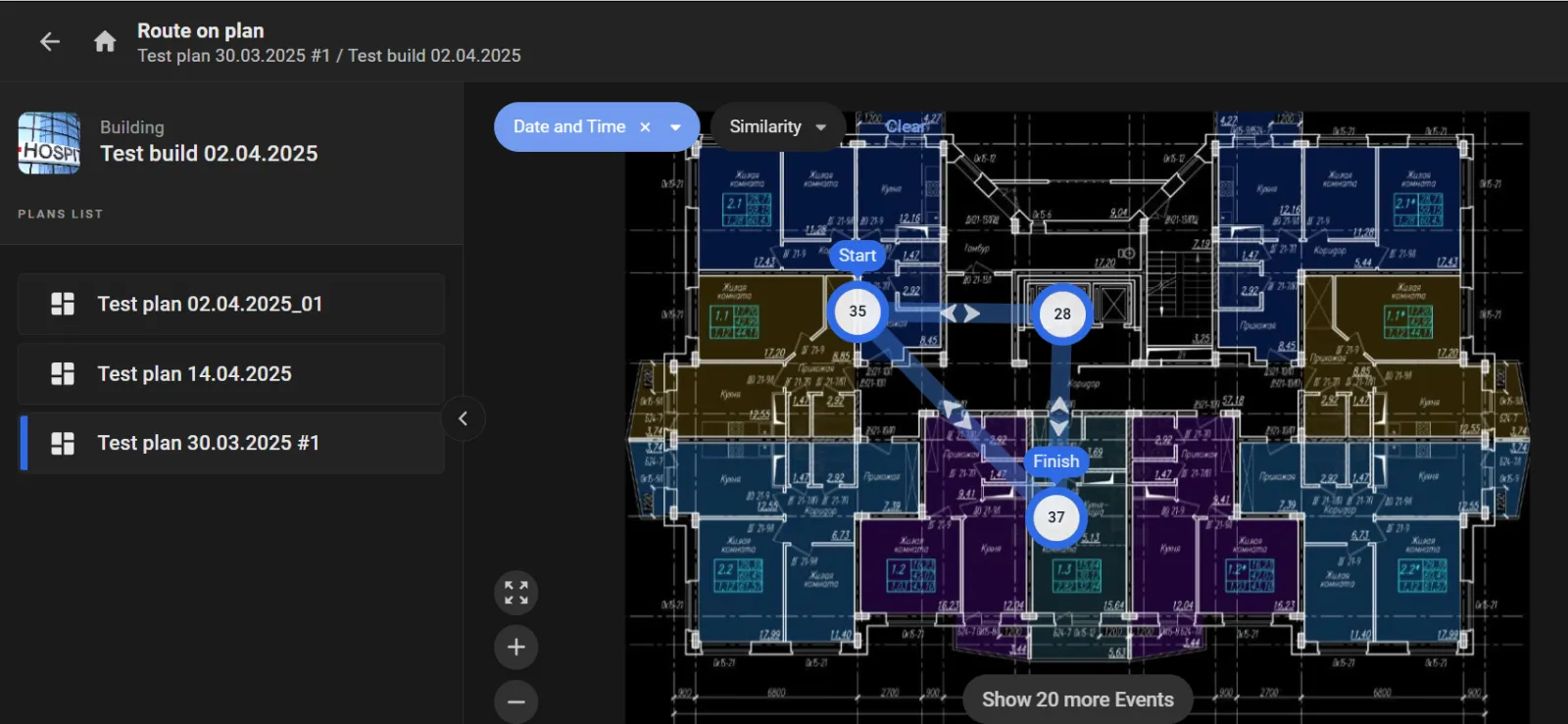
... to view the route of the target on it.
Estimate Spoofing Probability
The AI of the IREX Platform can estimate the spoofing probability for a face spotted on a camera to display the value among other details on the event detail sidebar.
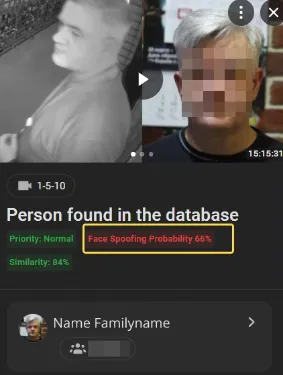
A search can also run based on a spoofing probability estimate.