Find a Person
The action requires a Case ID to be provided.
The program generates two types of face recognition events:
- Match means that a face was detected in a video stream from a camera that was found similar to someone in the system database within a user-defined similarity score. The match's full name will show together with more personal data available in the system database.
- No match means a face was detected in a video stream from a camera yet not similar enough to anyone in the database.
It is the FaceTrack Pro module that runs face recognition on a camera. Being properly set up, it also outputs estimates of a person's age, demographic group, spoofing probability, and features, which can be used as search criteria.
To deal with face recognition events, select People from the dropdown on the left-hand side of the Events screen ...
Shared filters such as Resource Groups stay available on this tab.
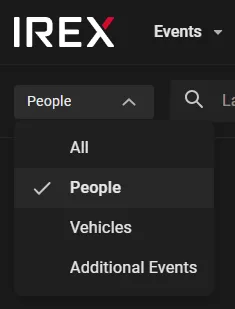
... more filters appear specific for face recognition ...
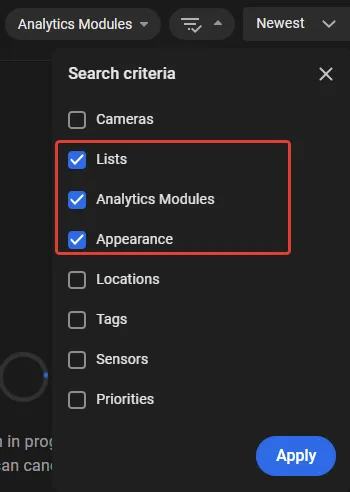
... explained in the table below:
| Filter | Explanation |
|---|---|
| Lists | Persons on a user-chosen watchlist |
| Appearance | Search by appearance features |
| Analytics modules | Search for events by analytics modules |
Also, the search text box changes its functionality.
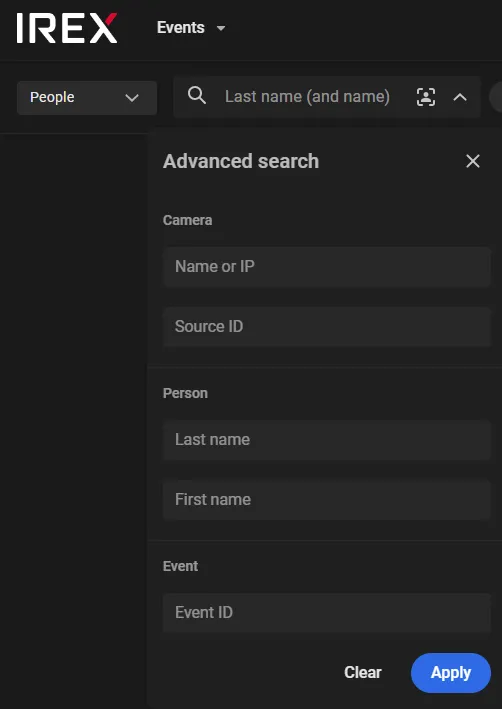
Provide Case ID
Searching for events, humans or vehicles is an ethically sensitive procedure. Therefore, it requires a Case ID to be provided as the reason for the search. All searches are logged in full detail, including the user name/IP, searched subject, referenced document ID, and date and time.
Find by Name
A search like this allows an answer to a question like “Have system cameras seen John Dow”? The question only makes sense if the system “knows” John Dow, i.e., John Dow is in the system database from which the program takes John Dow's photo to compare it to those in the video streams. Having got a search query like this, the program iterates through all “Match” events in the archive to return those relevant to John Dow, if any.
Type name and/or full name as shown (optionally, combined with the attributes of the camera that might have seen the person) and click Search.
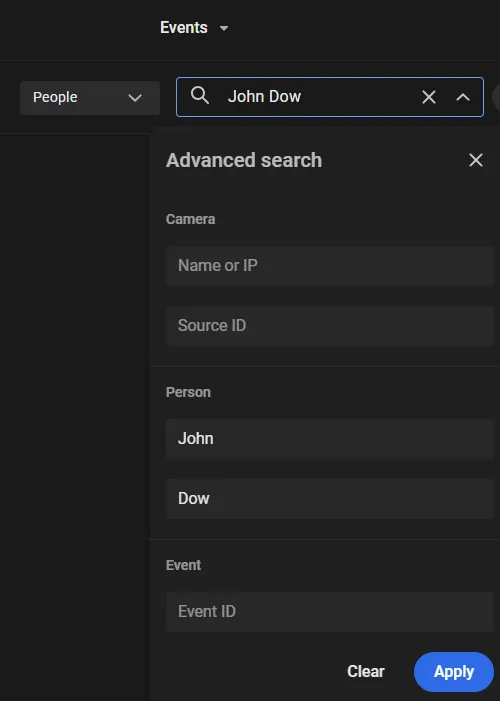
Zero search results may come from one of: 1) cameras really didn't see “John Dow”, or 2) the Recognition mode is disabled for the person list that John Dow is on, or 3) access to the person list that John Dow is on is missing.
Find an Enrolled Person
An enrolled person is the one already in the person database. To find events with a person like this:
- Find him or her in the system database.
- Run the Search Events in the tree-dot menu on the People screen as shown.
- This is the Events screen, where the similarity score and additional filters can be adjusted as needed, then click the Search.
Find All on the Same List
Personal entries in the system database are grouped by lists (e.g. “Missing person”, “Fugitives”, etc.). To limit the search area to one or several such lists, select them under the LIsts. The search will return all events with e.g., all missing people on the “Missing people” list at a time.
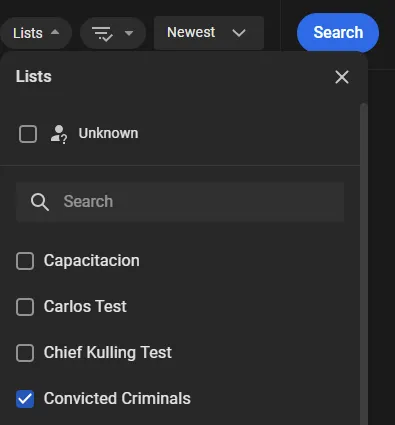
Only lists that: 1) any user group has access to, and 2) have the Recognition mode option enabled, can be selected.
Learn more about access to person lists.
Find by Appearance
A search like this returns an answer to a question like “Where and when was a Caucasian woman aged 25-40 seen?” if the distinctive feature recognition is enabled on FaceTrack Pro cameras.
On the Appearance filter, click the searched person's appearance features.
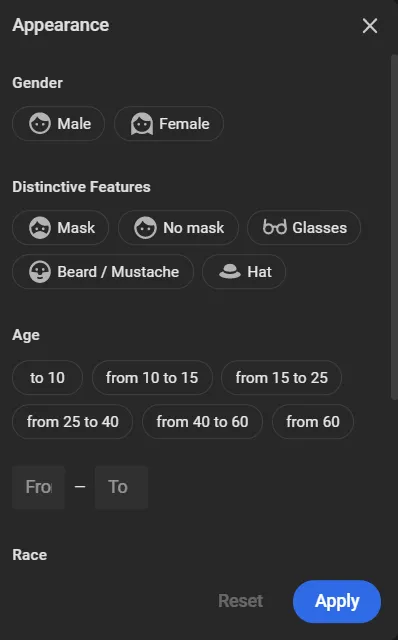
The features are grouped by:
- Gender
- Distinctive features
- Age
- Appearance (white, Asian, etc.)
- Face spoofing probability
Click Apply, then follow the step-by-step query routine to see the result.
The By-Photo or Descriptor Search
This kind of search finds events with a person whose face appears in a photo in an external file, or whose feature vector (descriptor) is available in a JSON file. To do so, click as shown to upload the photo or the descriptor file and set a similarity value.
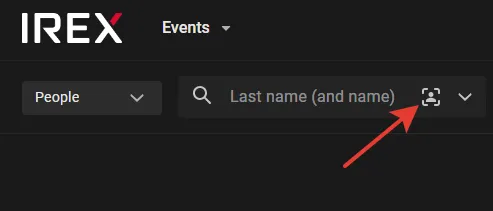

It might be a group photo as well. In this case, an extra dialog opens, in which the face to find is selected from those in the photo.
The query will return all events in which a similar person was seen.
Before running this kind of search, make sure that:
- Valid grounds for the search are identified.
- The safety and ethical norms of free societies are respected.
Find a Previously Seen
Once a camera captures someone's face, there is a function to find all other events in which the same face was captured anywhere else within the system coverage area. To do so, run the Search Photo command in the three-dot menu on the event card, as shown:
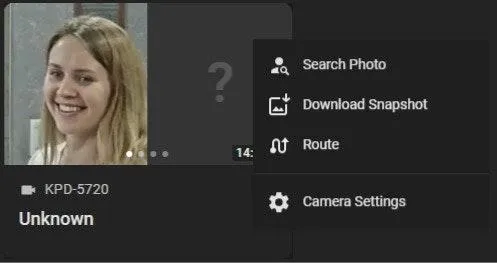
It is also possible to track him or her on the map.
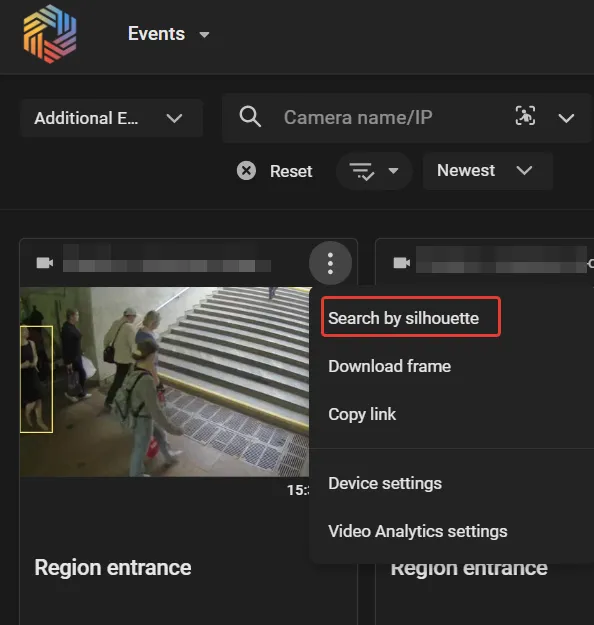
Find a Similar Silhouette
A search like this allows an answer to a question like "Has anyone with a similar silhouette been seen on IREX cameras?"
In more detail, the ObjectTrack Pro module has a feature to calculate the descriptors of the silhouettes of humans detected in a frame. Then those descriptors are stored in a database, thus making it possible to match a silhouette of the user's interest against those in the database. To do so:
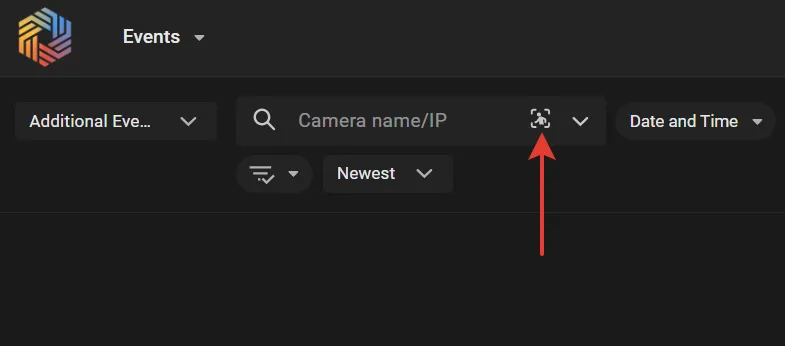
- Click as shown on the Events — Additional events screen to navigate to the photo of the silhouette of interest in the standard Open window.
- The program will then try to find a human in the photo and, if it succeeds, show the bounding box and the slider to adjust the required similarity.
- Click Apply, then Search.
- The program will calculate the descriptor of the silhouette, match it against those in the database, and show the result. It will be an array of event cards detected on all the cameras of the platform that have ObjectTrack Pro with the Detect human silhouettes option enabled.
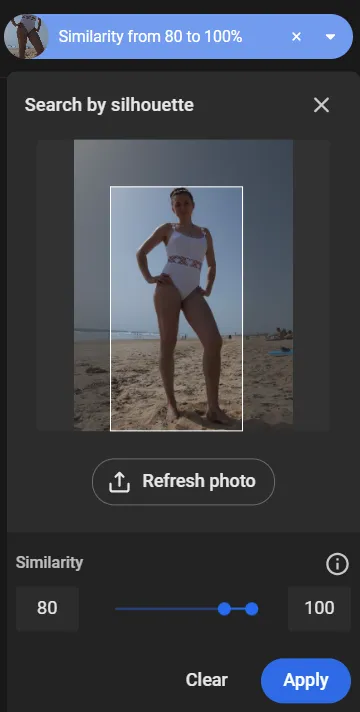
The silhouette to compare with the database can be taken from a snapshot of an event if the detecting camera had ObjectTrack Pro with the Detect human silhouettes option enabled. If so, the Search by silhouette command is available in the three-dot menu on the event card. Run it to execute the search.