CrowdCount
Use the CrowdCount module to control overcrowded areas (e.g., at transportation hubs), manage queues, respond to social distancing violations, etc.
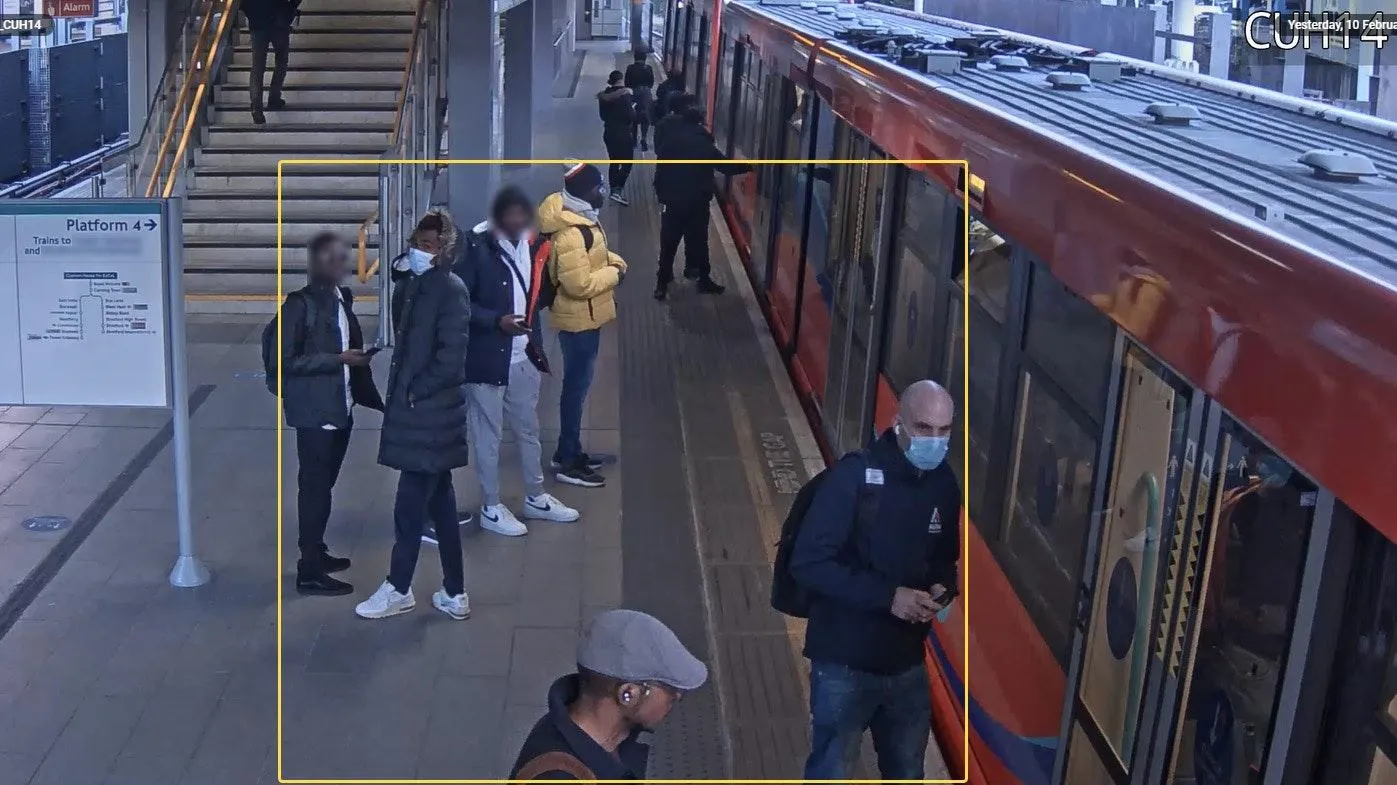
Meet CrowdCount
How It Works
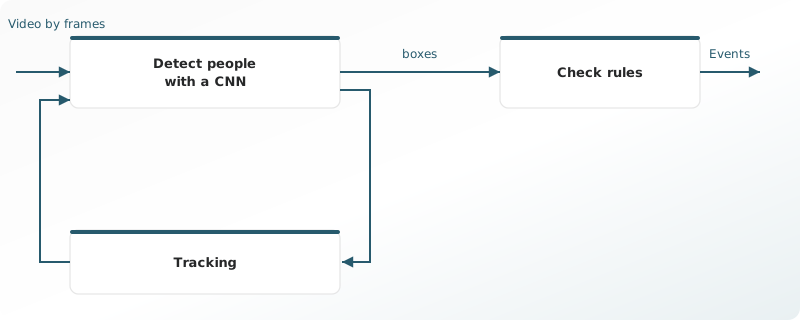
A CNN finds people in every nth frame by whether a face is present. The face boxes are then counted and checked against the conditions for a Crowd event:
- People are present in a predefined zone.
- They have stayed in that zone for the required time.
- The number of people is compared with the threshold.
When these conditions are met, the module creates a Crowd event.
Computational Complexity
The algorithm is rated 2 on a 5-point complexity scale. Average CPU usage is about 40%, and the load can vary with video resolution and the processor.
Camera Requirements
To select cameras, use specialized software (for example, IP Video System Design Tool) or a free lens calculator from the camera manufacturer.
| Characteristic | Requirement |
|---|---|
| CMOS sensor size | 1/3″ or larger |
| CMOS sensor light sensitivity | 0.01 lux or less for a color image with automatic gain control (AGC) on at 30 IRE; 0.05 lux or less for a black-and-white image with AGC on at 30 IRE |
| Electronic shutter speed | adjustable from 1/25 to 1/10,000 second, or a wider range |
| Electronic shutter speed adjustment modes | automatic / adjustment range / manual |
| Number of video streams | 2 or more |
| Primary stream resolution | 1280×720 to 2560×1920 pixels |
| Secondary stream resolution (optional, for layouts) | 320×240 to 704×576 pixels |
| Video frame rate | 10 to 25 frames per second |
| Lens focal length | 2.8 mm or longer |
| Primary stream bitrate | up to 8 Mbps |
| Secondary stream bitrate | up to 1 Mbps |
| Video encoding type | constant (CBR) / variable (VBR) |
| Video encoding protocol | H.264 HP/MP/BP, H.265 |
| Network protocol support | TCP/IP, ICMP, HTTP, HTTPS, RTP, RTSP, NTP, SNMP, IGMP, IPv4/IPv6 |
| Video transmission protocol | RTP over TCP |
| ONVIF compatibility (optional, for remote camera control) | ONVIF (PROFILE S, PROFILE G) |
| Built-in illumination | 20 meters or more |
Camera Mount Requirements
| Characteristic | Requirement |
|---|---|
Camera tilt relative to the horizon
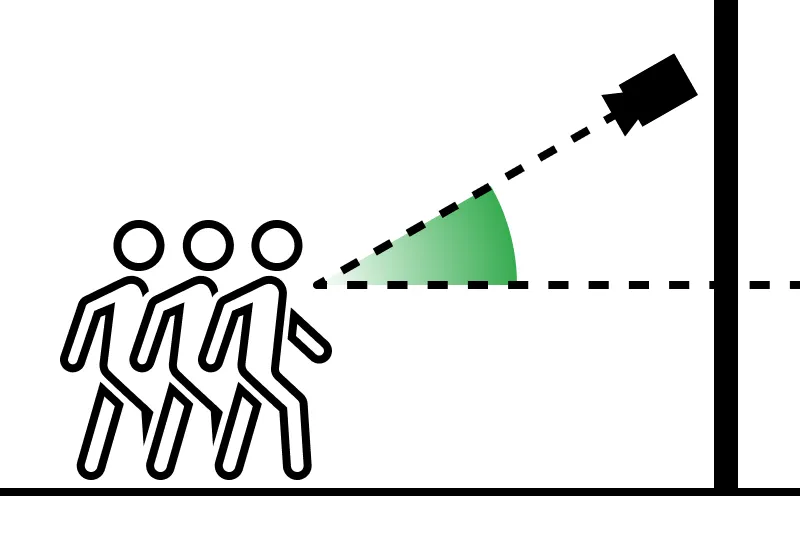 |
0° to +75° |
Camera roll about its axis
 |
−5° to +5° |
| Image quality at the border of the controlled zone | 50 pixels per meter or more |
| Recommended mounting height | 2.5 to 5 meters above floor or ground level |
| Illumination of the controlled zone | 50 lux or more across the camera scene |
How to Detect a Crowd
Crowding may need a real-time response from the security or premises management teams.
- Make sure the cameras monitoring potentially crowded places meet the system requirements.
- Enable the CrowdCount module on those cameras and set it up to detect crowds
- Build an alarm monitor having Analytics modules > CrowdCount > Crowds checkmarked.
- Review the crowd alarms arriving onto the monitor.
Remember, CrowdCount can run in parallel with any other module.
Set Up Crowd Detection
Under CALIBRATION click Region of interest and build the part of the frame to analyze
To move a vertex, point the cursor onto it and drag and drop it.
To delete a vertex, double-click it.
To add a vertex onto an edge, double-click where the vertex should be.
To move the region as a whole, place the cursor inside it and drag-and-drop.
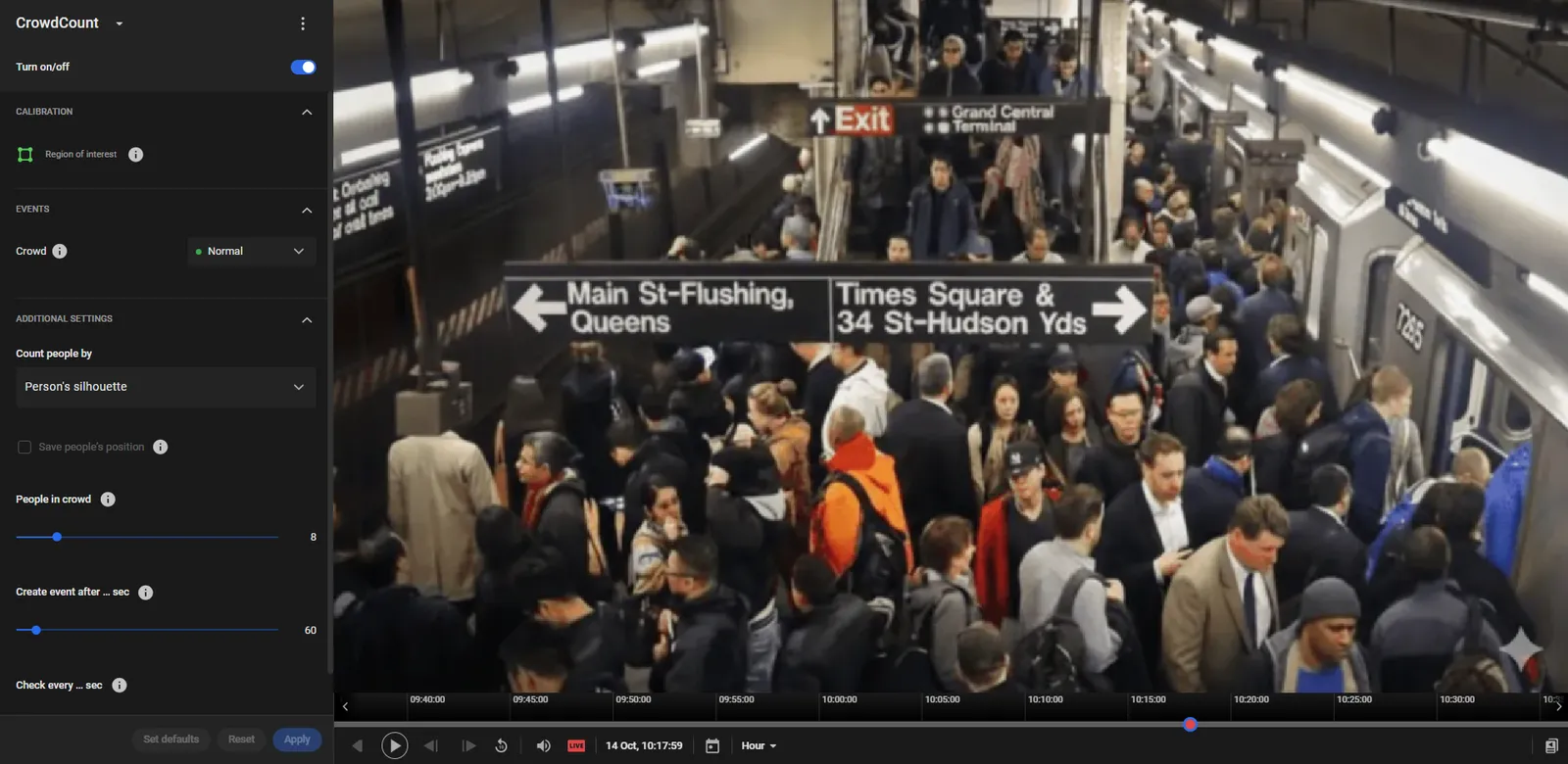
Under ADDITIONAL SETTINGS, define:
-
Count people by: how people in the Region of interest are counted.
- Person's silhouette: a smaller crowd, up to 35 people, counted from the silhouette.
- Top of head: a larger crowd, up to 3,000 people, counted from the top of the head.
- Save people’s position: available with Top of head. It keeps each person's position so a count in a selected zone is available in archive playback. Count then appears in the player.
- People in crowd: the smallest number of people in the Region of interest at one time that counts as a crowd. Person's silhouette allows 3–35. Top of head allows 50–3,000.
- Create event after … sec: how long the count in the Region of interest must stay at or above People in crowd before a Crowd event is created.
- Check every … sec: how often the module checks the number of people in the Region of interest. A count below People in crowd does not create an event, and an event that is already open is closed. Person's silhouette allows 5–60 seconds. Top of head allows 15–60 seconds.
Tips to Review "Crowd" Events
Monitor dangerous crowds on the Events or Alarms screen represented by cards, each holding the time stamp of the crowd's birth in the lower-right corner of the card and the number of people in it.
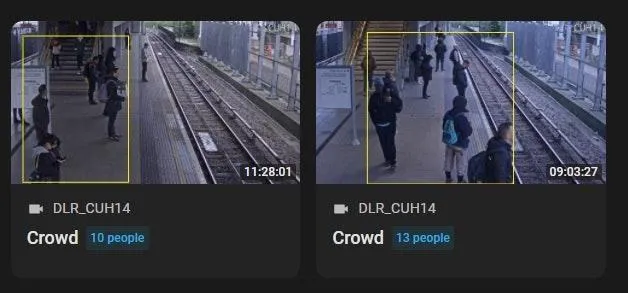
Remember, "Crowd" is a durable event, which means that once built up, a crowd may later dissipate, about which the module does not release any notification. However, whether the crowd still persists or when it has dissipated can be checked. To do so, click the event card to play back the event and take a look at the event duration indicator:
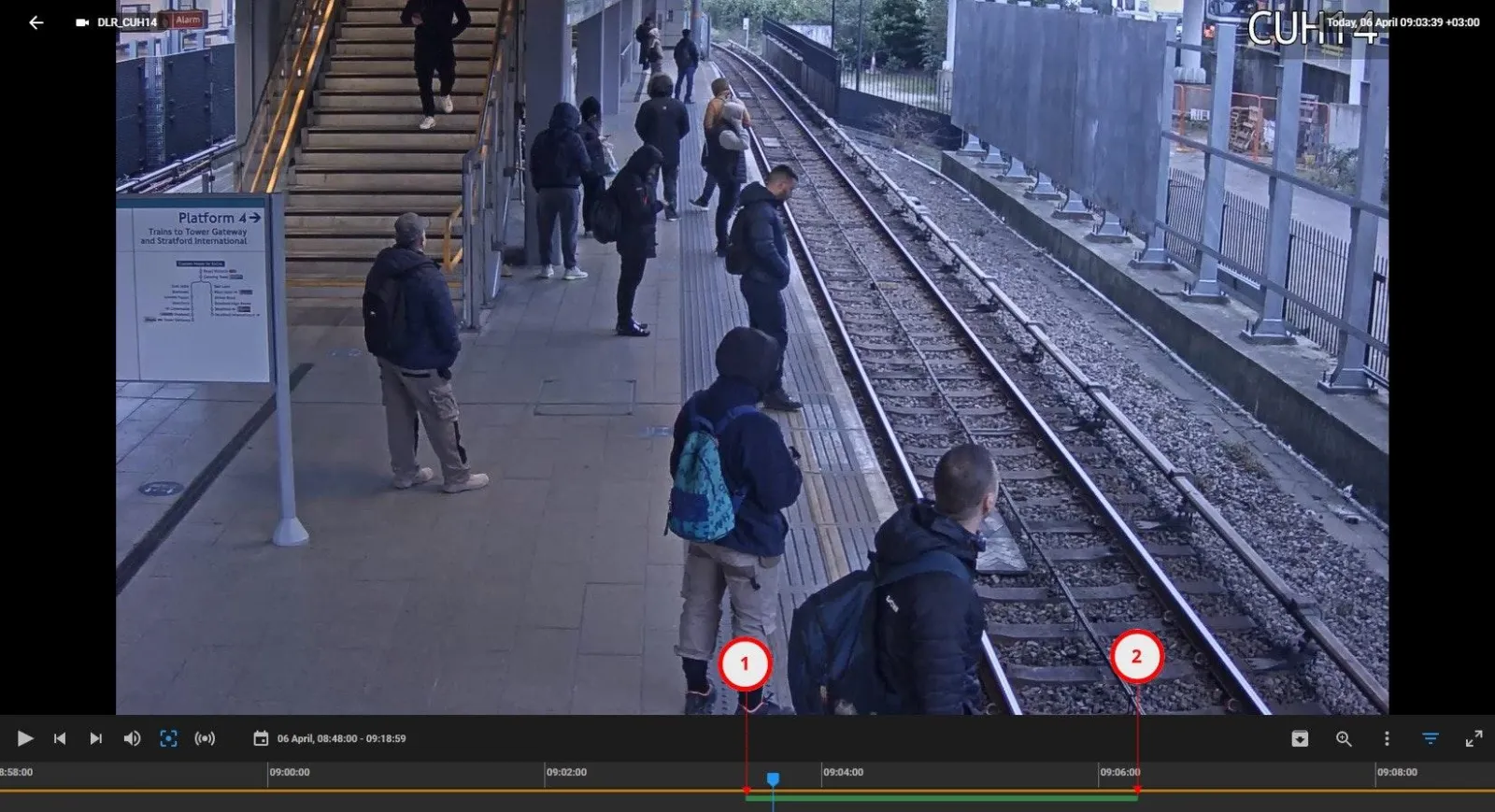
Here:
1- crowd built up
2 - crowd dissipated
The playback timeline might be delayed with respect to the time stamp of the event on the card due to the effect of the Check every … sec parameter.
Estimate a Crowd "on the Fly"
Usually, viewing a playback is enough to verify a crowd event, since the Platform tests demonstrate over 95% true positive probability in foreseeable normal conditions, plus the event itself is not very sensitive to the exact number of people in a crowd. However, more accurate estimates of module performance efficiency can only be made in each particular Customer's conditions.
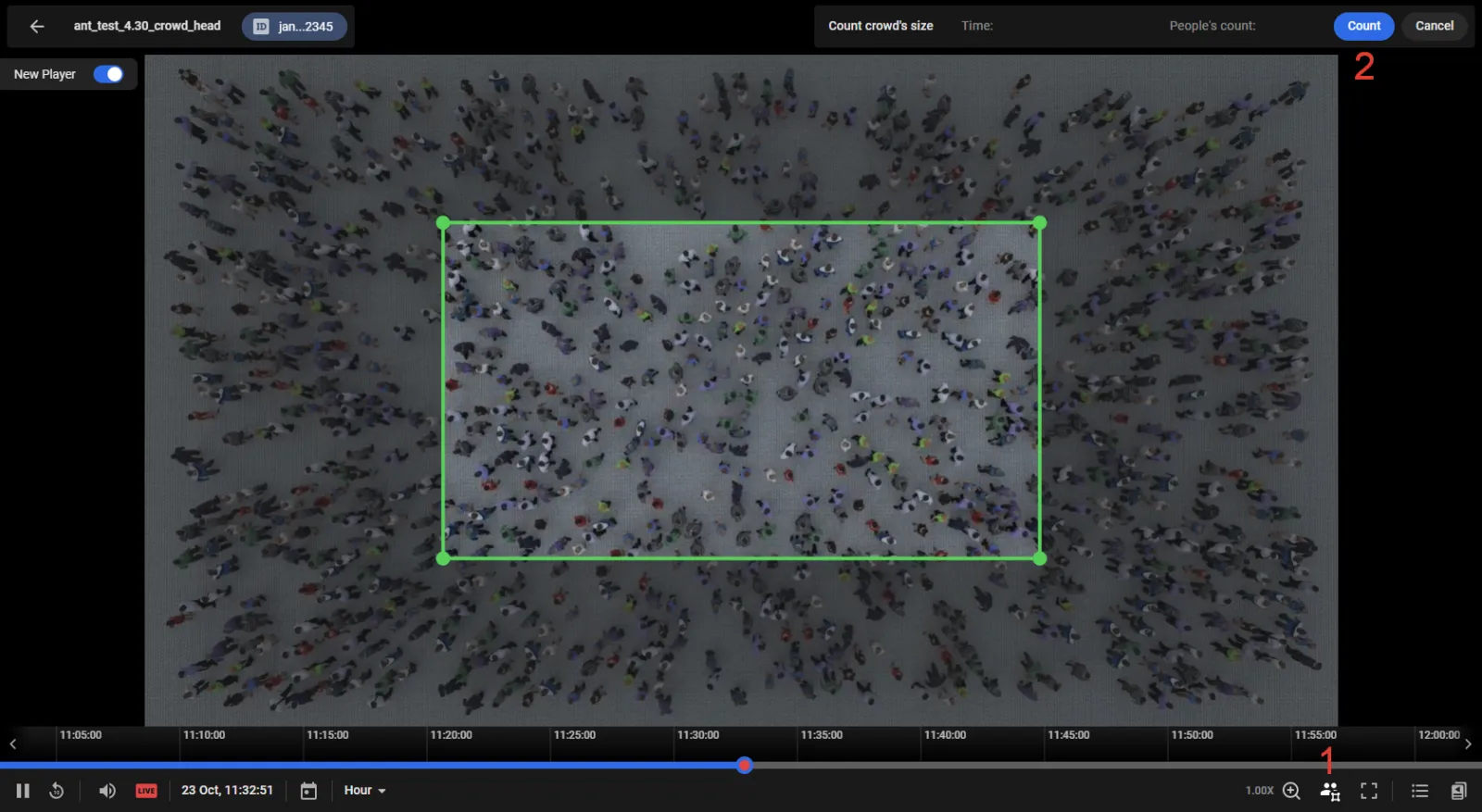
While a video is playing in the media player from a camera that has Count people by = Top of head with Save people's position switched on, the ROI can be rebuilt to estimate a crowd numerically "on the fly" in the new ROI. To do so, click 1 as shown, then click Count (2) to see the result in the bottom-left corner of the screen.