
CarCount
Use the CarCount module for the following use cases:
- "Find jam" — to determine whether traffic is congested on a user-defined road segment.
- "Parking lot full" — to determine whether a parking lot has exceeded its capacity.
Meet CarCount
How It Works
A CNN checks every nth frame of the incoming video. It detects vehicles (cars, motorcycles, buses, trucks, and minivans) and draws a bounding box around each one. The boxes are then counted and checked against the conditions for a Traffic congestion detection event:
- Vehicles are present in the specified control zone.
- The vehicles have stayed in that zone longer than the minimum time.
- The total number of vehicles is above the set minimum.
When these conditions are met, the module creates a Traffic congestion detection event.
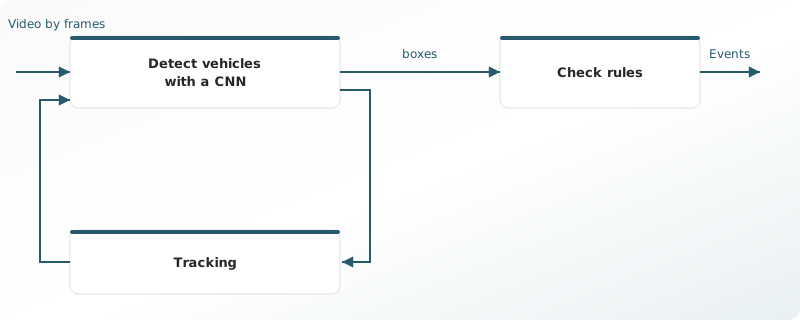
Under the Parking control rule, parking-space occupancy counts only objects the network has classified as vehicles (cars, motorcycles, buses, trucks, and minivans). Pedestrians, shadows, glare, and other objects that are not vehicles are left out of the count.
The counter in the player uses these checks:
- The minimum time the tracker needs to confirm that a vehicle is in the control zone.
- How long the vehicle has been in the control zone.
- A vehicle counts only after the tracker has seen it in the control zone steadily, over several checks.
Objects that appear only briefly are left out. The counter usually updates within a fraction of a second, and at most within a few seconds.
Computational Complexity
The algorithm is rated 2 on a 5-point complexity scale. Average CPU usage is about 40%, and the load can vary with video resolution and the processor.
Camera Requirements
To select cameras, use specialized software (for example, IP Video System Design Tool) or a free lens calculator from the camera manufacturer.
| Characteristic | Requirement |
|---|---|
| CMOS sensor size | 1/3″ or larger |
| CMOS sensor light sensitivity | 0.01 lux or less for a color image with automatic gain control (AGC) on at 30 IRE; 0.05 lux or less for a black-and-white image with AGC on at 30 IRE |
| Electronic shutter speed | adjustable from 1/25 to 1/10,000 second, or a wider range |
| Electronic shutter speed adjustment modes | automatic / adjustment range / manual |
| Number of video streams | 2 or more |
| Primary stream resolution | 1280×720 to 2560×1920 pixels |
| Secondary stream resolution (optional, for layouts) | 320×240 to 704×576 pixels |
| Video frame rate | 10 to 25 frames per second |
| Lens focal length | 2.8 mm or longer |
| Primary stream bitrate | up to 8 Mbps |
| Secondary stream bitrate | up to 1 Mbps |
| Video encoding type | constant (CBR) / variable (VBR) |
| Video encoding protocol | H.264 HP/MP/BP, H.265 |
| Network protocol support | TCP/IP, ICMP, HTTP, HTTPS, RTP, RTSP, NTP, SNMP, IGMP, IPv4/IPv6 |
| Video transmission protocol | RTP over TCP |
| ONVIF compatibility (optional, for remote camera control) | ONVIF (PROFILE S, PROFILE G) |
| Built-in illumination | 20 meters or more |
Camera Mount Requirements
| Characteristic | Requirement |
|---|---|
Camera tilt relative to the horizon
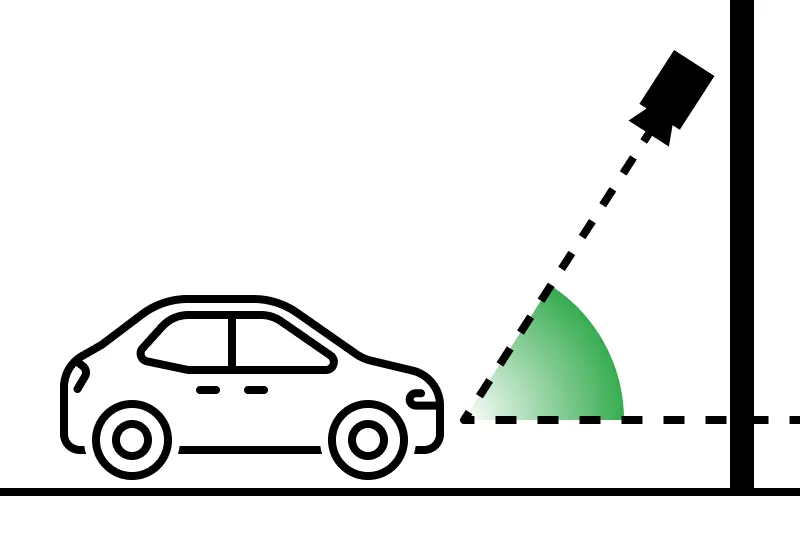 |
0° to +75° |
Camera angle relative to the road direction
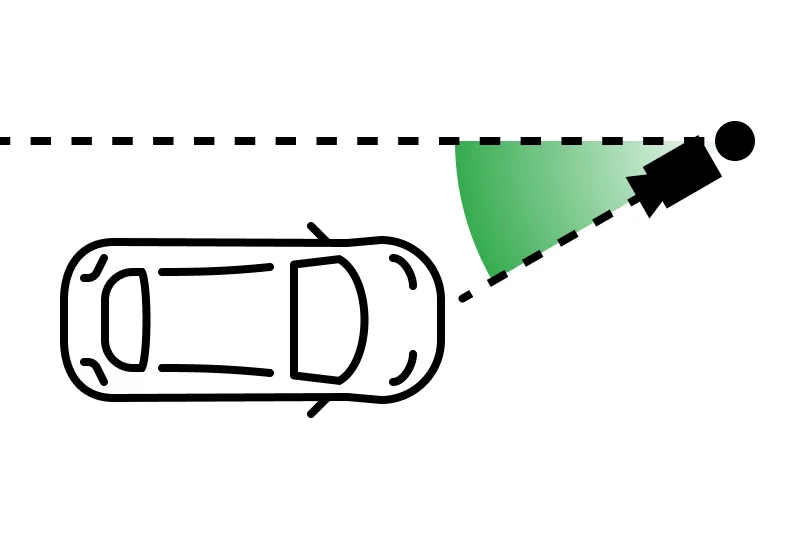 |
−45° to +45° |
Camera roll about its axis
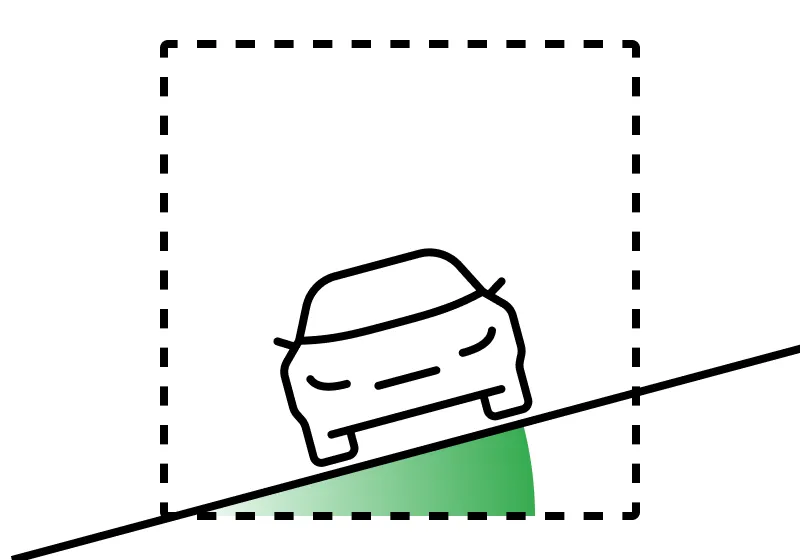 |
−5° to +5° |
| Image quality at the border of the controlled zone | 50 pixels per meter or more |
| Recommended mounting height on roads, highways, and intersections | 3 to 8 meters above ground level |
| Illumination of the controlled zone | 50 lux or more across the camera scene. The vehicle in view must be lit evenly. |
How to Find a Jam
Traffic congestion at busy intersections or major roadways often requires a real-time response from road police or other authorized agencies.
- Make sure the cameras watching potentially jammed road segments meet the system requirements.
- Enable the CarCount module on those cameras and set it up to detect jams.
- Build an alarm monitor where Cameras = the cameras from item 1, then configure notifications for that monitor.
- When a jam alarm appears in that monitor, review it before responding.
Congestion events can also be relevant during post-incident investigations. In this case:
- On the Events - Additional events screen, checkmark Traffic congestions under the Analytics modules > CarCount and run the search for jams.
- Review each jam event returned by the search.
How to Control a Parking Lot
A parking lot that exceeds capacity typically requires action by security or facilities management. In this case:
- Make sure the camera monitoring the lot meets the system requirements.
- Enable the CarCount module on that camera and set it up to control the lot.
- Build an alarm monitor where Cameras = the cameras from item 1, then configure notifications for that monitor.
- Test the "Parking lot full" alarms arrive correctly on that monitor.
Set Up Jam Detection
Jam detection is the default scenario for CarCount once the module is enabled. However, the geometry and threshold parameters must be defined.
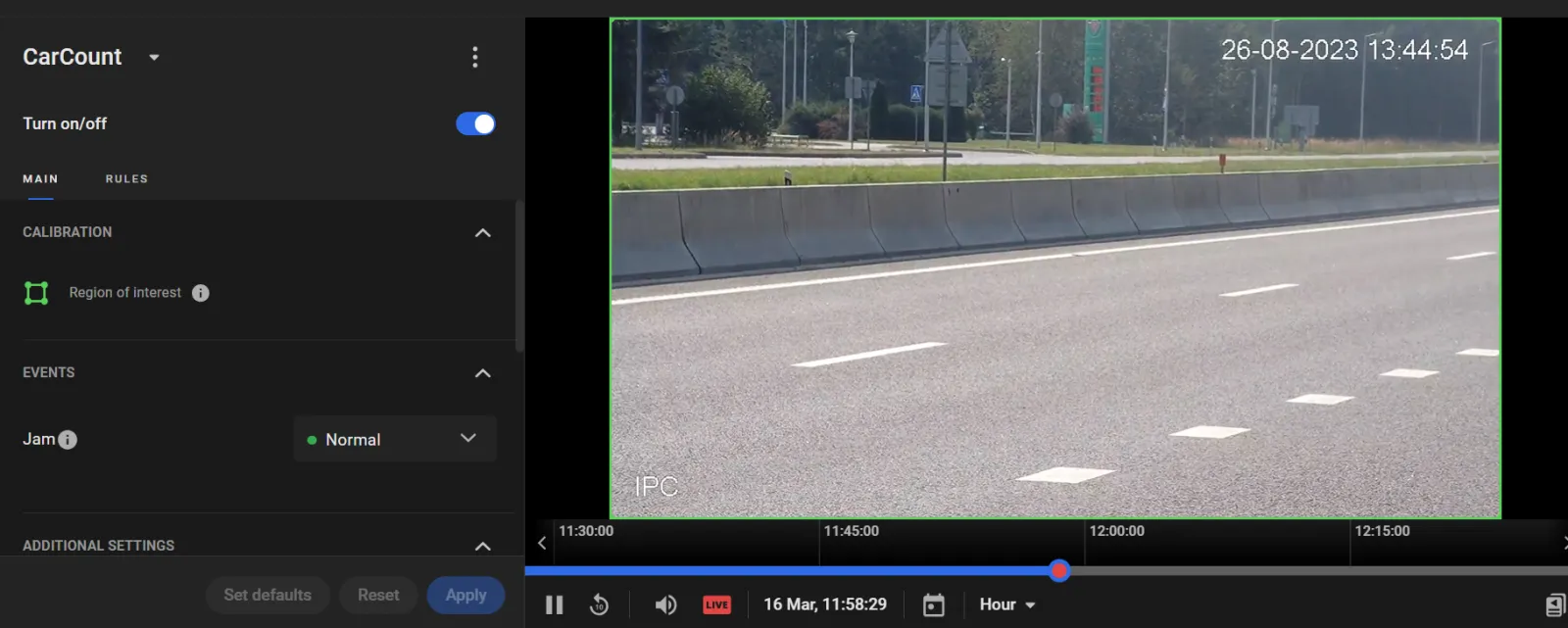
- Under CALIBRATION, define the Region of interest: the part of the frame to analyze. It is outlined in green and defaults to the full frame.
- Under EVENTS, assign a priority rating to Jam events.
- Under ADDITIONAL SETTINGS, define the jam detection thresholds and notification parameters:
- Click Apply.
To move a vertex, hover over it, then drag and drop it.
To delete a vertex, double-click it.
To add a vertex on an edge, double-click the edge at the desired point.
To move the entire region, place the cursor inside it, then drag and drop.
Vehicles in jam: the minimum number of vehicles within the Region of interest required to treat the situation as a jam (integer, 5–40).
Jam if longer than ... s: the minimum duration required to detect a jam: more than Vehicles in jam vehicles remain in the Region of interest longer than this time (integer, 60–300 seconds). This value must be at least three times longer than Recount every ... s to ensure reliable detection.
Recount every ... s: the interval for recounting vehicles to check for a jam (integer, 5–60 seconds). This value must be at least three times shorter than Jam if longer than ... s.
Vehicle in background count: enable detection of objects as small as 16×16 px.
Tips to Review Jams
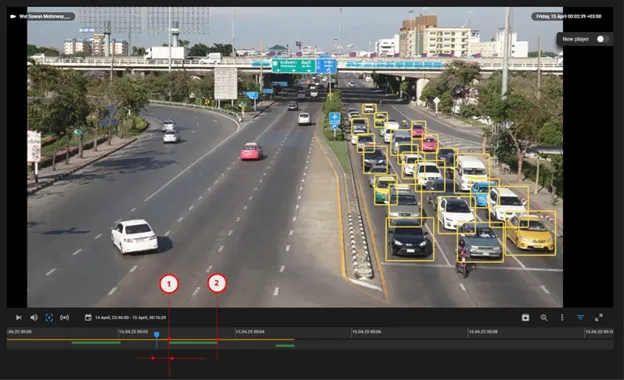
Click a Jam event card on the Events or Alarms screen to play back the event—for example, to confirm whether the congestion is still ongoing, whether it has cleared, and when it started and ended (see 1: jam starts; 2: jam ends). Note that the playback timeline may lag behind the event time on the card due to the Recount every ... s interval.
Set Up Parking Lot Control
Configure parking lot control to compare the current number of vehicles within a user-defined parking area with the number of available parking slots, and receive an alarm when the limit is exceeded.
- On the RULES sub-tab, click Add rule and select Parking control from the menu.
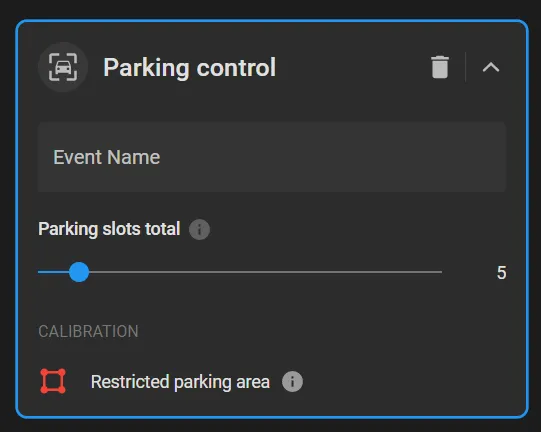
- On the Parking control card, enter a custom rule name.
- Draw the Region of interest to monitor by dragging the default vertices within the frame.
- Enter the total number of parking slots within the Region of interest in Parking slots total.
- Click Apply to send events to the Events screen whenever the number of vehicles in the Region of interest exceeds the Parking slots total limit.
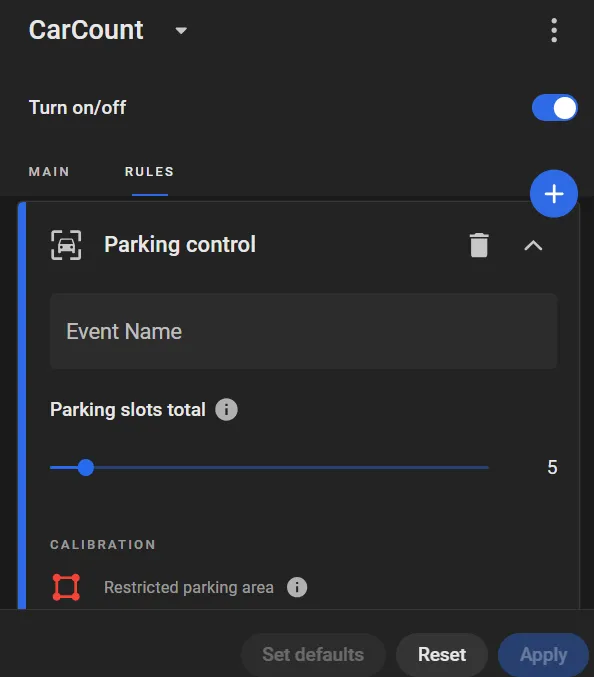
Use a clear, self-explanatory name, because it becomes one of the event names that platform users will work with. Rule names can be edited on the User Menu > Settings > Event Names screen. For example, in this use case, a suitable name would be "Parking full".
Tips to Test Parking Lot Control
- Configure parking lot control on a camera monitoring a real parking lot, but set Parking slots total to an intentionally low value.
- Find "Parking full" events on the Additional Events screen using the event name search.
- Verify in the event snapshots and in the playback that the number of vehicles on the lot exceeds indeed Parking slots total.