
Railroad Crossing Lights Violation
Definition
Traffic lights at railway crossings have different designs from those at city crossroads, while the “Do not go” signal is typically flashing red.
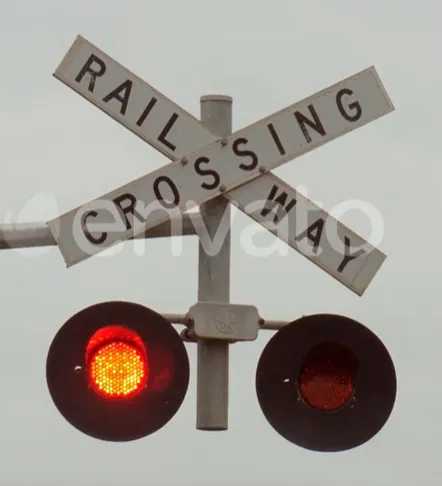
Therefore, the detection of violations at railway crossings requires some changes to that at urban road crossings, although the logic is preserved in its essential features.
A “Railway traffic light violation” occurs if a car:
Case A
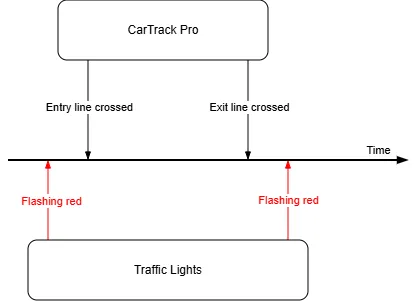
- Crosses the entry line (e.g., the “In” line below) while the flashing red is on,
AND
- Crosses the exit line (e.g., the “Out” line below) while the flashing red light is still on.
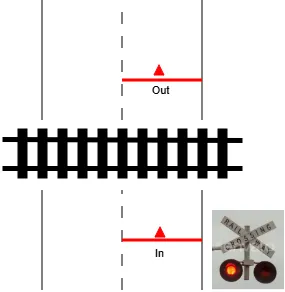
|
|
|---|
The platform records a violation only if the “Do not go” light selected in the violation rule was on when the vehicle crossed the entry line and shortly before that.
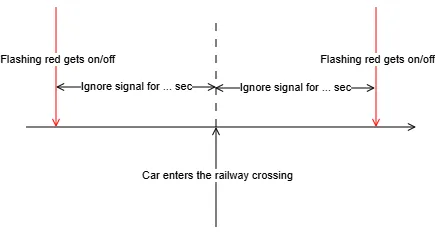
However, a minor mismatch between entry/exit timestamps vs red light gets on/off ones is considered permissible. It must be less than Ignore signal for … sec parameter value. This is to avoid too many minor violation events.
Case B
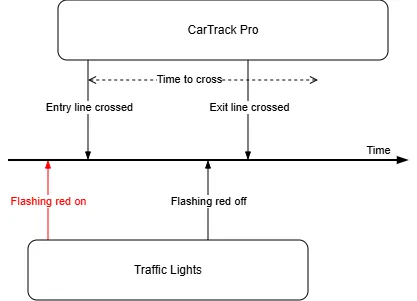
If the stop line control is also enabled at the crossing, traffic lights violations can occur in situations like this:
- Crosses the entry line (e.g., the “In” line below) while the flashing red is on,
AND
- Crosses the exit line (e.g., the “Out” line below) when the flashing red is already off, yet the entry-to-exit time was less than a predefined limit Time to cross.
|
|
|
|---|
 The
timestamp of the event when the car crosses the line is detected considering
the value of
the Focal point.
The
timestamp of the event when the car crosses the line is detected considering
the value of
the Focal point.
Workflow to Set Up Railway Traffic Lights Violations
- Build a road object.
- Bind cameras to the road object.
- Name the violation.
- Build the entry and exit lines.
- Set up the crossing lights control.
- Combine the lines and signal into a rule.
- Turn on the railway crossing control.
- Review the result.
Build the Road Object
Do so as described here; give it a clear descriptive name. e.g., “Railroad crossing”.
Build the Entry and Exit Lanes
In the CarTrack Pro settings for the camera monitoring entry or exit to and from the railway crossing, build the entry and exit lanes. Give these lanes clear names, e.g. “In” or “Out,” to make it easier to combine them with the “Do not go” signal into a rule later.
Set Up the Crossing Lights Control
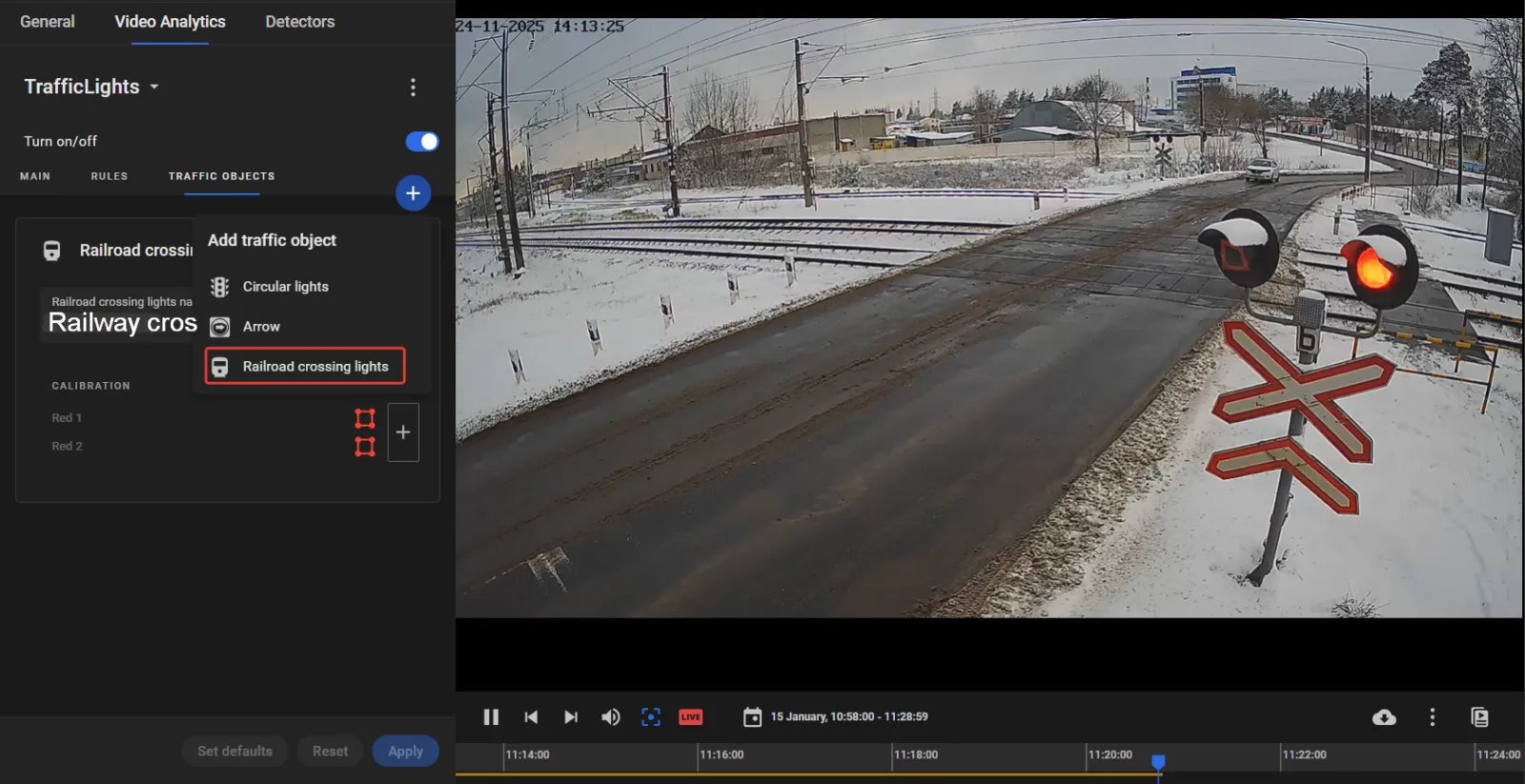
On the camera designated to monitor the railroad crossing lights, set up the flashing red signal that controls traffic along the crossing. Give the monitored lights a self-explanatory name, e.g., “Railway crossing on route 66.”
Formulate the Rule
Now combine the lanes and crossing lights into the rule.
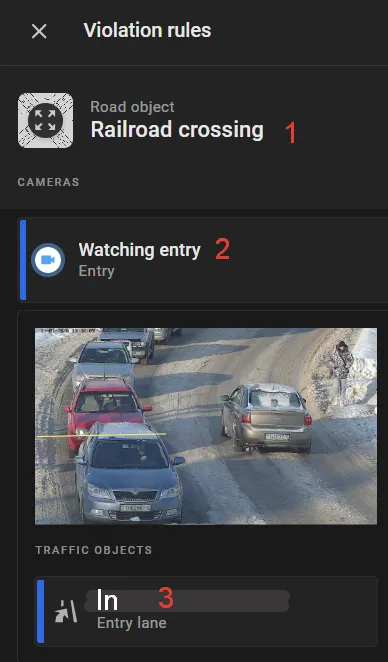
- On the road object page, open the Options menu and select Violation rules. On the left-hand sidebar, find the entry camera label 1 (e.g., “Watching entry”) and the entry lane name 2 (e.g., “in) selected under the road object name 3 (e.g., “Railroad crossing”).
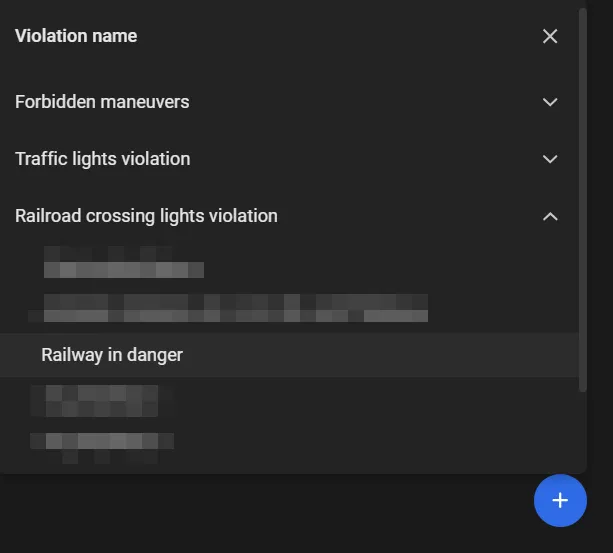
- Click “+” to select the planned traffic light violation name (e.g. “Railway in danger”) under Railroad crossing lights violations.
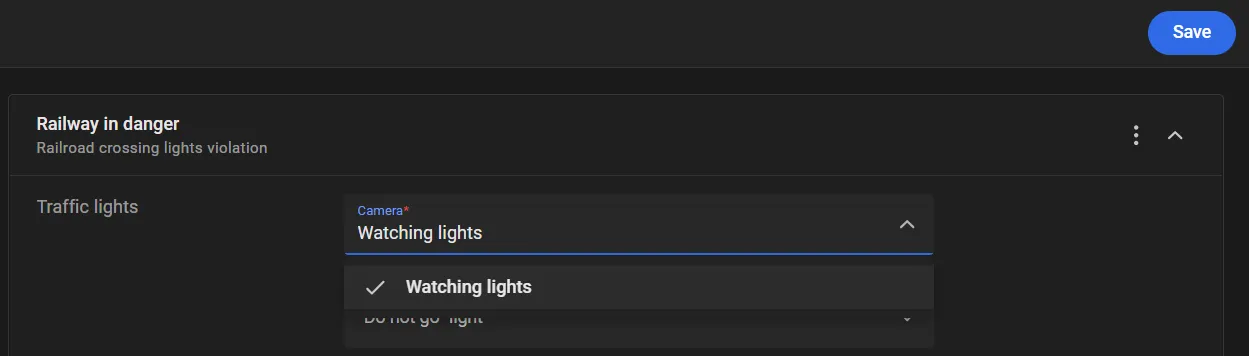
- On the Traffic lights list, select the label of the camera watching the crossing lights, e.g., “Watching lights”.
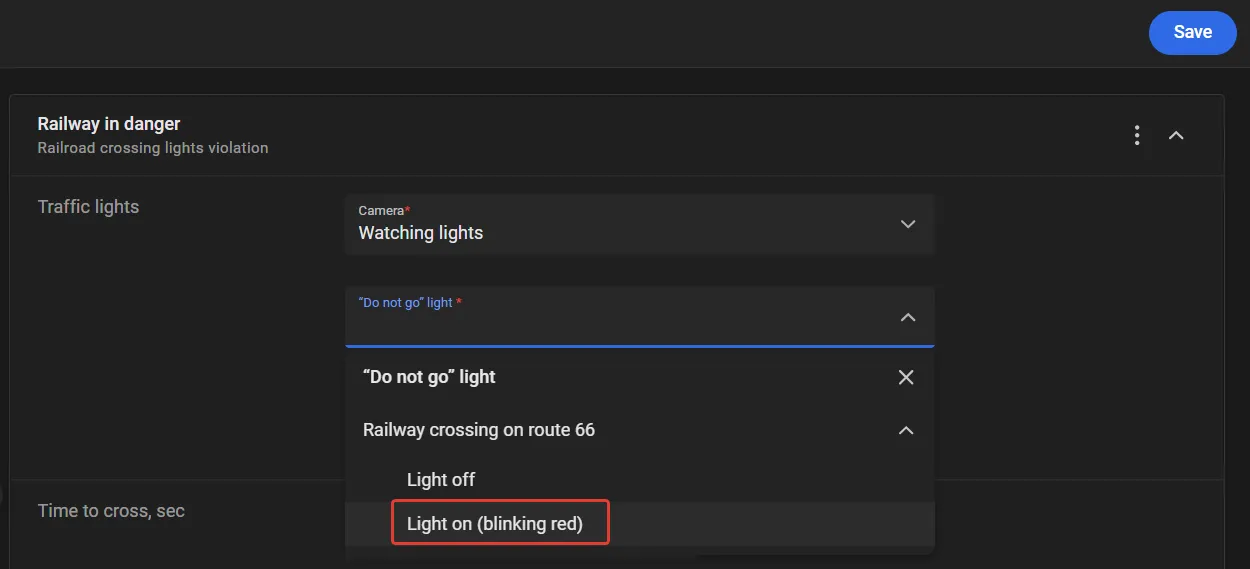
- On “Do not go” light list, select “Light on (blinking red)” under the crossing lights name (e.g., “Railway crossing on route 66”). The platform records a violation only if that “Do not go” light was on when the vehicle crossed the entry line and shortly before that.
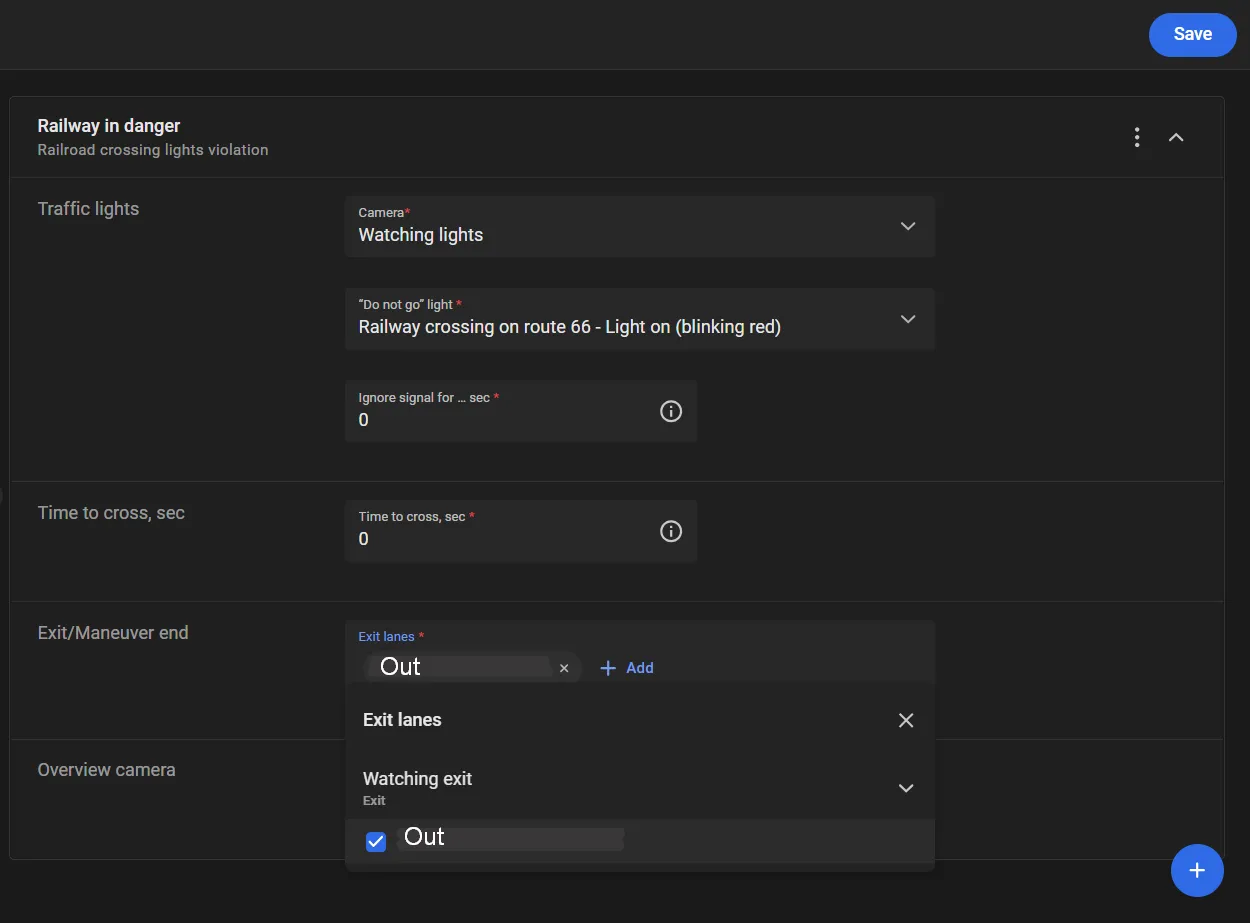
- Define numerically the T ime to cross, sec and Ignore signal for … sec parameters.
- On the Exit/Maneuver end list, select the exit lane name (e.g., “Out”) under the exit camera label (e.g., “Watching exit”).
- Click Save.
Turn On Control
Control on a road object stays off until it is turned on. On the road object page, open the Options menu and select Turn on control. In the Turn on Road Object control window, select Railroad crossing lights violation and click Turn on.
With control on, the platform captures each violation and lists it on Find Traffic Rule Violations.
Checkmark Stop line to run control over stop line violations at the crossing.