
Subscriptions and Licensing
IREX software is available as:
- Hosted SaaS: the software is hosted and operated by IREX Ltd. in its secure private clouds in the US, UK, or Europe.
- Self-Hosted Software: the software is hosted and operated by the client in a datacenter or on-premises.
When subscribing to IREX as SaaS, a license is issued to give access to the Platform features.
A user can view the license details and order, activate or deactivate a license.
Order a License
To order a license:
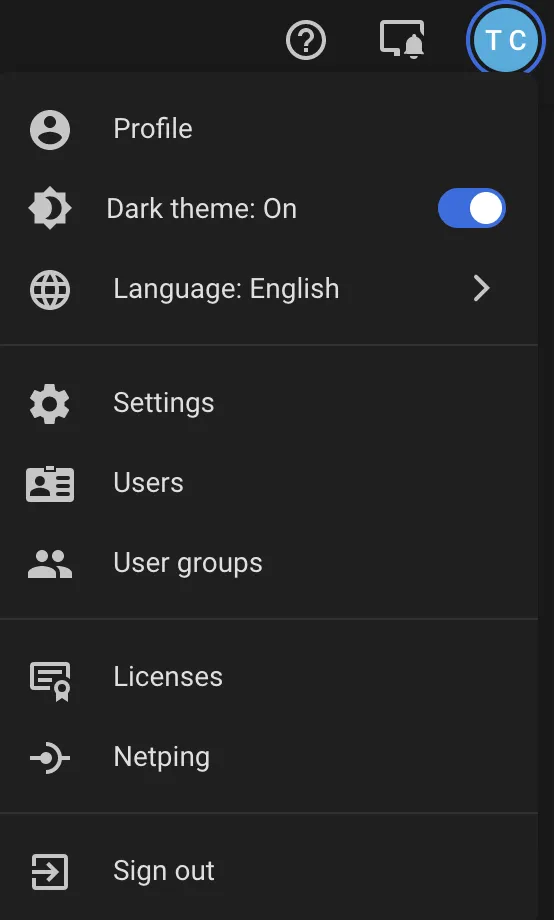
- On the main page, at the top right, click the User menu.
- Select the Licenses;
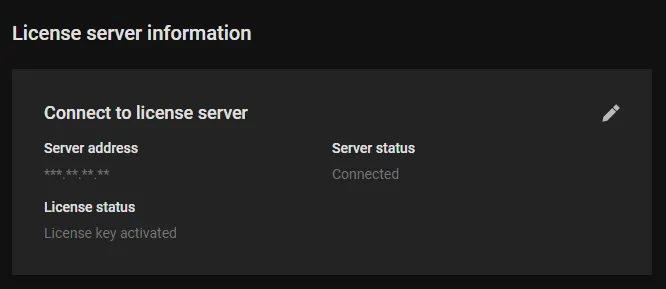
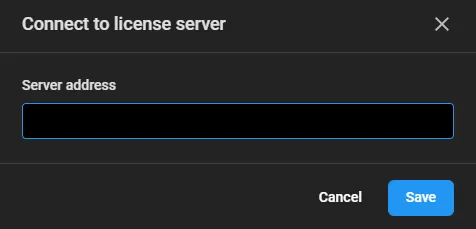
- Under the Connect to license server click the Edit icon on the right ...
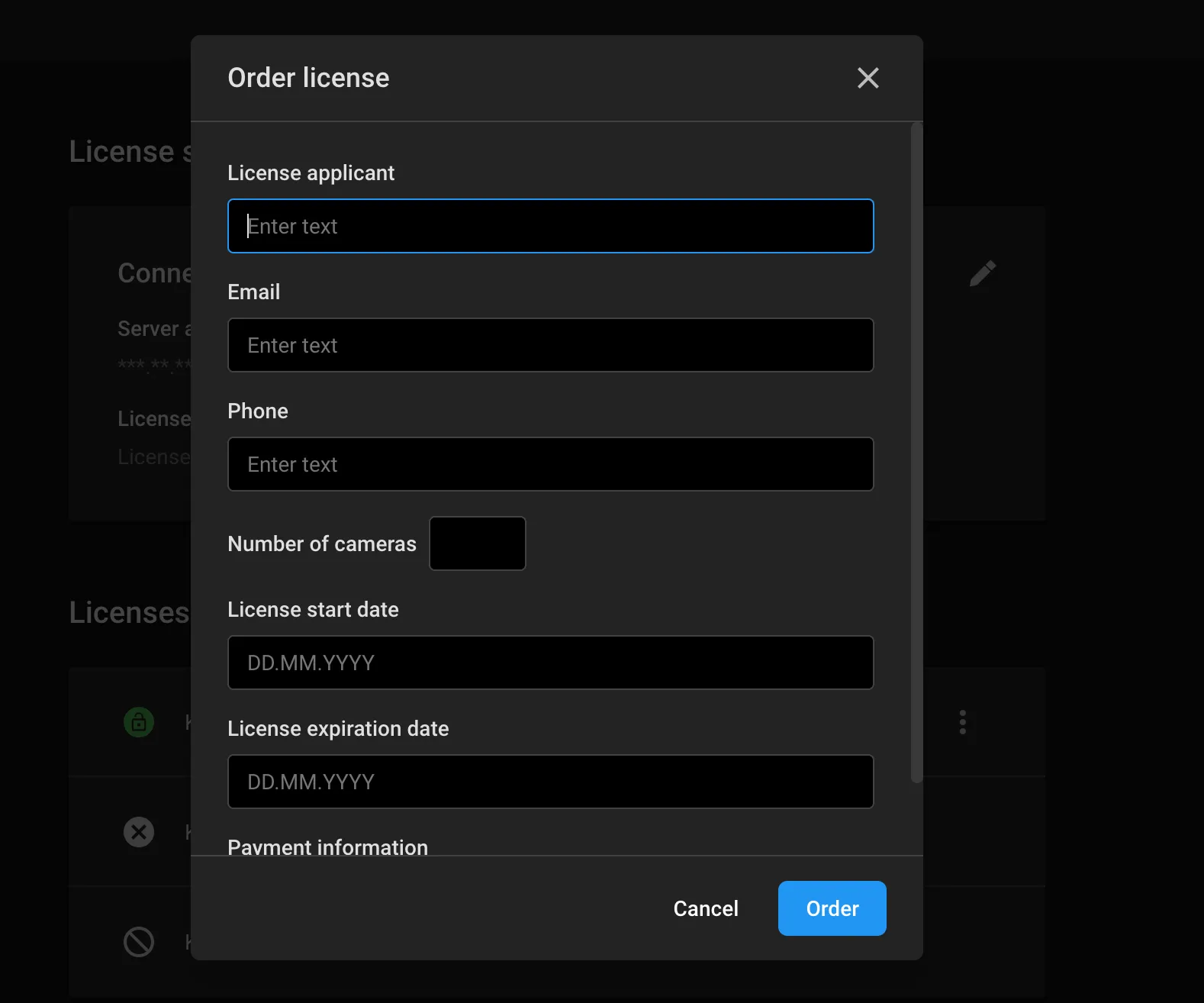
- In the bottom-right corner, click the plus button;
- In the window that opens, in the License applicant box, enter a name and surname or a company name;
- Enter an email address and phone number;
- In the Number of cameras box, enter the number of installed or planned cameras on the monitoring sites;
- Enter the license term.
to enter the license server IP address into the text box of the same name.
The ordered license appears in the Licenses list with the status Under consideration.
After the license gets approved by the license server administrator, its status changes from Under consideration to Not activated. The license can then be activated.
View License Information
To view the License information click the User menu on the main page, at the top right, select Licenses.
The window that opens shows information about the active license as well as a list of expired or ordered licenses.
Select the license to view the information in it about:
- the number of channels
- license start date
- license expiration date
- license status
- expiration date of technical support
Apply the License Key
This section describes how to:
- Activate a license manually
- Activate license automatically
- Disable automatic license activation
Activate License Manually
To activate a license manually:
- On the main page, at the top right, click the User menu.
- Select the Licenses.
- Select the license to activate;
- Click the Options — Activate
- Enter the password;
- Click the Activate.
After successful activation, the license status changes to Activated and the platform is ready for use.
Click on the license name to see detailed information about the license and customer support service contacts.
Activate License Automatically
Automatic license activation is used to activate the license in unattended mode.
To set up automatic license activation:
- On the main page, at the top right, click the User menu.
- Select the Licenses.
- In the Licenseslist, select the license to be automatically activated,
- Click the Options > Enable automatic activation.
- Enter the current password;
- Click the Save.
The license will be automatically activated on the license start day.
Disable automatic license activation
Automatic license activation is used to activate the license in unattended mode.
To deactivate automatic license activation:
- On the main page, at the top right, click the User menu.
- Select the Licenses.
- In the Licenses list, select the license with automatic activation enabled.
- Click the Options — Disable automatic license activation.
- Enter the current password;
- Click the Disable.
Automatic license activation gets disabled.
Deactivate a License
Deactivate an expired license before activating a new one. To do so:
- On the main page, at the top right, click the User menu.
- Click the License.
- In the Licenses list, select the active license.
- Click the Options — Deactivate.
- Enter the password;
- Click the Save.