
Bind Cameras to the Road Object
Traffic violation capture on a road object can use a camera for entry, exit, the traffic light, an overview, a motion control area, a stop or parking area, a space-mean-speed zone, the oncoming lane and overtaking, a crosswalk, a railroad crossing light, or lane restrictions.
These roles can sit on separate cameras, or several roles can share one camera. Set up each camera for its role before binding it.
To bind a camera to a road object:
- Create a road object, or open an existing one under Settings > Road Objects.
-
In the road object window, select a camera in the camera list and, in its options, select Bind to road object.
When an existing road object is opened:
- If no cameras are bound yet, the list shows the Fixed Cameras, PTZ Cameras, and Thermal Cameras available to the user.
- If cameras are already bound, the list shows only those cameras. To show every camera available to the user, open the filter and select All.
-
In the Bind camera to road object window, set the following:
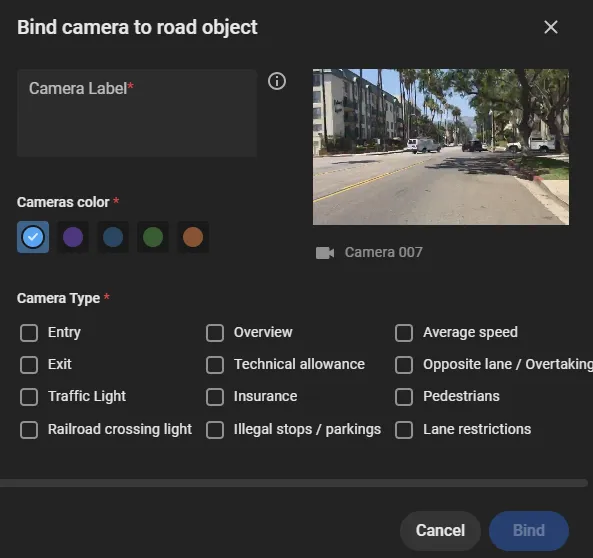
- Camera Label: shown on the road object camera list and in Violation rules. A label that names the role, such as Entry for the camera that watches entry to the crossroads, is easier to recognize later.
- Cameras color: used to tell cameras apart in Violation rules.
-
Camera Type: the role of the camera. More than one type can be selected.
- Entry: watches entry to the crossroads. In CarTrack Pro, set an entry lane.
- Exit: watches the exit from the crossroads. In CarTrack Pro, set an exit lane.
- Traffic Light: watches the traffic light. In Traffic Lights, add the traffic light.
- Overview: an overview of the road object.
- Opposite lane / Overtaking: watches entry into the oncoming lane and overtaking. In CarTrack Pro, set Opposite lane and, to capture overtaking, a Speed control zone.
- Technical allowance: watches for a valid permission to drive. In CarTrack Pro, set a Motion control area.
- Insurance: watches for valid vehicle insurance. In CarTrack Pro, set a Motion control area.
- Illegal stops / parkings: watches a stop or parking area. In CarTrack Pro, set that area. See Illegal parking.
- Average speed: watches entry to or exit from the space-mean-speed zone. In CarTrack Pro, set Speed control: Start or Speed control: End.
- Pedestrians: watches the vehicle area or the crosswalk. Add a Motion control area in CarTrack Pro, or a crosswalk in ObjectTrack Pro.
- Railroad crossing light: watches the railroad crossing light. In Traffic Lights, add the railroad crossing light.
- Lane restrictions: watches specified vehicle types in a lane. In CarTrack Pro, set a Motion control area.
- Click Bind.
Bound cameras appear in the camera list and on the diagram. A camera on the diagram can be moved to its installation point, and its field of view can be set.
Options on a bound camera:
- Edit: change the label, the color on the diagram, and the type.
- Set up video analytics: open the video analytics settings for the camera, including CarTrack Pro, Traffic Lights, and ObjectTrack Pro.
- Unbind from road object: remove the camera from the road object. If the camera was used in Violation rules, those settings are deleted.
If a camera is deleted from the platform, it is also removed from the road object, and the related settings are deleted.