
Vehicle Insurance Check
Set Up the Camera
- Turn on the CarTrack Pro module.
-
On the module settings pane, on the Main tab, set the Region of interest: the part of the frame used for vehicle tracking and plate recognition. By default the Region of interest is the full frame.
- To move a vertex of the area border, drag it to a new position.
- To delete a vertex, double-click it.
- To add a vertex, double-click the existing border where the new vertex should sit.
- To move the whole area, place the cursor inside it and drag.
- On the Main tab, in Track, Recognize, select Track vehicles with a recognized plate.
- On the Main tab, in Object focal point, select License plate center.
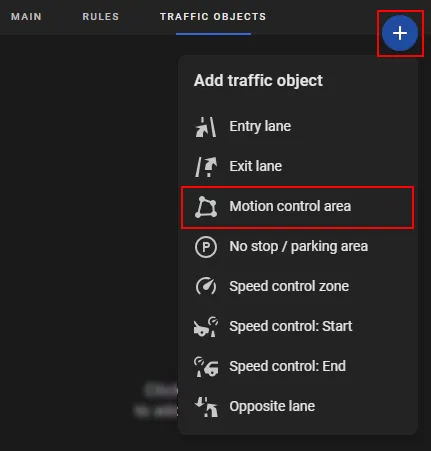
- On the Traffic Objects tab, click Add traffic object > Motion control area.
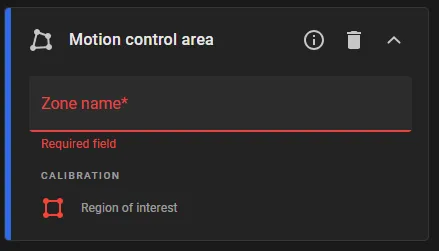
- On the traffic object card, enter the Zone name and draw the area as a polygon on the player screen. Keep the area well inside the Region of interest set on the Main tab, so that the vehicle image captured with the violation is complete, not cropped.
- Click Apply.
Next, bind the camera that has an active, configured CarTrack Pro module to the road object as a camera set to the Insurance type, turn on control on the road object, and set the violation control rules.
The license plates recognized on vehicles moving through the Motion control area are then checked against the vehicle insurance DB. If the database has no valid vehicle insurance for that vehicle when it leaves the area, the platform creates a traffic violation with the name set for the Driving without insurance type.