
Driving without Insurance
When a Violation Is Captured
The platform captures a Driving without insurance violation when a vehicle with no valid vehicle insurance leaves the motion control area of a camera set to the Insurance type. The platform looks up that insurance in the Vehicle insurance DB, which the connected insurance records system keeps up to date.
If the vehicle insurance DB has more than one record for a plate number and at least one is valid when the vehicle leaves the area, the platform does not create a violation.
Only plates from the countries set in the cluster settings are checked.
Workflow to Check Vehicle Insurance
- Name the violation.
- In the CarTrack Pro settings for the camera, set a motion control area.
- Create a road object.
- Bind cameras to the road object.
- Set the violation control rules.
- Turn on Driving without insurance when turning on control on the road object.
Set Violation Control Rules
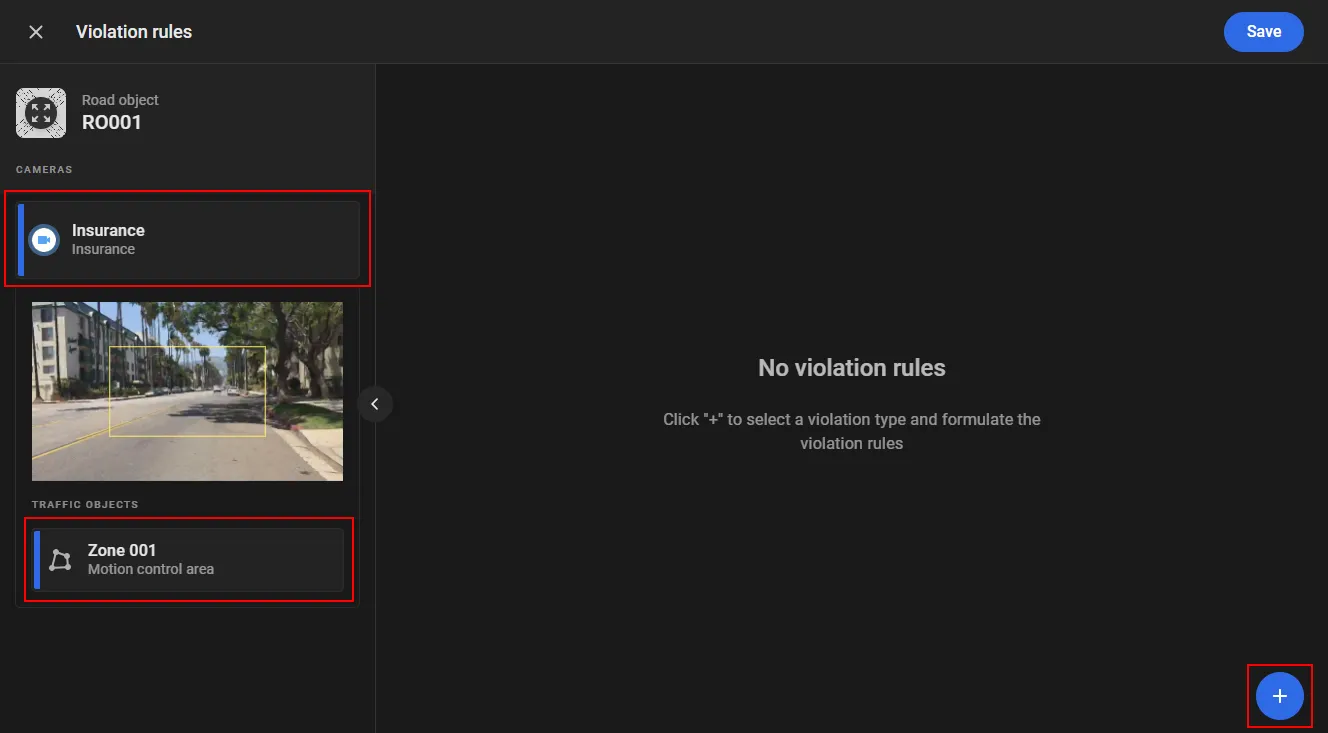
On the road object page, or in the road object options under Settings > Road Objects, select Violation rules.
To set up capture of Driving without insurance violations:
- In the camera list, select a camera that has a Motion control area traffic object configured in the CarTrack Pro module.
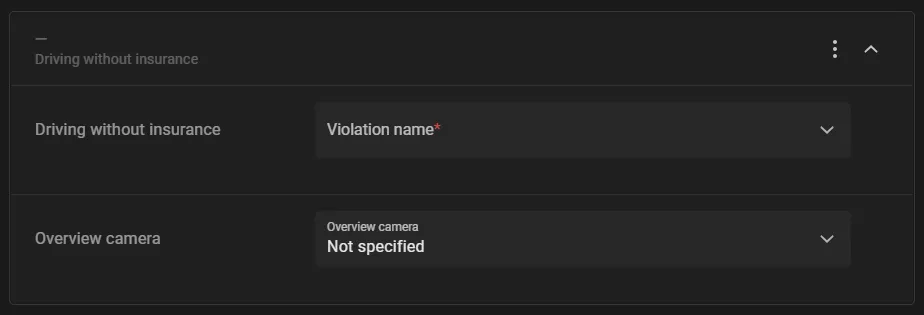
- Click + to add a rule, and select the Driving without insurance violation type.
- In the rule form, in Violation name, select a previously created violation name of the Driving without insurance type, for example No insurance.
- To receive extra video frames of the violation, select an overview camera bound to the road object in Overview camera.
- Click Save.
Turn On Control
Control on a road object stays off until it is turned on. On the road object page, open the Options menu and select Turn on control. In the Turn on Road Object control window, select Driving without insurance and click Turn on.
With control on, the platform captures each violation and lists it on Find Traffic Rule Violations.