
Investigate a Case
An IREX instance might be as big as several hundred or even thousands of cameras (and other sensors) in size. Taken together, those sensors produce an enormous array of events, stored in the archive together with snapshots and videos in full. Typically, of those events only a few are relevant to the post-incident analysis task the user is currently busy with.
So, the problem arises of finding those relevant events in the archive among irrelevant ones and comprehensively presenting them on the screen. The solution comes as Searchveillance™ - the patented technology to find people, vehicles, and scenes in the Archive. Searchveillance™ saves man-days of labor-intensive video analysis during law enforcement operations and investigations.
Using Searchveillance™ in any way requires a Case ID to be provided.
Click Events on the main menu - the event screen opens, which looks like:
- This, if over 24 hours have passed since the last event search had been run.
- This, if less.
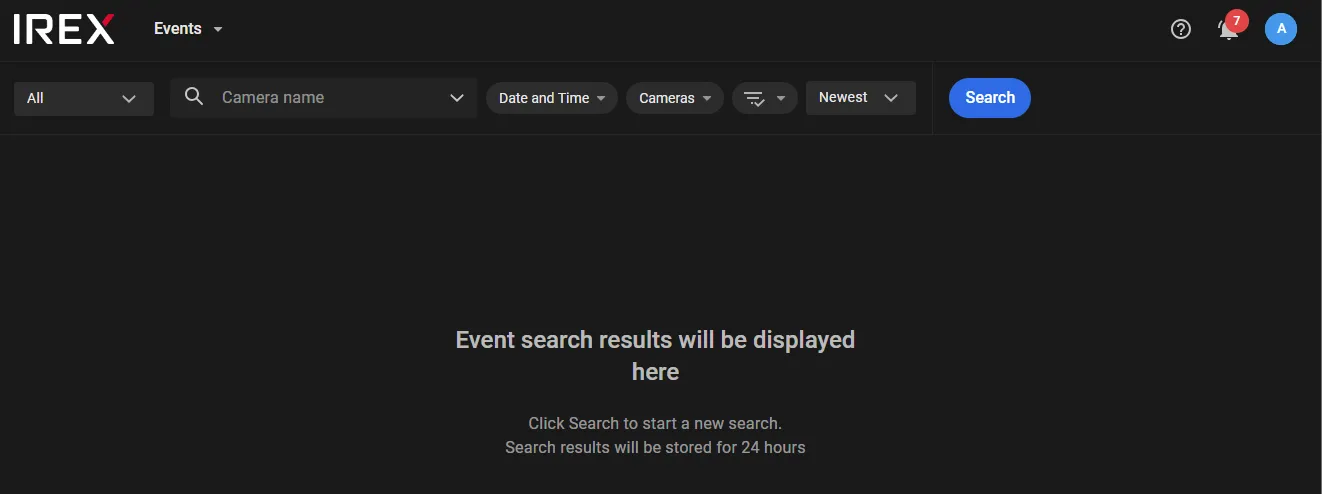
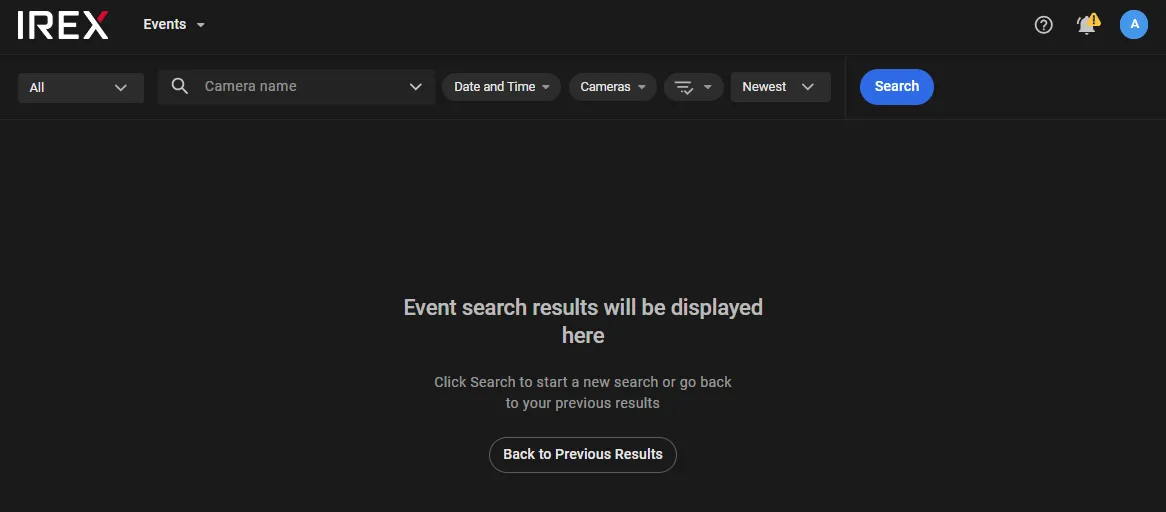
Click Back to Previous Results to return to the results of the latest previous event search.
Asynchronous Event Search
IREX implements the asynchronous processing scheme of search (filtration) queries for events to lower the workload on the server in big clusters. This means that such queries from multiple clients are accumulated on the server into an ordered queue, to be then executed strictly in chronological order. Execution of a query may take quite a while.
Basic Principles and Limitations
- Event search (filtration) queries from multiple clients are accumulated on the server into an ordered queue to be then executed strictly in chronological order.
- Every single client may have only one query waiting to be responded to at a time; the next query can only be sent after the previous one has been responded or canceled.
- A query not responded yet can be canceled.
- While a query is waiting for a response, all the system functionalities stay active, except for those for making more queries. If the user is currently on a different web page of the website or app, query execution notification will be shown.
- Last query results stay on the screen for 1 hour.
- A user can be logged in on multiple devices or in multiple windows, but still only one query can be sent at a time from all devices (windows) taken together; the same query results will show on all devices (in all windows).
Asynchronous Query Routine Step-by-Step
- Go to the Events screen.
- Switch on other query filters (e.g. Appearance - Gender = Male).
- Press Apply on the filter pane.
- Press Search on top of the screen.
- Use the functionalities on the other pages of the application according to need; while on another page (except for those in the User Menu) the indicator is shown.
- As soon as the query is executed, the indicator gets green; if it is a failure - red.
- After the query is executed successfully, 24 event cards will be shown; click Show more to show next 24 ones. However, the total limit is 24x15 events.
- Click Reset on top of the window to clear the filters or simply add/remove new search criteria to go to the next search. Anyway, a message shows as a reminder to press Search again.
The screen is empty on the first visit within the past 24 hours; otherwise, the last query results show.
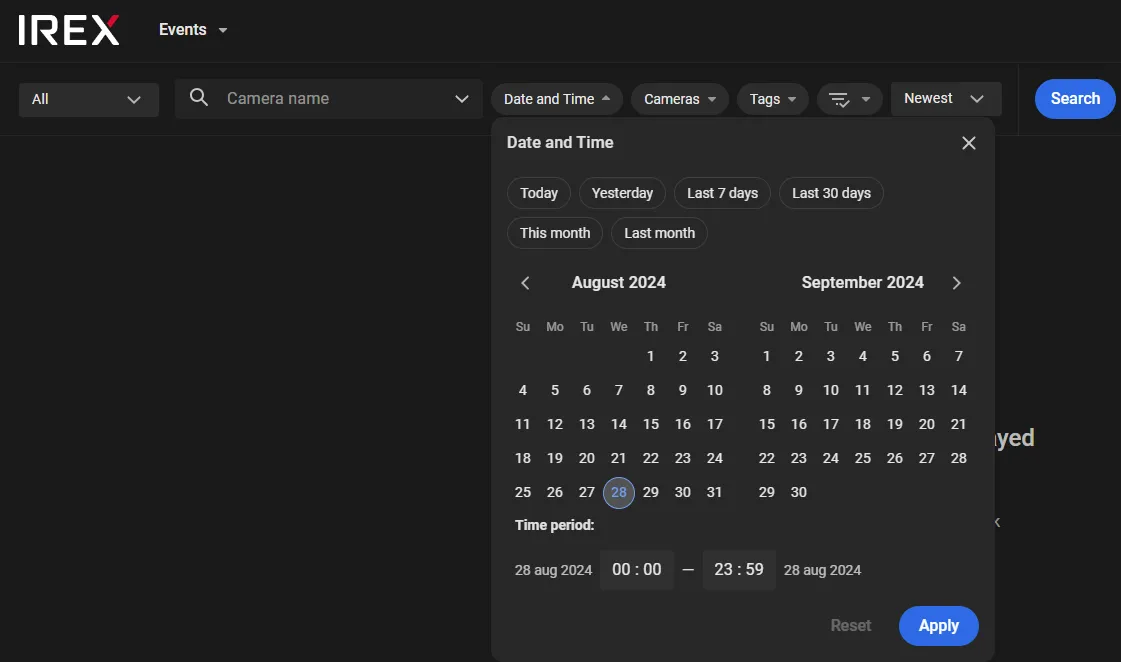
By default, Date and Time = Today is active and it will stay such until it is explicitly switched off.
Pressing the Apply does not send the query.
As soon as this is done:
The query goes to the server to be currently the last in the queue.
Filters and text boxes on the page get disabled.
The notification shows in which the Cancel search button gets enabled.

Searchveillance™ Event Filters
Searchveillance™ powers a rich set of filters offered on the Events screen to filter events meeting user-defined criteria.
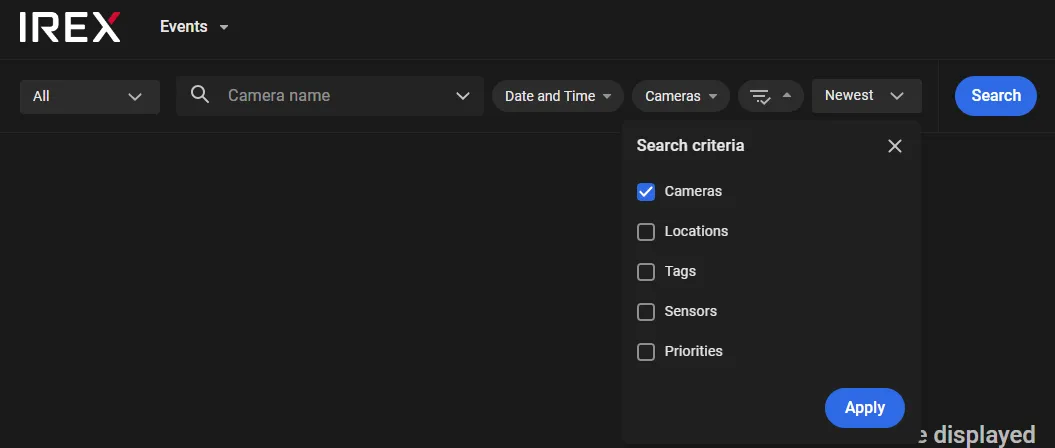
| Filter Group | Effect | Comments and References |
|---|---|---|
| Cameras and Places | Events captured by cameras selected by name, address, floor plan, or building | Search cameras and places on the map |
| Resource Groups | Events captured by cameras in the selected resource groups | Manage resource groups |
|
Tags
|
Events on a camera with a user-defined tag |
|
|
Sensors
|
Events detected on a sensor of a type | A sensor might be a fixed or PTZ camera, an uploaded video, etc. |
| Priority | Events of a user-defined priority | |
| Date and Time | Events in a user-defined time period in the past |
Search Subject Filter
On the dropdown on the left-hand side, select what to look for:
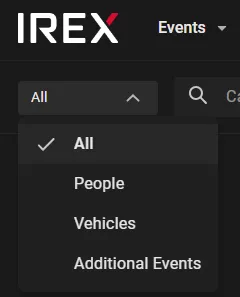
- All — any kind of events
- People — face recognition events
- Vehicles — license plate recognition events
- Additional events — all events other than the two above, e.g. a bag left unattended, a traffic jam, an intrusion into a restricted area, etc.
Find Events on a Camera
A search like this answers the question “What events did the camera “XXXXXX” see”? The search returns a consolidated array of events generated by the video analytics module activated on XXXXXX camera.
The “XXXXXX” stands for the camera name/IP/ID or tag, or it can be selected on the camera list.
Only the cameras that the current user's User Groups have access to can be used.
Learn more about access to cameras.
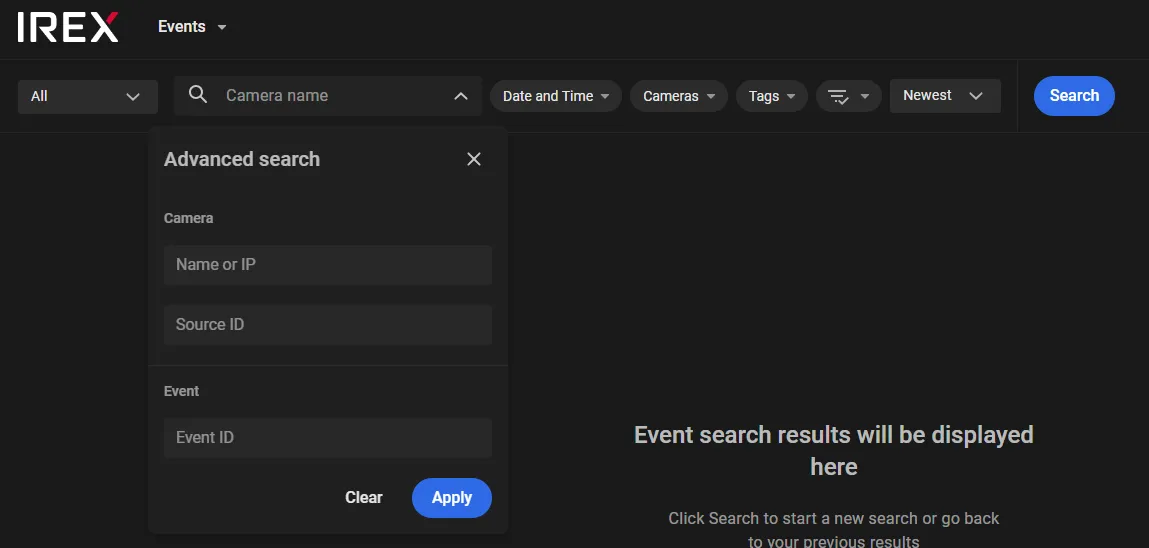
By Camera name/ID/IP
Type its name, id or IP-address as shown and click Apply; then click Search.
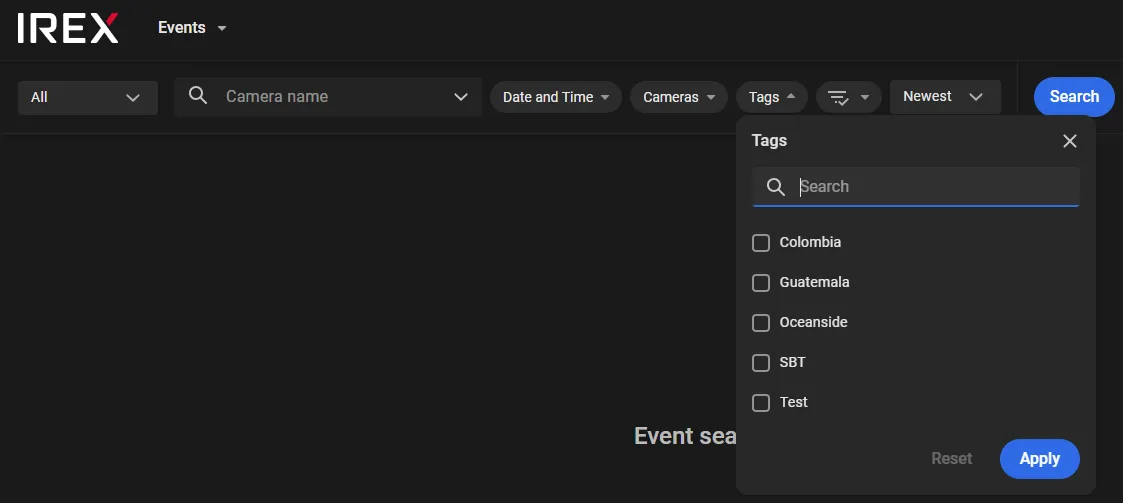
By Camera Tag
Select a camera tag on the list under the Tags; then click Apply and then click Search.
Select Camera on the List
To query for events on a camera selected from the list of existing cameras, select it under the Cameras tab of the Cameras and places filter as described here, then click Apply and then click Search.
Search by Cameras and Places
The Cameras and places event filter searches cameras that captured the events of interest.
-
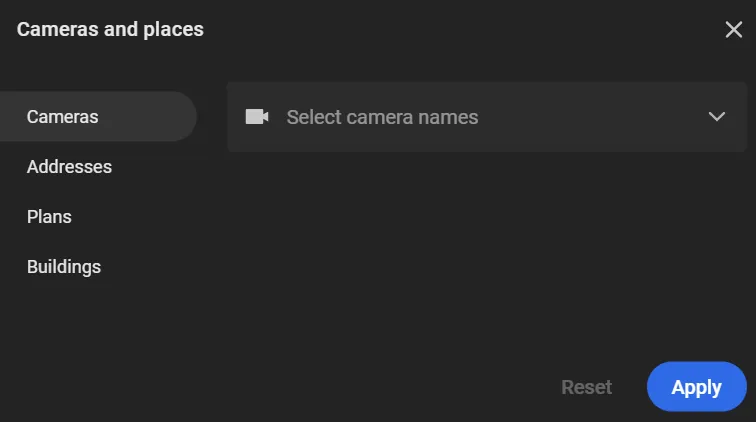
Click the Cameras and places filter. The Cameras and places window opens with the Cameras, Addresses, Plans, and Buildings tabs.
-
Select the required tab and select values on it. Start typing a value in the field and select it from the list. Multiple values can be selected:
- Cameras: search cameras that captured the events of interest.
- Addresses: search cameras that captured events at their installation address.
- Plans: search cameras that captured events on a selected floor plan.
- Buildings: search cameras that captured events in a selected building.
-
Click Apply to save the selected values.
Clicking Apply in the filter does not send the search request. Set all required filter values, then click Search.
Search by Resource Groups
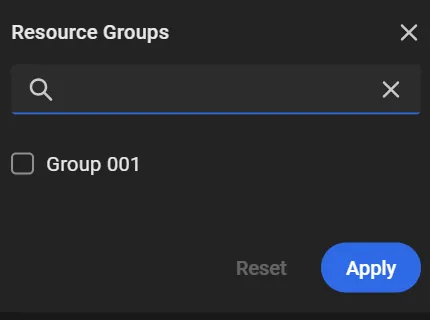
To find events captured by cameras in selected resource groups:
-
In the Resource Groups filter, select one or more groups.
-
Click Apply to save the selected values.
Clicking Apply in the filter does not send the search request. Set all required filter values, then click Search.
Filter Events by Date and Time
To find all events that occurred anywhere within IREX instance range within a predefined time period in the past, select the time limits under the Date and Time, then click Apply and then click Search.
Find Events in a Building/On a Plan
A search like this returns all events seen in “City Plaza”. “3rd floor Head Office”, etc., provided those objects were created in a dedicated user layer.
Select a building or plan on the Buildings or Plans tab of the Cameras and places filter as described here, then click Apply and then click Search.
Only the venues that the current user's User Groups have access to can be used.
Learn more about access to venues.
Find Events by Priority
When managing video analytics, Admin assigns priorities to the configured events (e.g. like this or like that), one of:
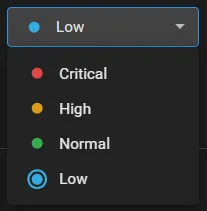
To leave displayed only the events of a predefined priority (-es), checkmark them under the Priorities. Then click Apply and then click Search.
Search Criteria Combination Rules
- Search criteria under different filters are logically multiplied (“AND” operator).
- Multiple options under the same filter are logically summarized (“OR” operator).
For instance, if Date and Time = "Yesterday" while Cameras and places is set to a selected address, the events returned are those that occurred there and then, and only those.
E.g. If both “Critical” and “High” are checkmarked under Priorities, the events will be returned that have any of these priorities.