
Plate Number Recognition
How to Find a License Plate
To be informed in real time about a license plate seen by IREX cameras:
- Make sure the cameras tasked with finding the plate meet the system requirements.
- Set up CarTrack Pro to recognize plate numbers.
- Add the wanted license plate to a watchlist in the vehicle database.
-
Build an alarm monitor having:
Cameras = those in item 1 above.
Analytics modules = CarTrack Pro > Match.
Lists = that in item 3 above - Whenever an alarm comes, verify it before taking any action that might seem like an unfounded intrusion into someone's privacy.
A post-incident investigation too may ask a question about where and when a license plate of interest was seen. Then run a by-text attribute search, where the attribute is the plate number itself, or type- and color-based search, if the plate number is unknown.
How to Manage Access to a Parking Lot
It is a typical real-time use case in which we assume there is a camera that has the entire parking lot continuously surveyed, including the entrance, parking slots, and driveways.
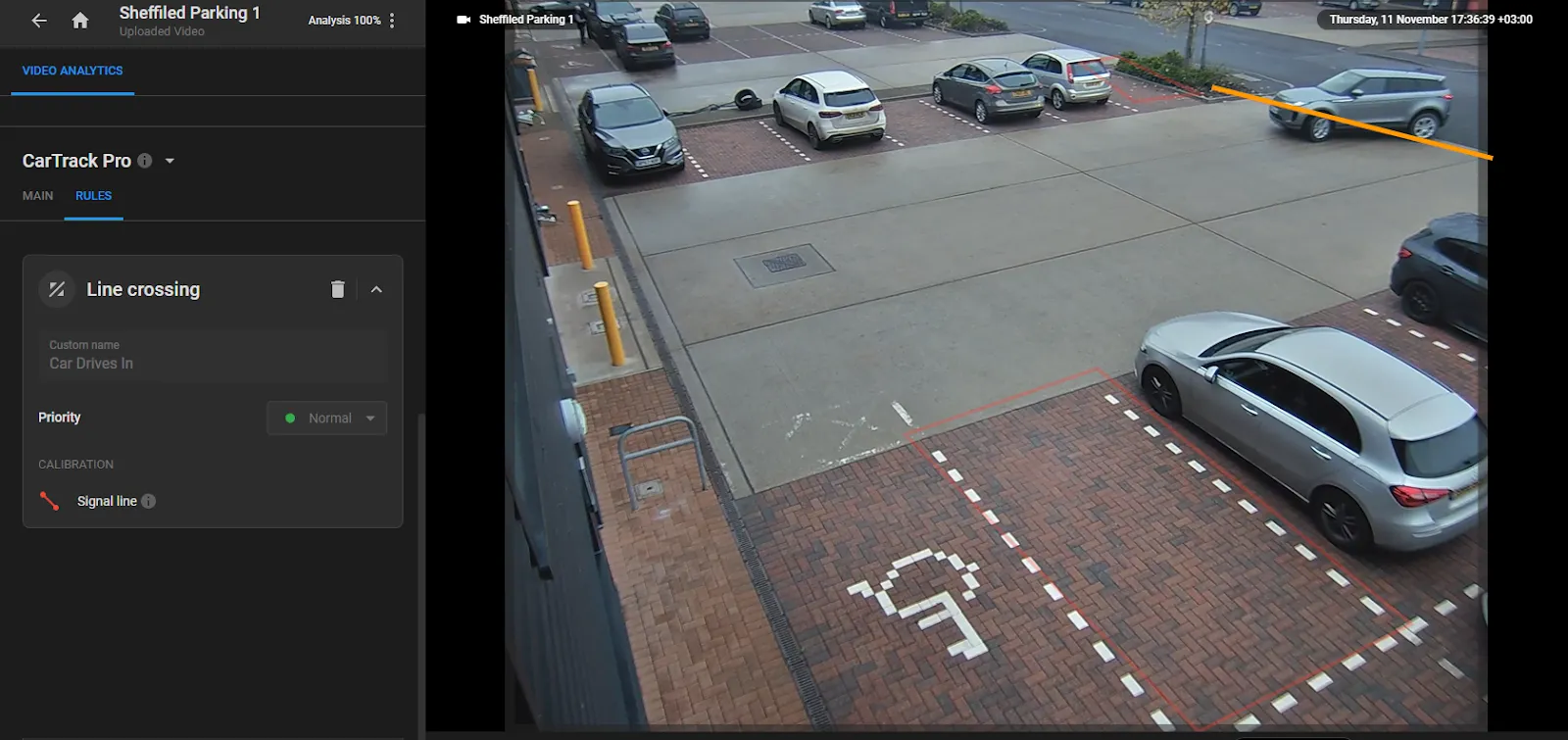
The vehicles waiting to be allowed to the lot need a real-time response, e.g., as the bar rises or a noticeable "Access denied" indicator turns on.
To resolve the use case:
- Make sure the camera meets the system requirements.
- Set up CarTrack Pro on that camera to control access to the parking lot.
- Compile the watchlist of vehicles allowed to the lot.
-
Build an alarm monitor having:
Camera = that it item 1 above.
Analytics modules = CarTrack Pro > Line crossing
Lists = that in item 3 above. - Switch on the Use webhooks for that monitor and configure the connection with the access control external device.
Set Up Plate Number Recognition
-
On the MAIN sub-tab in the camera settings sidebar, draw the Region of interest: the part of the frame to analyze. The border is green. The default is the full frame.
- Drag a vertex to move it.
- Double-click a vertex to delete it.
- Double-click an edge to add a vertex.
- Drag inside the region to move the whole region.
-
On the Track, Recognize dropdown, select one of: Recognize plate, Track vehicle and recognize plate, or Track vehicles with a recognized plate.
Track vehicles with a recognized plate is required to detect forbidden vehicle maneuvers.
Detecting motorcycle rider violations requires one of: Track vehicle, Track vehicle and recognize plate, or Track vehicles with a recognized plate. - Select License plate is missing and set a priority. The module records a vehicle when it does not find a plate. Available in the Track vehicle and recognize plate and Track vehicles with a recognized plate modes.
- Select Invalid License plate and set a priority to record vehicles with unreadable or non-standard plate numbers. Available in the Recognize plate, Track vehicle and recognize plate, and Track vehicles with a recognized plate modes.
- On the Region dropdown, select the plate format for the camera location: Europe, Asia, USA or Thailand.
- Under Events, set a priority for No match. Match events take their priority from the vehicle list settings.
- Set Threshold: the recognition accuracy limit.
- Set Minimum plate size: plates with a smaller area, in pixels, are not recognized. Use this to keep recognition at the intended distance from the camera. No limit ignores plate area.
-
Select a Re-recognition option:
-
Interval between events, sec: the time within which the same vehicle appearing in the frame again counts as one event. The option is available in the Recognize plate, Track vehicle and recognize plate, and Track vehicles with a recognized plate modes.
After a plate is recognized and a Match or No match event is created, the event continues while the plate stays in the ROI, even past Interval between events, sec (diagram A). If the plate leaves the ROI before the interval ends, because the car drives out or the plate is blocked, the event ends. A new event starts only when the plate reappears after the interval (diagram B). Reappearances within the interval are skipped (diagram C).
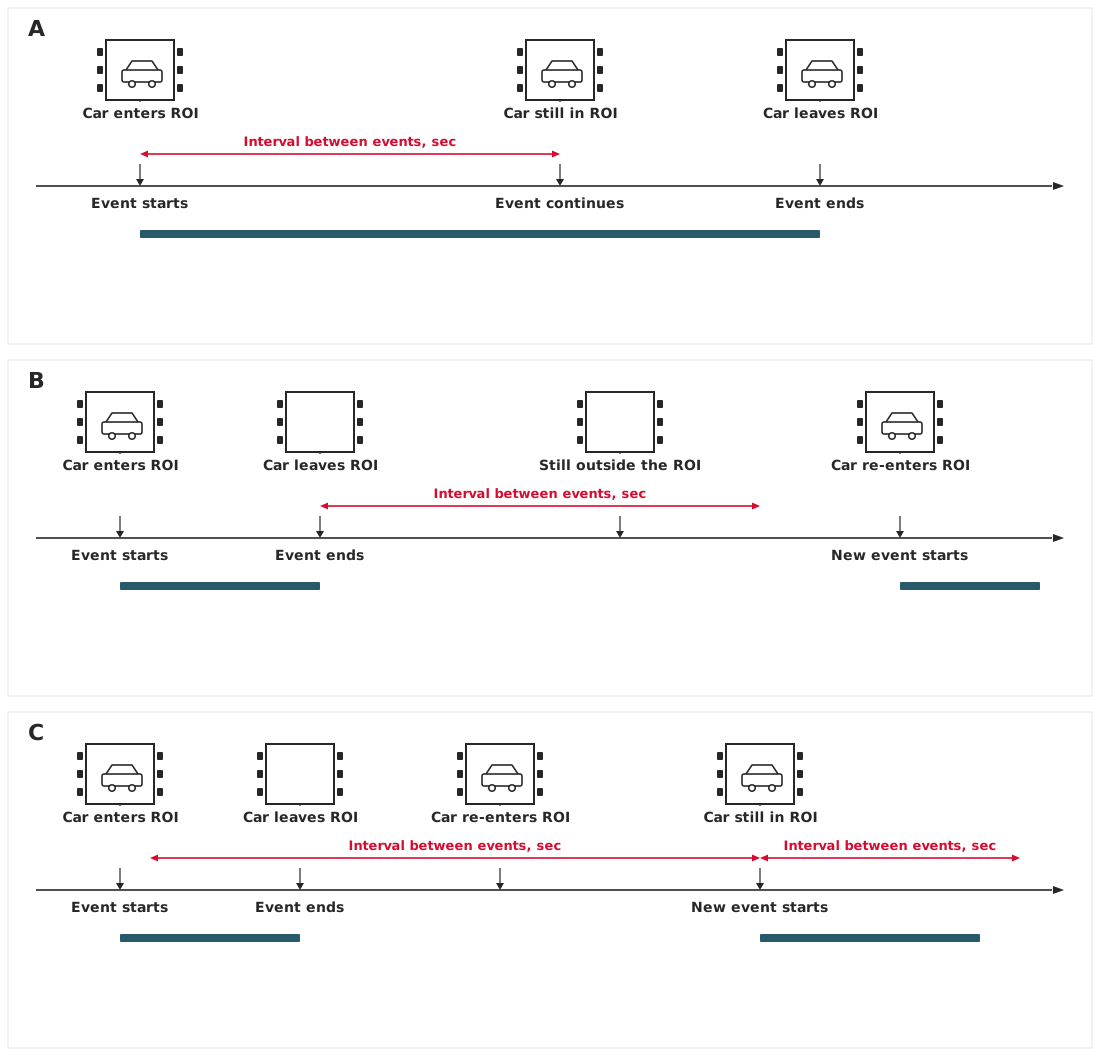
Use this option for a fairly stable scene, such as the interior of a parking lot, so the same vehicle does not produce a string of minor events.
-
After ... sec: the option is available in the Recognize plate, Track vehicle and recognize plate, and Track vehicles with a recognized plate modes. While the vehicle stays in view, the current event ends when After ... sec elapses, and a new event for the same plate starts. The countdown then starts again (diagram D). If the vehicle leaves, the event ends. When it returns, a new event starts at once, and After ... sec starts again (diagram E).
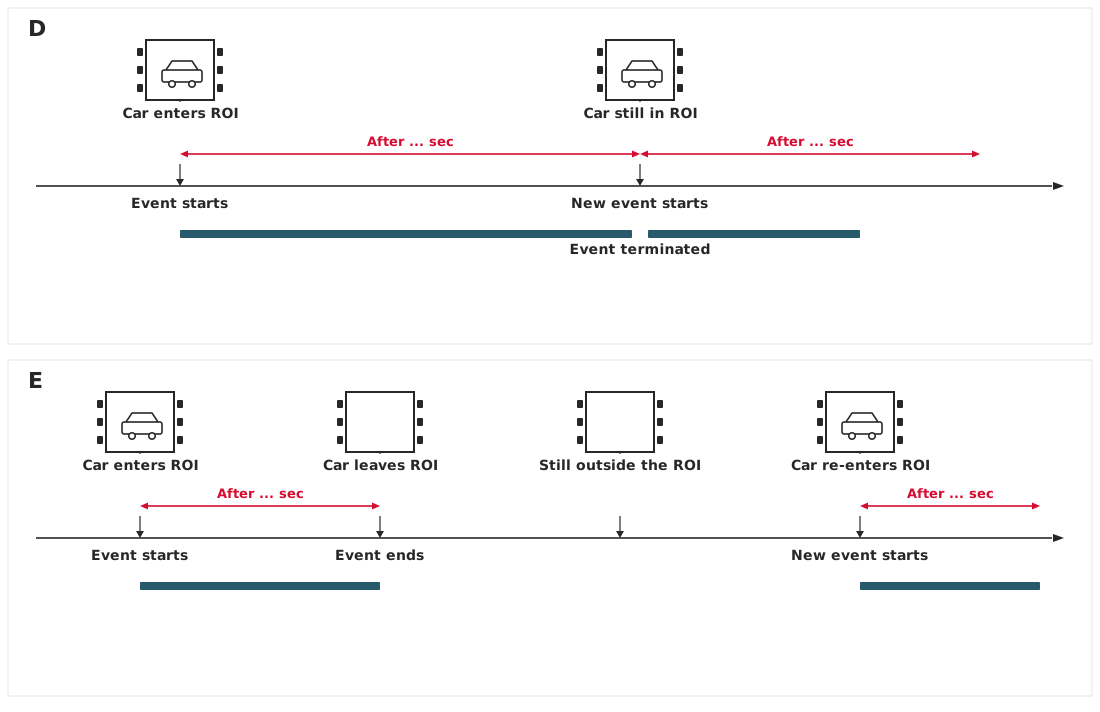
Use this option when the event needs a prompt response, such as at a barrier or a tollgate, so a missed plate can be read again on the next cycle.
-
Interval between events, sec: the time within which the same vehicle appearing in the frame again counts as one event. The option is available in the Recognize plate, Track vehicle and recognize plate, and Track vehicles with a recognized plate modes.
-
Select Vehicle type and color recognition to record the vehicle type (car, bus, van, and so on) and color.
Type and color are then available in the search by vehicle features.
-
Select Recognize the brand of the vehicle.
The brand is then available in the search by vehicle brand.
-
Select Count people on a motorcycle, detect safety gear.
The search can then find motorcycle riders without helmets, or with more than one passenger.
- Select Save tracks to keep vehicle trajectories for later search in the player.
- Set Object focal point: the point on the vehicle used to decide whether a line was crossed, for example a stop line or a lane line. In the diagram, FP is the focal point.
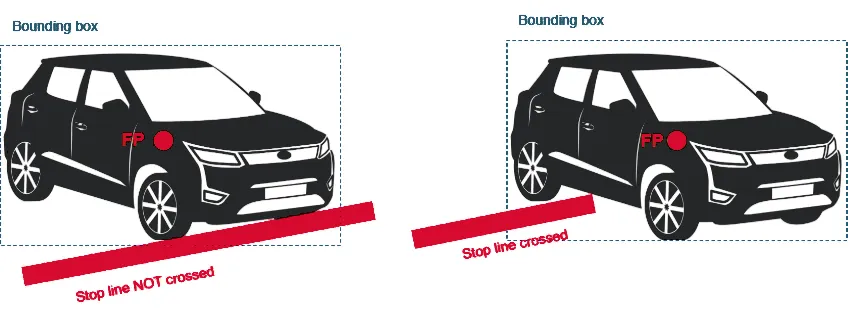
Select one of the focal point locations in the chart below:
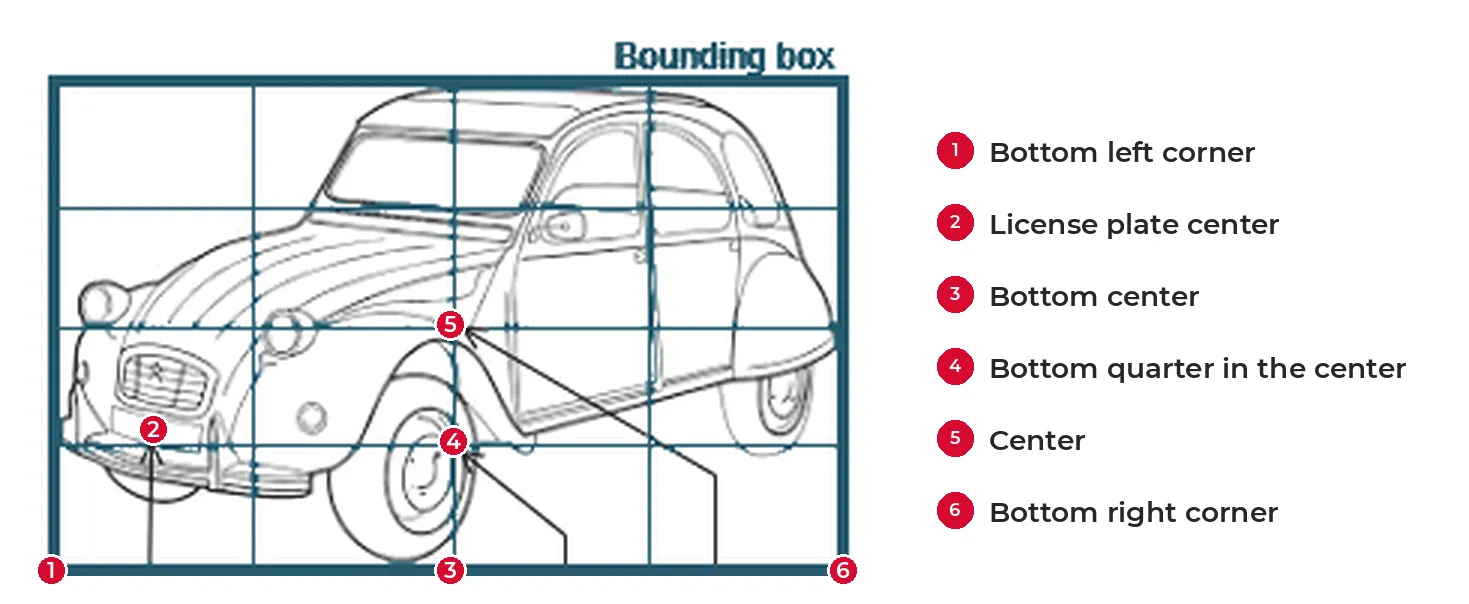
Set Up Control over Access to a Parking Lot
- On the camera watching the entrance to the parking lot, set up CarTrack Pro to recognize plate numbers.
- Click the Add rule on the RULES tab to select the Line crossing on the open menu.
- On the Line crossing card that opens, enter a custom name of the rule.
- Draw the signal line in front of the entrance bar.
- Assign a priority rating to the "Line crossing" event.
-
Switch on the On/Off slider
 .
.
- Click the Apply.
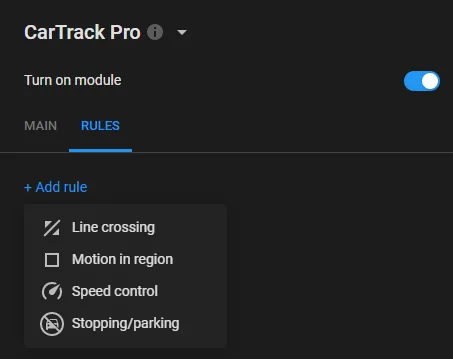
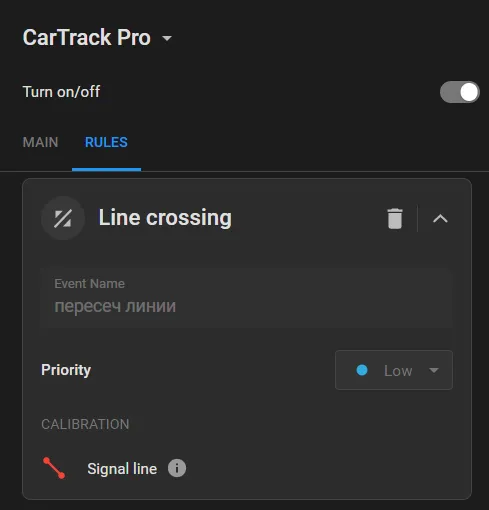
It makes sense to give a rule a self-explanatory and meaningful name since it will be the event name that the Platform users are meant to operate with. Rule names can be edited on the User Menu > Settings > Event Names screen.
The minimum distance from the line to the screen's border shouldn't be less than half of the expected vehicle size; otherwise, shift or rotate the camera.
Crossing the line will be treated as asking for permission into the lot.
Tips to Review and Verify License Plate Events
When notified about the searched vehicle spotted on a camera, click the event card on the alarm monitor to see more relevant details on the pane that opens on the right.
In the three-dot menu  click:
- Search by number plate - to display all other events in which the same number plate was spotted all across the Platform instance coverage range.
- Route- to build the route of the vehicle, as spotted on the Platform cameras.
Playback an event with the media player to verify the number before taking any action to respond to the event.