
Video Analytics Settings
The Video Analytics settings page is where modules and detectors are turned on for a camera and where their settings are changed. The camera video plays on this page.
Open Settings > Cameras and select Video Analytics settings in that camera's options menu.
The page is also available from:
- the options menu on a camera card on the Cameras page
- the options menu on an event card
- the player settings while video is playing
- the Camera settings page
The page has three areas:
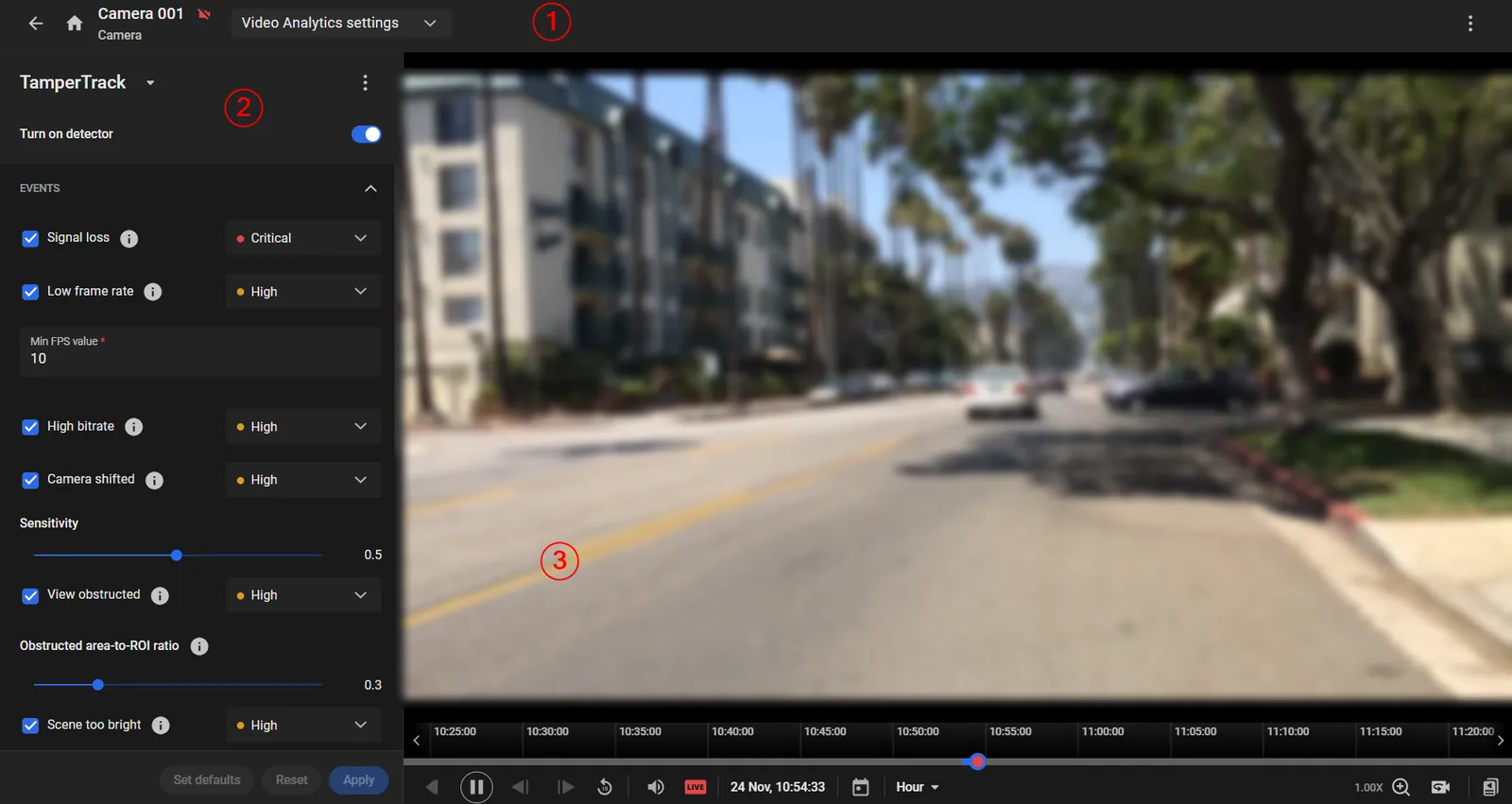
1: Header. It shows the camera name, the control that switches between Camera settings and Video Analytics settings, and the camera options menu.
That menu can:
- Turn off turns the camera off. If the camera is already off, the command is Turn on.
- Go to Events opens the Events page with this camera selected.
- Export Camera settings downloads the camera's video analytics settings.
- Import Camera settings uploads a file of those settings.
2: Settings pane. It lists the modules and detectors. Enable video analytics modules and detectors covers how to pick a module, turn it on, and change its settings.
The options menu on that list has Export analytics configuration of a module and Export analytics configuration of a model. Details are in Export module settings.
3: Player, where the camera video plays.
Playback controls:

- Video timeline. Shift it with the < and > buttons, or drag it with the left mouse button.
- Archive bar. Blue stretches are recorded video. Click a time on the bar to play the archive from there.
- Plays the archive backward through the part of the buffer that has already played, at 1×. Press R to do the same.
- Pauses or plays.
- Steps back one frame in the playback buffer and pauses. Press < to do the same.
- Steps forward one frame in the playback buffer and pauses. Press > to do the same.
- Skips back 10 seconds.
- Mutes or unmutes, and sets the volume.
- Plays live video.
- Date and time of the segment that is playing.
- Opens a calendar to pick a date and time.
- Sets the timeline scale.
- Zooms the video. Hover over the button and move the slider that appears. Drag the zoomed picture with the left mouse button.
- PTZ controls. Shown only for a PTZ camera.
- Shows or hides the events pane.