
View the Logbook
IREX Admin has a Logbook command available in the main menu. Click it to access the consolidated system event log.
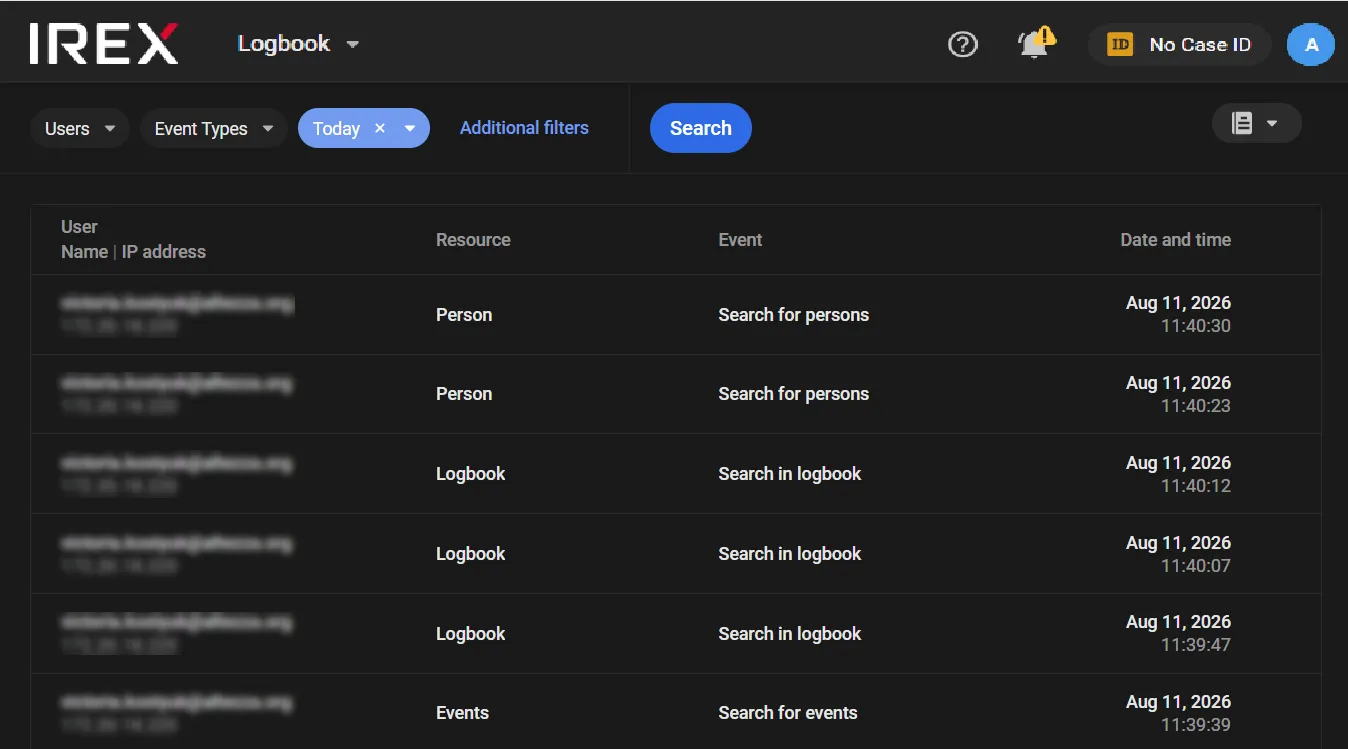
Being Responsible and Accountable
View System Event Details
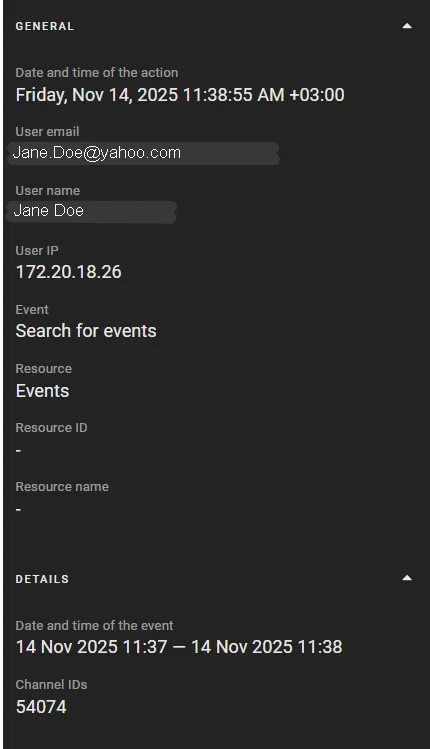
To view a system event in full detail, click as shown ...

... - the event detail sidebar opens to show who did what, when and how.
Logged Event Types
The Logbook records these actions:
| Group | Event Type |
|---|---|
| Authorization | Login successful |
| Login failed | |
| Manual logout | |
| Automatic logout | |
| Password reset | |
| Events | Search for events |
| Traffic violations | Search for traffic violation |
| Player | Live video loaded |
| Archived video loaded | |
| Cameras | Camera added |
| Camera deleted | |
| Camera turned off | |
| Camera turned on | |
| Video analytics settings updated | |
| Video analytics module turned off | |
| Video analytics module turned on | |
| PTZ camera in use | |
| Camera updated | |
| Camera status sent | |
| External event receiving settings updated | |
| External event receiving turned on | |
| External event receiving turned off | |
| Biometric terminals | Biometric terminal added |
| Biometric terminal updated | |
| Biometric terminal deleted | |
| External connections | External connection created |
| External connection updated | |
| External connection deleted | |
| External device added | |
| External device updated | |
| External device deleted | |
| Buildings and plans | Building added |
| Building updated | |
| Building deleted | |
| Plan added | |
| Plan updated | |
| Plan deleted | |
| Sensor added onto plan | |
| Sensor removed from plan | |
| Sensor updated on plan | |
| Map marks and map mark types | Map mark created |
| Map mark updated | |
| Map mark deleted | |
| Map mark type created | |
| Map mark type updated | |
| Map mark type deleted | |
| Road objects | Road object created |
| Road object updated | |
| Road object deleted | |
| Road object turned on | |
| Road object turned off | |
| Traffic rules updated | |
| Camera bound to road object | |
| Camera updated at road object | |
| Camera unbound from road object | |
| Violation name created | |
| Violation name updated | |
| Violation name deleted | |
| Plate number template created | |
| Plate number template updated | |
| Plate number template deleted | |
| Technical allowance DB | Technical allowance records viewed |
| Vehicle insurance DB | Insurance records viewed |
| Resource groups | Resource group created |
| Resource group deleted | |
| Resource added to resource group | |
| Resource removed from resource group | |
| Alarm monitors | Alarm monitor created |
| Alarm monitor deleted | |
| Alarm monitor updated | |
| Alarm monitor filters updated | |
| Alarm monitor turned on | |
| Alarm monitor turned off | |
| Scheduled operation enabled | |
| Scheduled operation disabled | |
| Schedule updated | |
| Alarm read | |
| Layouts | Camera added onto layout |
| Camera removed from layout | |
| Layout created | |
| Layout deleted | |
| Layout updated | |
| Layout viewed | |
| Videos saved in gallery | Video saved to gallery |
| Video removed from gallery | |
| Saved video properties updated | |
| Saved video downloaded | |
| Uploaded videos | Uploaded video deleted |
| Uploaded video downloaded | |
| Uploaded video properties updated | |
| Video upload started | |
| Video analysis interrupted | |
| Video analysis start | |
| Detected events deleted | |
| Persons | Person added |
| Person deleted | |
| Person’s photo added | |
| Person’s photo deleted | |
| Person updated | |
| Search for persons | |
| Batch update of face recognition mode | |
| Consent requested | |
| Descriptor requested | |
| Person lists | Person list created |
| Person list deleted | |
| Person list updated | |
| Person list export canceled | |
| Exported person list deleted | |
| Person list downloaded | |
| Person list export started | |
| Person list import interrupted | |
| Person list import started | |
| Vehicles | Vehicle added |
| Vehicle updated | |
| Vehicle deleted | |
| Vehicle image added | |
| Vehicle image deleted | |
| Search for vehicles | |
| Batch update of license plate recognition mode | |
| Vehicle lists | Vehicle list created |
| Vehicle list deleted | |
| Vehicle list updated | |
| Vehicle list export canceled | |
| Exported vehicle list deleted | |
| Vehicle list downloaded | |
| Vehicle list export started | |
| Vehicle list import interrupted | |
| Vehicle list import started | |
| Edge servers | Server connected |
| Server deleted | |
| Server registered | |
| Server updated | |
| Tags | Tag created |
| Tag updated | |
| Event names | Event name created |
| Event name updated | |
| External event name created | |
| External event name updated | |
| User groups | Access granted to a user group for a resource |
| Access denied to a user group for a resource | |
| User group created | |
| User group deleted | |
| User group updated | |
| User added to a user group | |
| User removed from a user group | |
| Users | User deleted |
| User created | |
| User’s profile updated | |
| User enabled (can login) | |
| User disabled (can’t login) | |
| Enabling scheduled | |
| Disabling scheduled | |
| Scheduled enabling canceled | |
| Scheduled disabling canceled | |
| Settings | Branding updated |
| Localization updated | |
| System notifications updated | |
| Licenses | License activated |
| License autoactivation turned off | |
| License autoactivation turned on | |
| License ordered | |
| License deactivated | |
| Export of traffic violations | Export task created |
| Export task updated | |
| Export task deleted | |
| Violation report downloaded | |
| Export task turned on | |
| Export task turned off | |
| ONVIF device | ONVIF device added |
| ONVIF device updated | |
| ONVIF device deleted | |
| ONVIF camera added | |
| ONVIF camera deleted | |
| Camera disconnected from ONVIF device | |
| Logbook | Search in logbook |
| Logbook report downloaded |
Find a Case ID-Based Event
To find entries in the logbook about user actions made based on a Case ID, type this Case ID as shown and click Search.

Search for Logbook Entries
The following filters are available when searching the Logbook:
- Users: which users registered in the platform to include.
- Event Types: which user actions to include.
- Date and time: the time range to search. This filter is required. The default is Today.
- Additional filters: more options for setting the filters.
The results list Logbook entries that match the selected filters.
On each tab, set the filter values as follows:
-
In drop-down lists, select the values needed, then click Apply.
In text fields, enter values and press Enter.
Values entered on one tab are kept when switching to another.
- To apply all saved additional filter values, click Apply in Additional filters.
Search results for the following filters do not include Search for events, Search for traffic violation, Search for persons, or Search for vehicles entries:
- Cameras > Camera
- Biometric terminals > Biometric terminal name
- Gallery > Video name
- Persons > Date of birth
- Buildings and Plans > Building name
- Buildings and Plans > Plan name
- Locations > Location name
- Road objects > Road object name
- Violations > Violation name
- Tags > Tag name
- External systems > External connection name
The Vehicles > Vehicle color filter returns only Search for events entries.
The Users > User IP filter finds entries by the IP address of the user who performed the action in the platform.
To run the search with the selected filters, click Search on the Logbook page.
Actions performed inside the Logbook are themselves recorded, so searches of the log leave their own audit trail. When a user runs a search in the Logbook, the platform writes a "Search in logbook" entry that captures the standard details — who ran the search and when.
To review these entries, select "Search in logbook" in the Event Types filter, then Search.
Search by Events
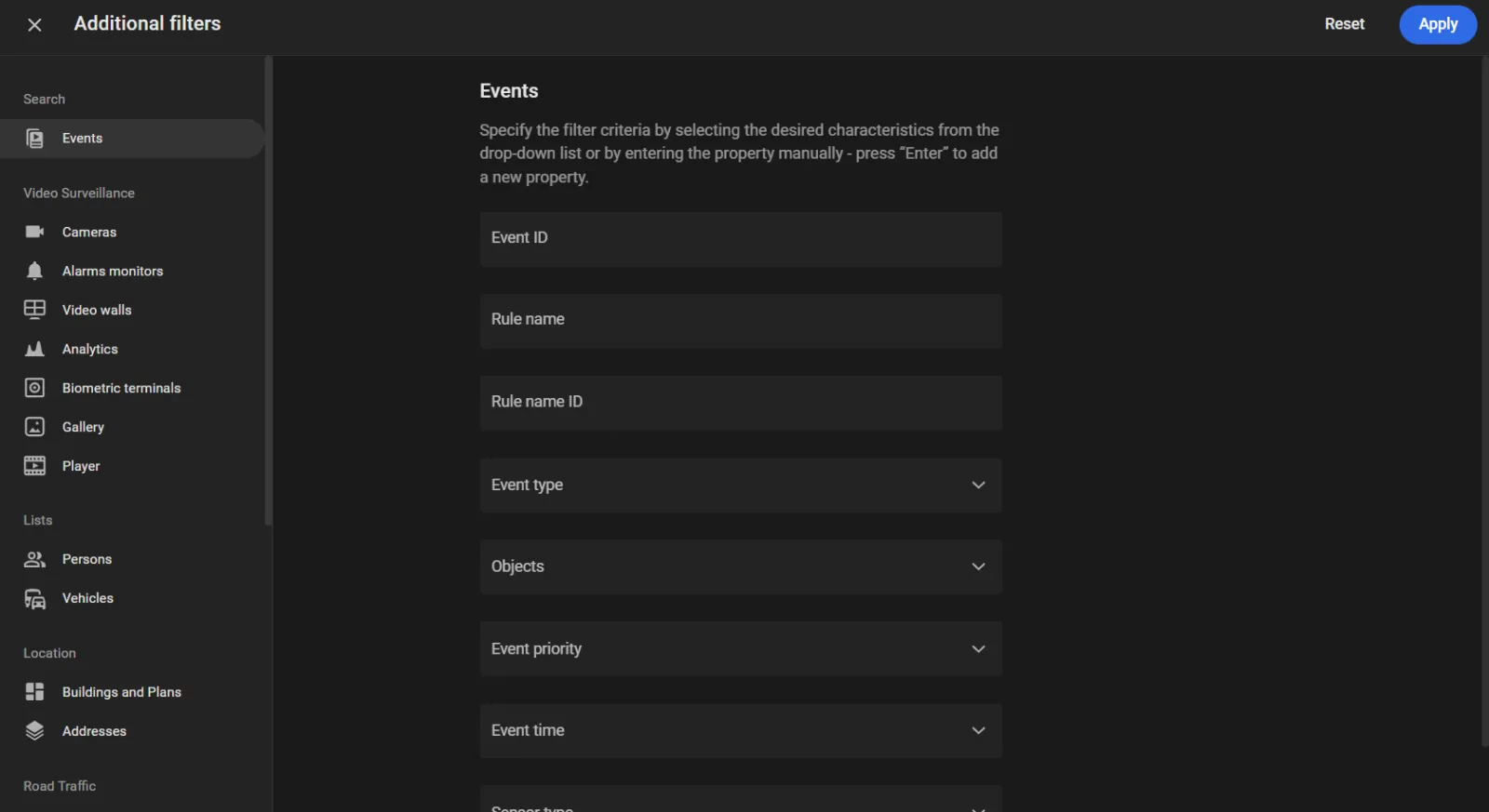
On the Events tab of Additional filters, set the filters for Logbook entries related to events.
Results include entries where the specified value appears:
- in a user action, for example when an event name is created or updated;
- in a Search for events entry from a search on the Events page;
- in a Search in logbook entry from a previous search on the Logbook page.
The following fields are available:
- Event ID: finds entries with the specified event identifier. Enter the full value of one or more identifiers. Press Enter after each value. Results include Search for events entries if the identifier was specified in a search on the Events page, and Search in logbook entries if the identifier was specified in Additional filters.
- System event name: finds entries by the system event name. Part of the name is enough; the full name is not required. Results include Event name created and Event name updated entries. Search for events and Alarm monitor filters updated entries are not included: those entries store the name ID, not the name text. To find those entries, use System event name ID.
- External event name: finds entries by the external event name. Part of the name is enough; the full name is not required. Results include External event name created and External event name updated entries. Search for events and Alarm monitor filters updated entries are not included: those entries store the name ID, not the name text. To find those entries, use External event name ID. The field is available when the platform can receive external events.
- System event name ID: finds entries with the specified system event name identifier. Enter the full value of one or more identifiers. Press Enter after each value. Results include Event name created and Event name updated entries, Search for events entries if the identifier was selected in a search on the Events page, Alarm monitor filters updated entries if the identifier is set in the filter, and Search in logbook entries if the identifier was specified in Additional filters.
- External event name ID: finds entries with the specified external event name identifier. Enter the full value of one or more identifiers. Press Enter after each value. Results include External event name created and External event name updated entries, Search for events entries if the identifier was selected in a search on the Events page, Alarm monitor filters updated entries if the identifier is set in the filter, and Search in logbook entries if the identifier was specified in Additional filters. The field is available when the platform can receive external events.
- Event type: finds entries by the event type selected in a search. One or more values can be selected: All, People, Vehicles, or Additional Events. Results include Search for events entries if that type was selected in a search on the Events page, and Search in logbook entries if the type was specified in Additional filters.
- Objects: finds entries by the object type selected in a search. One or more values can be selected. Results include Search for events entries if that object type was selected in a search on the Events page, and Search in logbook entries if the object type was specified in Additional filters.
- Distinctive features: finds entries by the distinctive features selected in a search. One or more values can be selected. Results include Search for events entries if those features were selected in a search on the Events page, and Search in logbook entries if the features were specified in Additional filters.
- Motorcyclist number: finds entries by the motorcyclist number selected in a search. One or more values can be selected. Results include Search for events entries if that number was selected in a search on the Events page, and Search in logbook entries if the number was specified in Additional filters.
- Moto safety gear: finds entries by the moto safety gear selected in a search. One or more values can be selected. Results include Search for events entries if that gear was selected in a search on the Events page, and Search in logbook entries if the gear was specified in Additional filters.
- Event priority: finds entries by the priority selected in a search. One or more values can be selected. Results include Search for events entries if that priority was selected in a search on the Events page, and Search in logbook entries if the priority was specified in Additional filters.
- Event time: finds entries whose search period on the Events page falls within the selected range. A single date or a date range can be selected. Only Search for events entries are included.
- Sensor type: finds entries by the sensor type selected in a search. One or more values can be selected. Results include Search for events entries if that sensor type was selected in a search on the Events page, and Search in logbook entries if the sensor type was specified in Additional filters.
- Human silhouette photo loaded: finds entries for a search in which a photo with a human silhouette was uploaded. If the field is checked, results include Search for events entries with that photo, and Search in logbook entries if the field was checked in Additional filters.
The fields on the Events tab are combined with AND. An entry appears in the results only if it matches every filled field. For example, if Event type is People and Event priority is High, only entries that have both that type and that priority appear in the results.
Values selected in the same field are combined with OR. An entry appears in the results if it matches at least one of the selected values. For example, if Event type includes People and Vehicles, the results include entries with either type.
To apply all saved additional filter values, click Apply in Additional filters. To run the search with the selected filters, click Search on the Logbook page.
Search by Violations
On the Violations tab of Additional filters, set the filters for Logbook entries related to traffic violations.
Results include entries where the specified value appears:
- in a user action, for example when a violation name is created or an export task is updated;
- in a Search for traffic violation entry from a search on the Traffic violations page;
- in a Search in logbook entry from a previous search on the Logbook page.
The following fields are available:
- Violation time: finds entries whose search period on the Traffic violations page falls within the selected range. A single date or a date range can be selected. Only Search for traffic violation entries are included.
- Violation type: finds entries with the selected violation type. One or more values can be selected. Results include Search for traffic violation entries if that type was specified in a search on the Traffic violations page, and Export task created and Export task updated entries if the type is set on the task.
- Violation ID: finds entries with the specified violation identifier. Enter the full value of one or more identifiers. Press Enter after each value. Results include Search for traffic violation entries if the identifier was specified in a search on the Traffic violations page, and Search in logbook entries if the identifier was specified in Additional filters.
- Violation name ID: finds entries with the specified violation name identifier. Enter the full value of one or more identifiers. Press Enter after each value. Results include Violation name created, Violation name updated, and Violation name deleted entries, and Search for traffic violation entries if the identifier was specified in a search on the Traffic violations page.
- Violation name: finds entries by violation name. Part of the name is enough; the full name is not required. Results include Violation name created, Violation name updated, and Violation name deleted entries. Search for traffic violation entries are not included: those entries store the name ID, not the name text. To find those entries, use Violation name ID.
- Violation priority: finds Search for traffic violation entries where that priority was selected in a search on the Traffic violations page. One or more values can be selected.
- Violation export task ID: finds entries for export tasks with the specified task identifier. Enter the full value of one or more identifiers. Press Enter after each value. Results include Export task created, Export task updated, Export task deleted, Export task turned on, and Export task turned off entries.
- Violation export task name: finds entries for export tasks by task name. Part of the name is enough; the full name is not required.
The fields on the Violations tab are combined with AND. An entry appears in the results only if it matches every filled field. For example, if Violation type is Forbidden maneuvers and Violation priority is High, only entries that have both that type and that priority appear in the results.
Values selected in the same field are combined with OR. An entry appears in the results if it matches at least one of the selected values. For example, if Violation type includes Forbidden maneuvers and Space mean speed above limit, the results include entries with either type.
To apply all saved additional filter values, click Apply in Additional filters. To run the search with the selected filters, click Search on the Logbook page.
Search by Camera Name and ID
On the Cameras tab of Additional filters, set the filters for Logbook entries related to cameras.
The following fields are available:
- Camera ID: finds entries with the specified camera identifier. Enter the full value of one or more identifiers. Press Enter after each value.
- Camera: finds entries by camera name. Part of the name is enough; the full name is not required. Search for events, Search for traffic violation, Search for persons, and Search for vehicles entries are not included.
The fields on the Cameras tab are combined with AND. An entry appears in the results only if it matches every filled field. For example, if Camera ID is 100 and Camera is Entrance, only entries that have both that identifier and that name appear in the results.
Values selected in the same field are combined with OR. An entry appears in the results if it matches at least one of the selected values. For example, if Camera ID includes 100 and 200, the results include entries with either identifier.
To apply all saved additional filter values, click Apply in Additional filters. To run the search with the selected filters, click Search on the Logbook page.
Search by Layout Name and ID
On the Layouts tab of Additional filters, set the filters for Logbook entries related to layouts.
The following fields are available:
- Layout ID: finds entries with the specified layout identifier. Enter the full value of one or more identifiers. Press Enter after each value.
- Layout name: finds entries by layout name. Part of the name is enough; the full name is not required.
The fields on the Layouts tab are combined with AND. An entry appears in the results only if it matches every filled field. For example, if Layout ID is 10 and Layout name is Lobby, only entries that have both that identifier and that name appear in the results.
Values selected in the same field are combined with OR. An entry appears in the results if it matches at least one of the selected values. For example, if Layout ID includes 10 and 20, the results include entries with either identifier.
To apply all saved additional filter values, click Apply in Additional filters. To run the search with the selected filters, click Search on the Logbook page.
Search by Played-Back Video Date and Time
For Live video loaded and Archived video loaded entries, the Logbook records the start and end of the played-back interval. An entry is written when playback ends, or every three hours during a long session.
To find entries for a playback interval:
- On the Logbook page, open Additional filters.
- Open the Player tab.
-
Set Played back video date/time to the start and end of the interval, then click Apply.
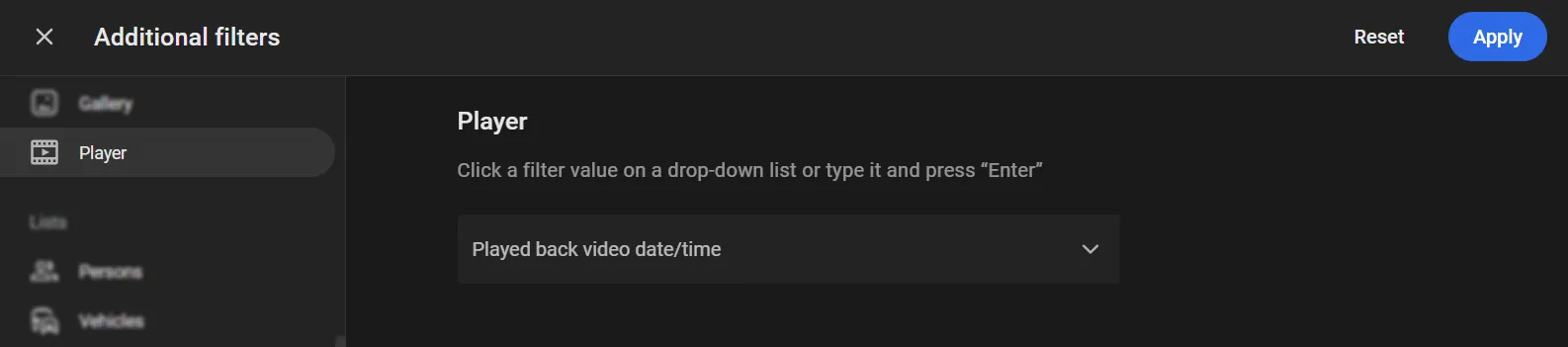
- Click Search on the Logbook page.
The results include entries whose playback interval intersects the filter range (including matching interval boundaries).
For example, if the filter range is 10:00–10:30, the results include playbacks that intersect it:
- 09:50–10:40 — playback started before and ended after the filter range;
- 10:05–10:20 — playback entirely inside the filter range;
- 09:50–10:10 — playback started before the filter range and ended inside it;
- 10:20–10:40 — playback started inside the filter range and ended after it;
- 10:30–10:45 — playback started at the end of the filter range.
Playbacks that do not intersect the filter range (for example, 09:00–09:59) are not included.
Search by Person Photo or Descriptor
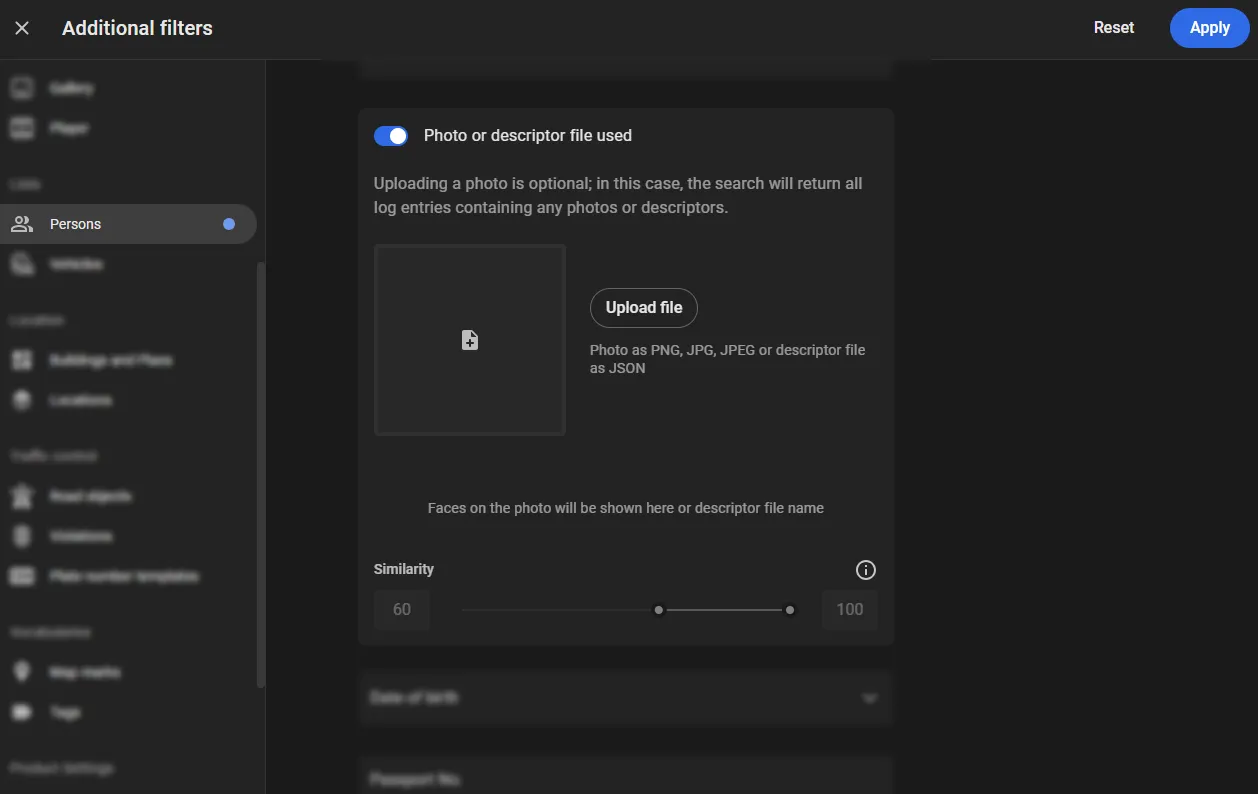
In Additional filters, on the Persons tab, upload a photo or descriptor file to find Logbook entries for actions in the system that used a similar photo or descriptor.
- On the Logbook page, open Additional filters.
- Open the Persons tab.
-
In the Photo or descriptor file used form, upload a photo file (JPEG, PNG) or a descriptor file (JSON).
-
After the file is uploaded, set Similarity and click Apply.
Similarity defines the similarity range between a face on the photo (descriptor) and a face in the Logbook entry.
The Similarity scale is unavailable until a photo or descriptor file is uploaded.
- Click Search on the Logbook page.
The Logbook page then shows entries for actions that used a similar photo or descriptor, based on the set similarity.
Generate and Download a Logbook Report
On the Logbook page, generate a CSV report with the Logbook search results for the selected main and additional filters.
- Set the search criteria on the Logbook page and click Search.
-
Click the icon
 and select Compile report.
The platform starts preparing the report. The Reports window opens with the list of initiated reports; a notification about the start of preparation is shown.
-
Wait until the created report status is Ready, then click the download icon.
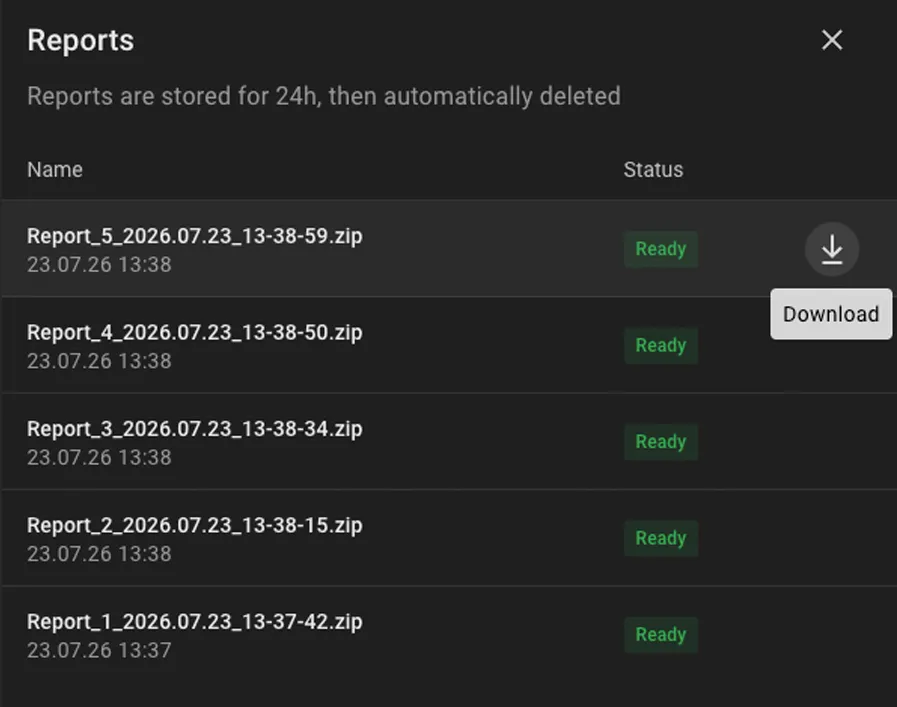
The report downloads as an archive with one or more CSV files. If the number of entries exceeds 100,000, several files are created in one archive.
To return to previously prepared reports, click the icon and select Report list. The Reports window opens with the list of reports initiated by the current user. For each report, its name and status are shown:
- Ready: the report is prepared and ready to download; click the download icon next to the status.
- In progress: the report is being generated.
- Error: an error occurred while generating the report; to retry, select Retry.
Downloading a report adds a Logbook entry with the event type Logbook report downloaded.
Automatic Logbook Export
Automatic Logbook export regularly provides information about user actions in the system for access control and transfer to external monitoring systems.
Automatic export is not configured in the product UI. When export is required, its parameters are set in the cluster configuration. The configuration includes the following:
- User: the user who can access the export files.
- User group: the file includes entries for actions by users in the selected group and its subgroups.
- Frequency: the export run interval (minimum: 10 minutes). Only Logbook entries from that interval are included; already exported entries are not included again. Example: with a frequency of 10 minutes, every 10 minutes a file is created with only the entries from those 10 minutes. If there are no entries in the interval, no file is created.
- Event types: which Logbook entries to include in the file — all entries or only selected types.
- Retention period: how long the file is kept in storage after export. The file is kept from 1 to 30 days.
Export data is saved as JSON files. The files are placed in cluster storage; external systems retrieve them on their own. Each export run creates one file, not an archive. The file contains an array of objects. Each object corresponds to one Logbook entry.
Sample Export File
[
  {
    "event_time": "2026-05-26 08:26:17.899000000",
    "type": "AUDIT_SEARCH_PERFORMED",
    "actor_email": "[email protected]",
    "actor_id": 1,
    "actor_first_name": "UNKNOWN_NAME",
    "actor_last_name": "UNKNOWN_NAME",
    "actor_ip": "10.0.0.1",
    "actor_security_groups": ["101"],
    "resource_id": "-",
    "resource_type": "LOGBOOK",
    "resource_name": "-",
    "params": {
      "search_domain": "PERSONS",
      "date_from": "2026-05-26T00:00:00",
      "date_to": "2026-05-26T23:59:59",
      "channel_ids": [42, 57]
    },
    "images": [
      {
        "data": "base64-or-descriptor-data",
        "image_link": null,
        "alg_type": 2,
        "major_version": 20200706,
        "minor_version": 1,
        "quality": null
      }
    ]
  }
]
Parameter Values in the Export File
| Parameter | Field Type | Required | Comments |
|---|---|---|---|
event_time |
string | yes | Date and time of the action in the cluster time zone |
type |
string | yes | Logbook event type |
actor_email |
string | yes | Email of the user who performed the action |
actor_id |
number | yes | User ID |
actor_first_name |
string | yes | User first name. If the first name is missing — value "UNKNOWN_NAME" |
actor_last_name |
string | yes | User last name. If the last name is missing — value "UNKNOWN_NAME" |
actor_ip |
string | yes | User IP address |
actor_security_groups |
array | yes | User groups |
resource_id |
string | yes | Resource ID. If there is no resource — value "-" |
resource_type |
string | yes | Type of the resource the action was performed on |
resource_name |
string | yes | Resource name. If the name is missing — value "-" |
params |
object | yes | Additional event parameters. The set depends on the event type |
images |
array | yes | Attachments to the Logbook entry. Face photos and descriptors used in the action, for example during a photo search or when adding a face photo |
images[].data |
string | yes | Attachment content: image data in Base64 format or descriptor data |
images[].image_link |
string | no | Link to the image, if present in the entry data |
images[].alg_type |
number | yes | Face descriptor algorithm type code |
images[].major_version |
number | yes | Major version of the face descriptor |
images[].minor_version |
number | yes | Minor version of the face descriptor |
images[].quality |
number | no | Face descriptor quality |